

Approve a period, or send it back
When your team uses approvals, each person sends their hours for a period and somebody else checks them. This is how to approve a period, or send it back with a reason.
- Who can do this
- The Approver, Admin or Owner
- What you need first
- Approvals turned on for your team, and at least one period sent to you.
- How long it takes
- About 2 minutes
Step 1: Open Approvals from your Team page
Sign in and go to jobtracker.co.nz/team. Near the top of your Team page, press Approvals. The button counts what is waiting, for example Approvals (7 waiting for you).
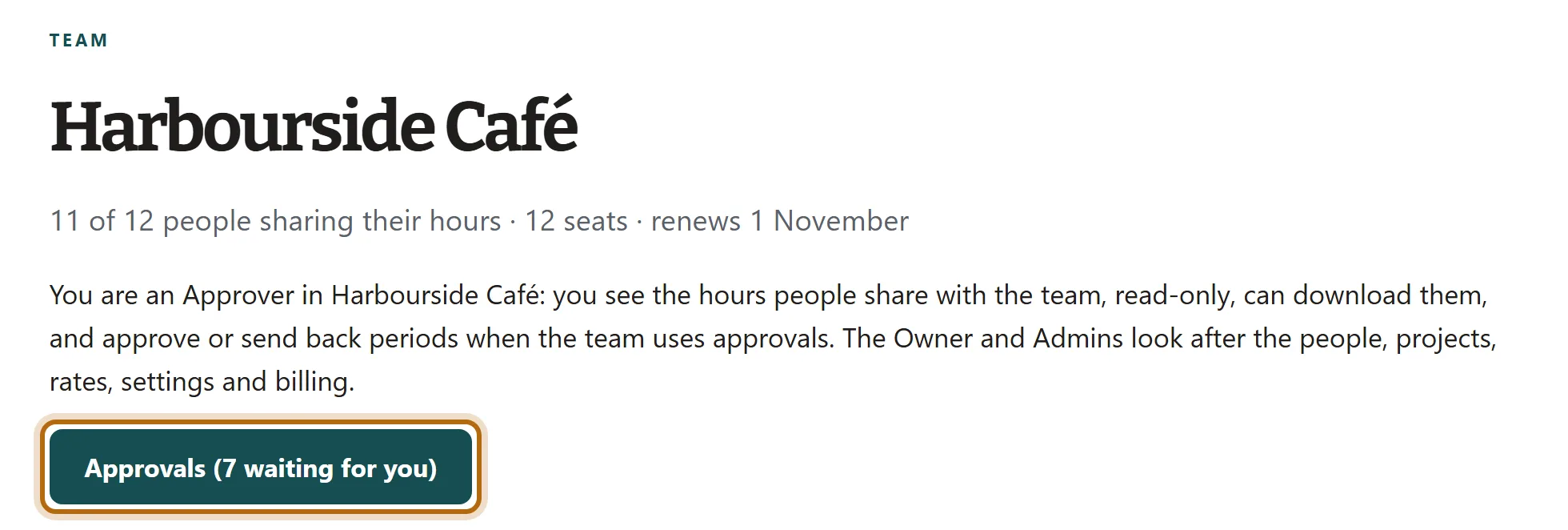
In each picture, the thing to press or read has a ring around it. Tap a picture to see it full size.
Step 2: Find the period under Waiting for you
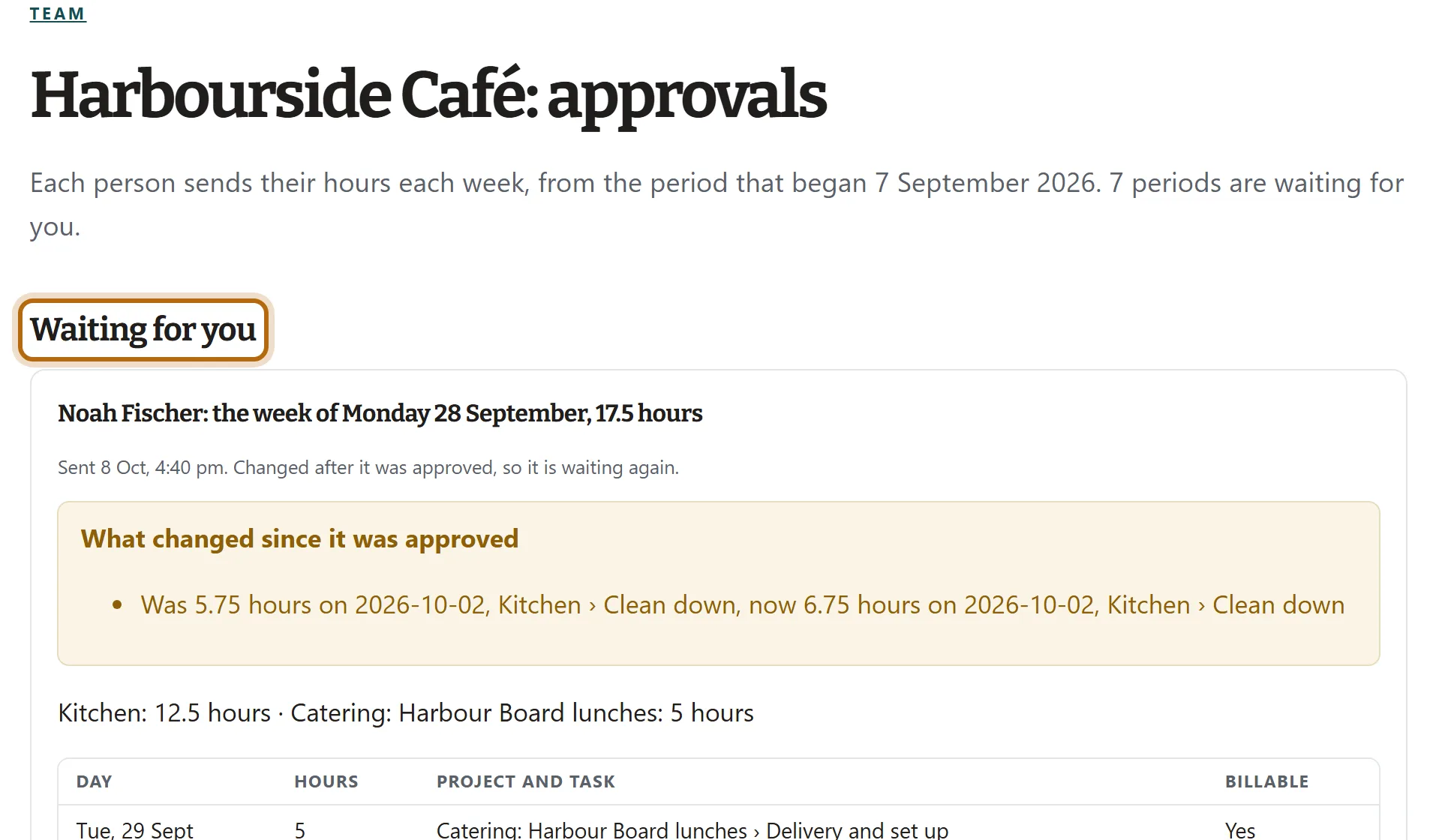
Every period sent to you is listed under Waiting for you, oldest first. Each box is one person's period: their name, the week and the total hours. Your own hours are never in this list, because nobody approves their own time.
Step 3: Read the days before you decide
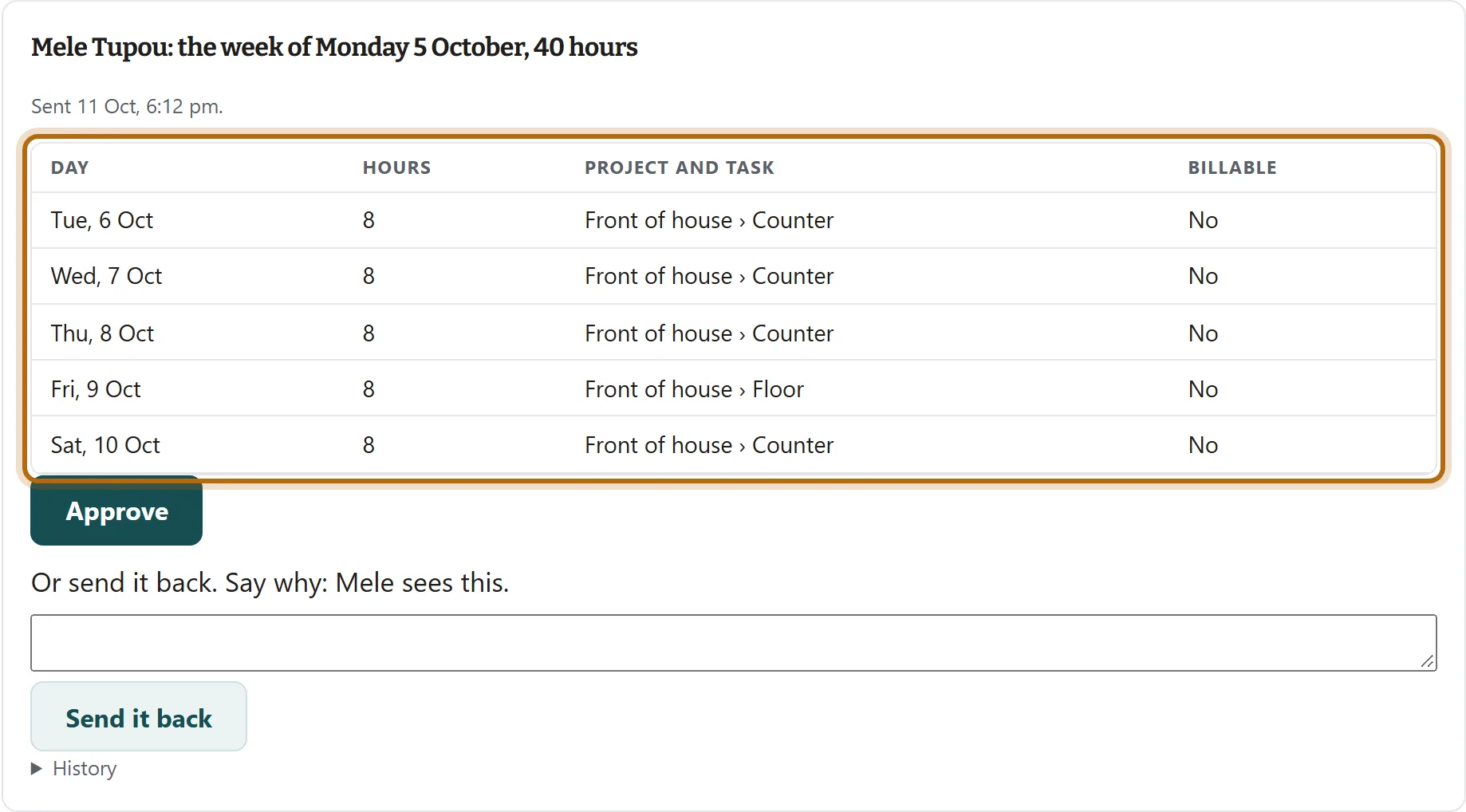
Each line in a person's box is one entry: the day, the hours, the project and task, and whether it is billable. Check it against your roster or job sheets. You see hours here, never notes or pay.
Step 4: Press Approve
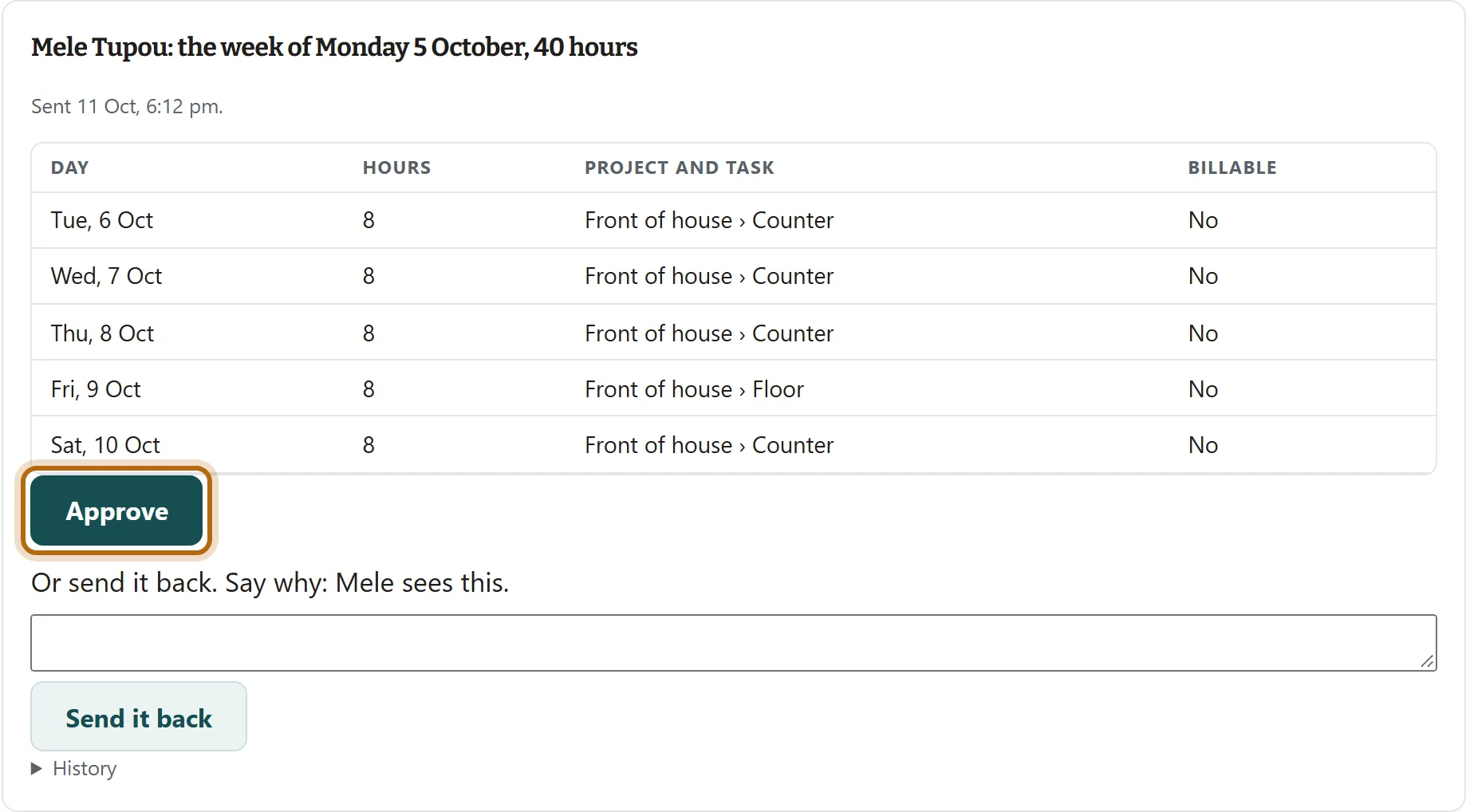
If the hours are right, press Approve, under the table in that person's box.
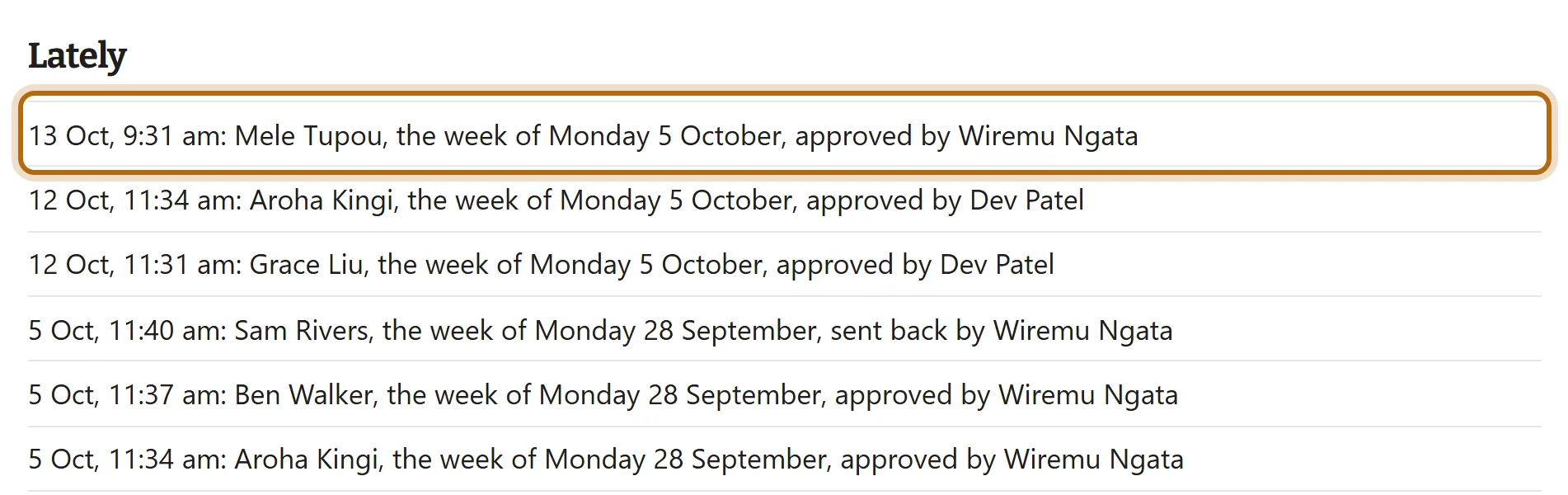
Step 5: Check it under Lately
The page says Approved. and the period leaves the waiting list. It now appears under Lately, at the bottom of the page, with your name and the time. Approving freezes the hours as they stood.
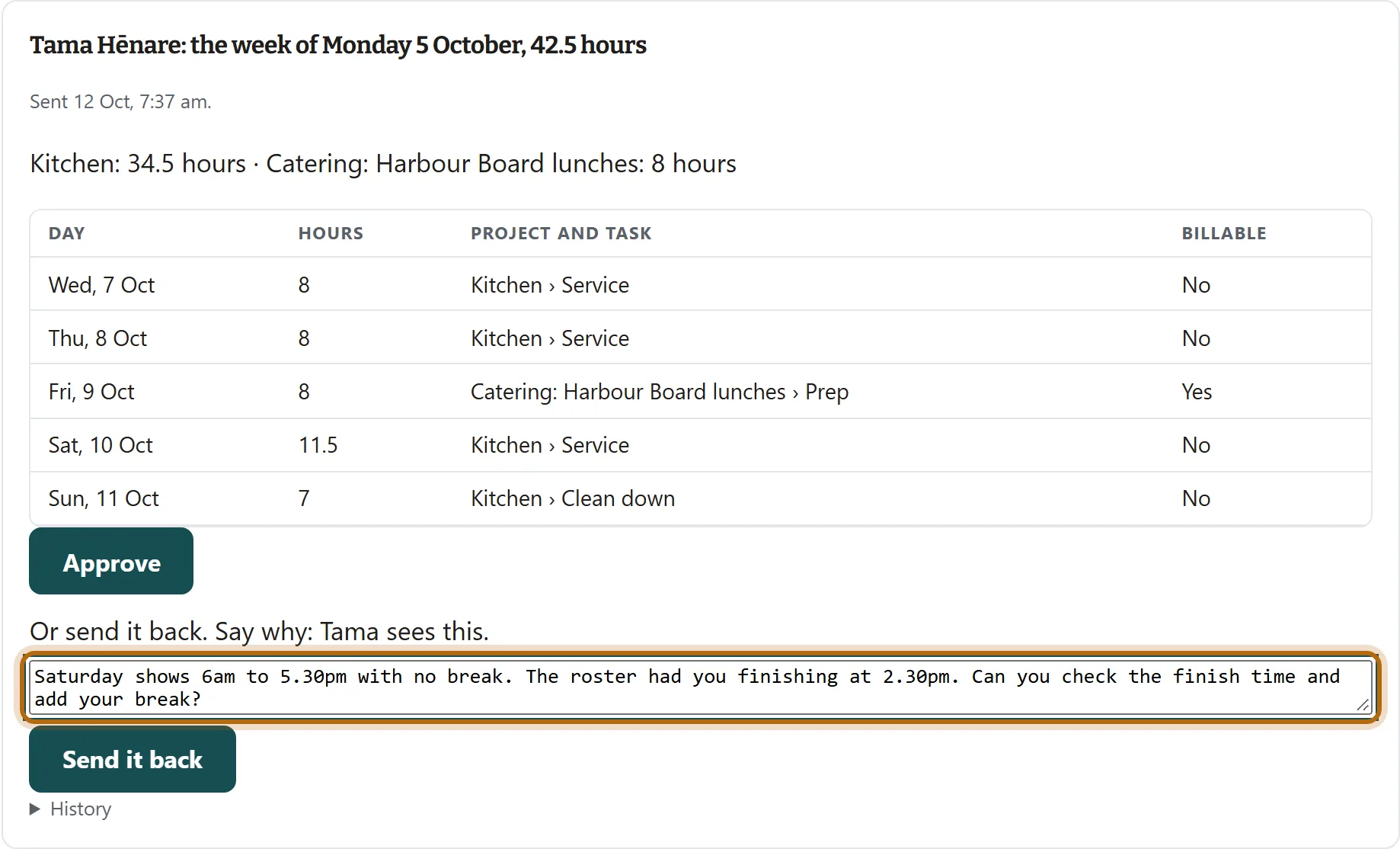
Step 6: To send a period back instead, say why
If something looks wrong, do not approve it. In the box under Or send it back. Say why, type what needs fixing. Be specific: the person reads your exact words.
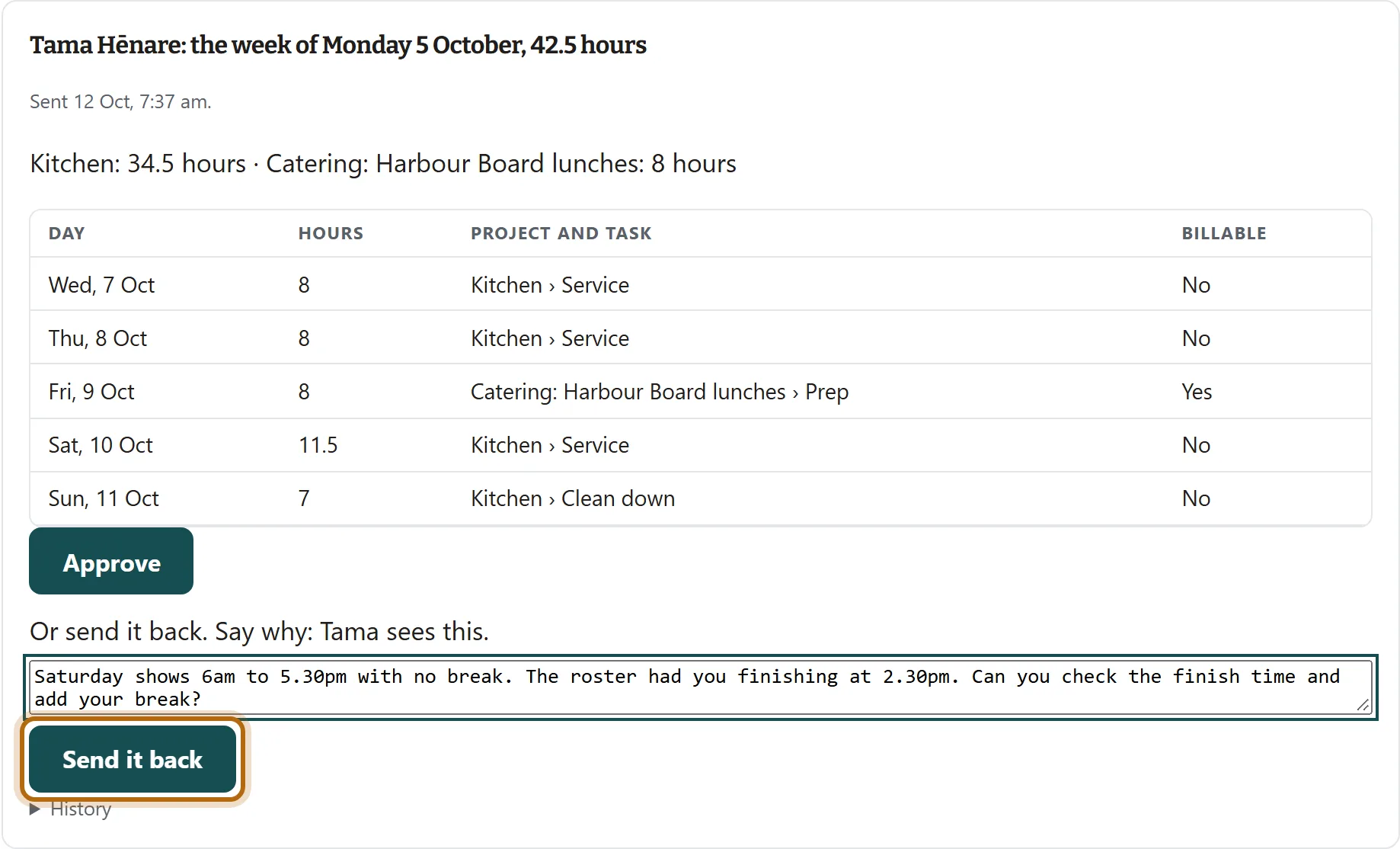
Step 7: Press Send it back
Send it back can be pressed once a reason is typed. Press it. The page says Sent back. They have been told.
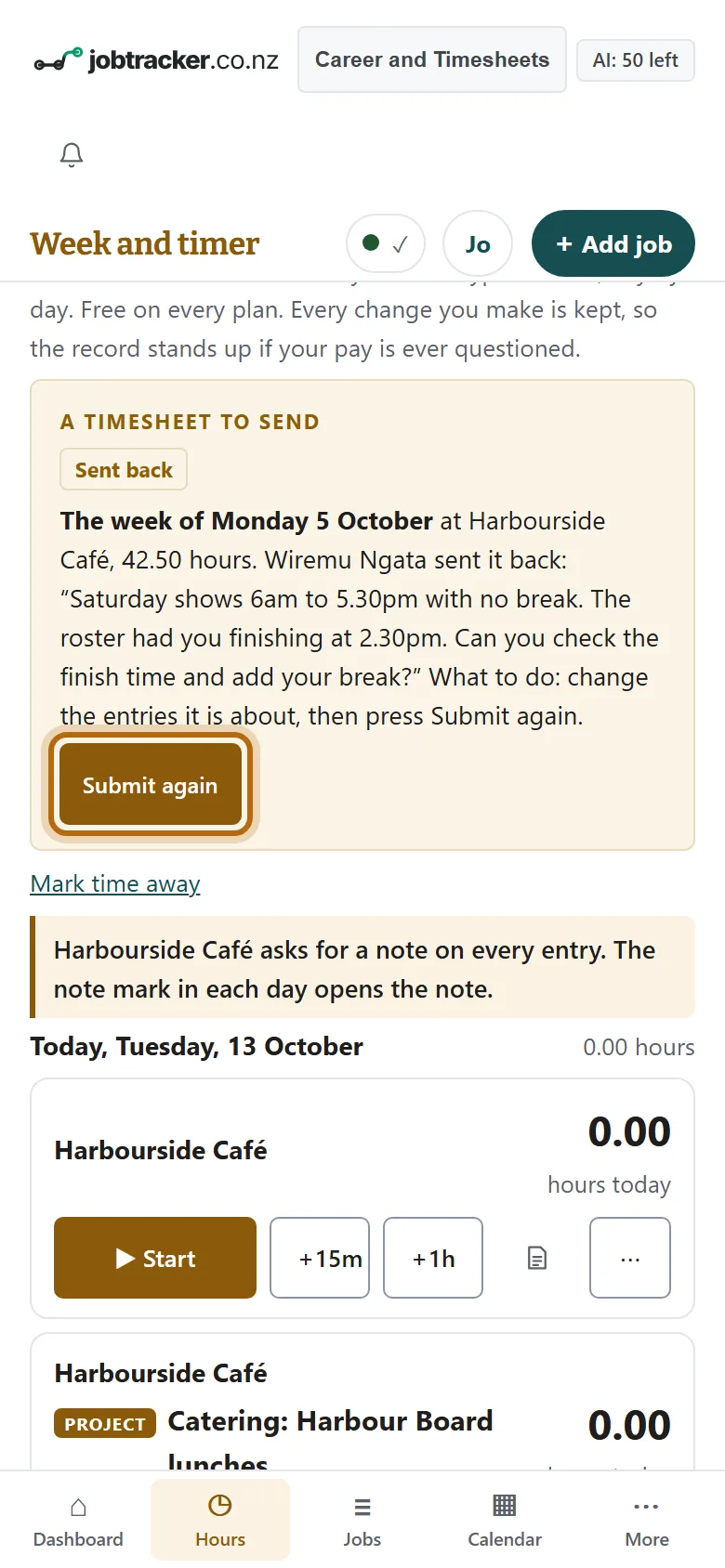
Step 8: What the person sees
In their own app, on Week and timer in Your Timesheets, the period is marked Sent back with your reason. They fix the entries and press Submit again, and the period returns to your waiting list.
What happens next
- If you approved: the hours are kept as they stood. If the person later changes an entry in that period, it comes back to Waiting for you, marked Changed after it was approved, with a list of what changed.
- If you sent it back: the person is told in their app and by one email. Your reason stays in the period's History.
- With approvals on, only approved billable hours can go on an invoice.
If it doesn't look like this
It says Nothing is waiting for you
Nobody has sent a period yet, or the only ones waiting are your own, which go to somebody else.
It says This team does not use approvals
Approvals are off. The Owner or an Admin turns them on, at the top of this same page.
The button says Approve your projects
An Admin has limited you to certain projects. You approve those hours only, and the period is approved once every part is.
It says their hours changed since you opened it
The person edited an entry while you were reading. Reload the page, read the new hours, then approve.
From jobtracker.co.nz/how-to/team/approve-or-send-back · Screens checked 10 October 2026