

After approval: what an edit does, and reading the history
Approving a period keeps its hours as they stood. Nothing is locked: the person can still change an entry, and when they do, the period goes back for approval by itself, with a list of what changed.
- Who can do this
- Everyone in the team
- What you need first
- A team that uses approvals, and a period that has been approved.
- How long it takes
- About 3 minutes
Step 1: An approved period says who approved it, and when
In the app, on Week and timer, go to the week. Under the dates the period is marked Approved, with the name of whoever approved it and the day.
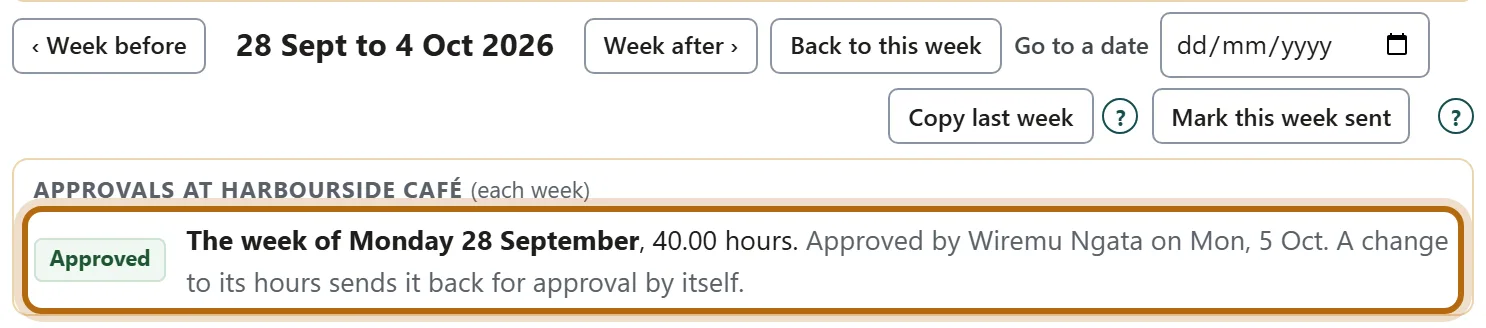
In each picture, the thing to press or read has a ring around it. Tap a picture to see it full size.
Step 2: Before you change an entry, the app says what it will do
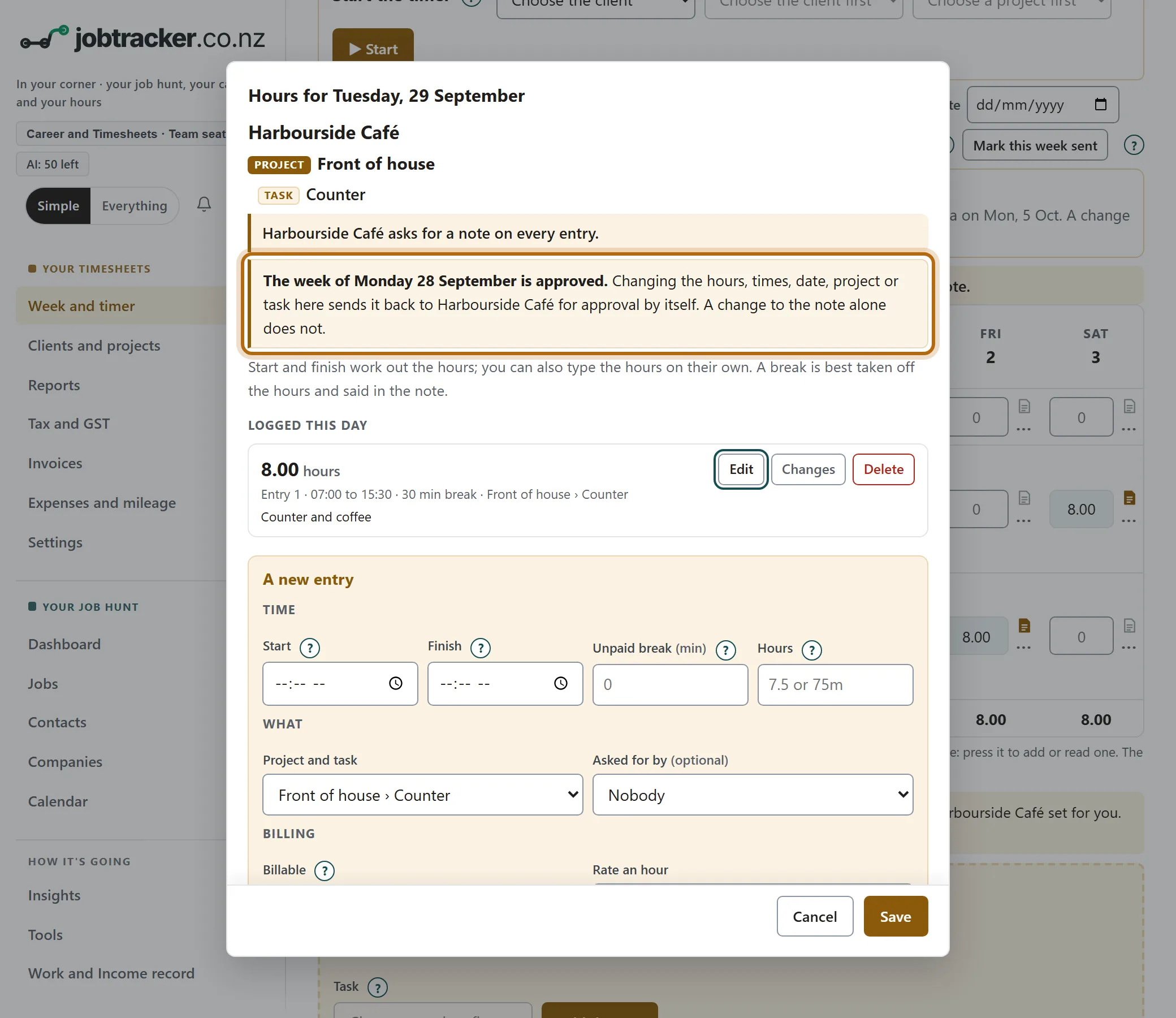
Open a day in that week. A line says the period is approved, and that changing the hours, times, date, project or task sends it back to the team for approval by itself. A change to the note alone does not.
Step 3: After the change, the period says Reopened
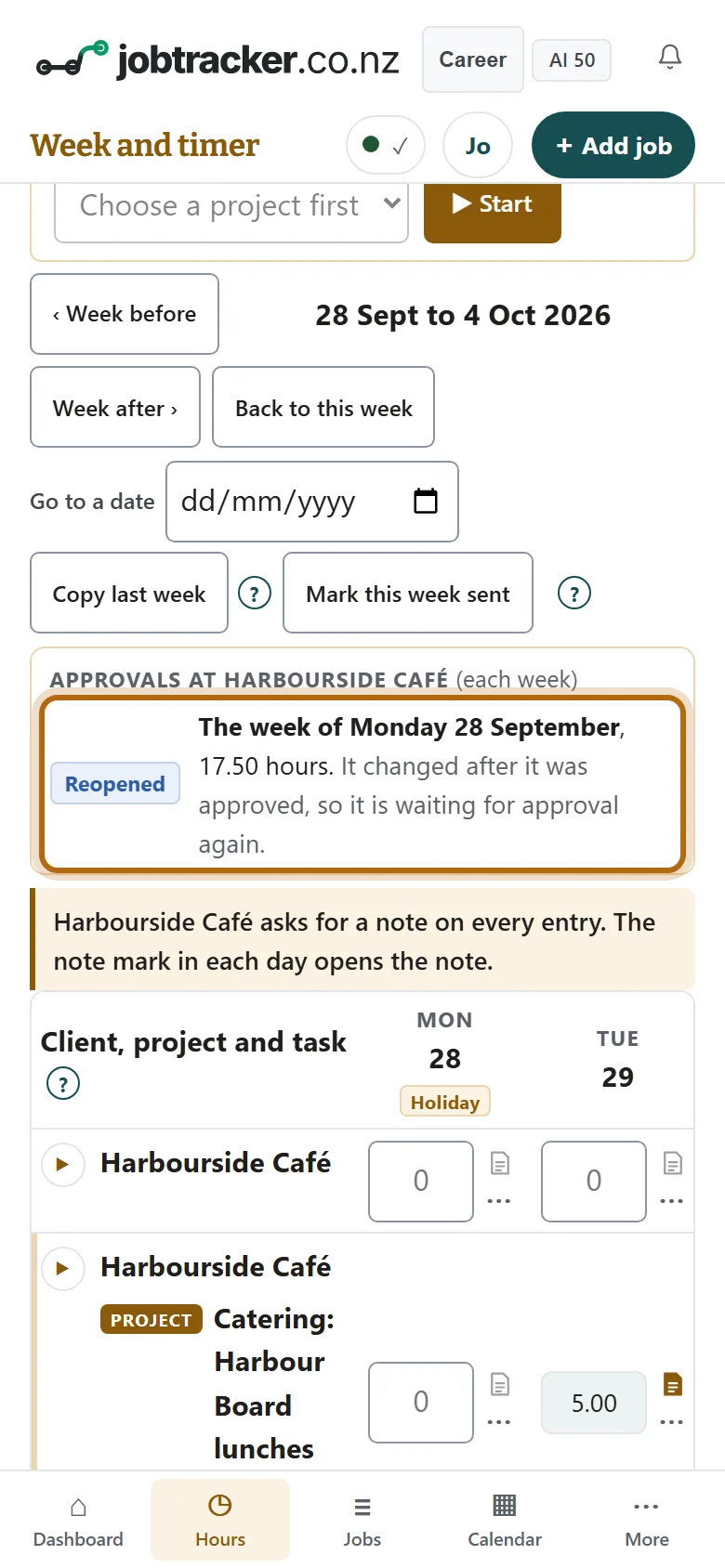
Saving the change confirms it: It goes back to the team for approval. The period is then marked Reopened. There is nothing to submit: it is already waiting.
Step 4: Whoever approves sees it marked Changed after approval
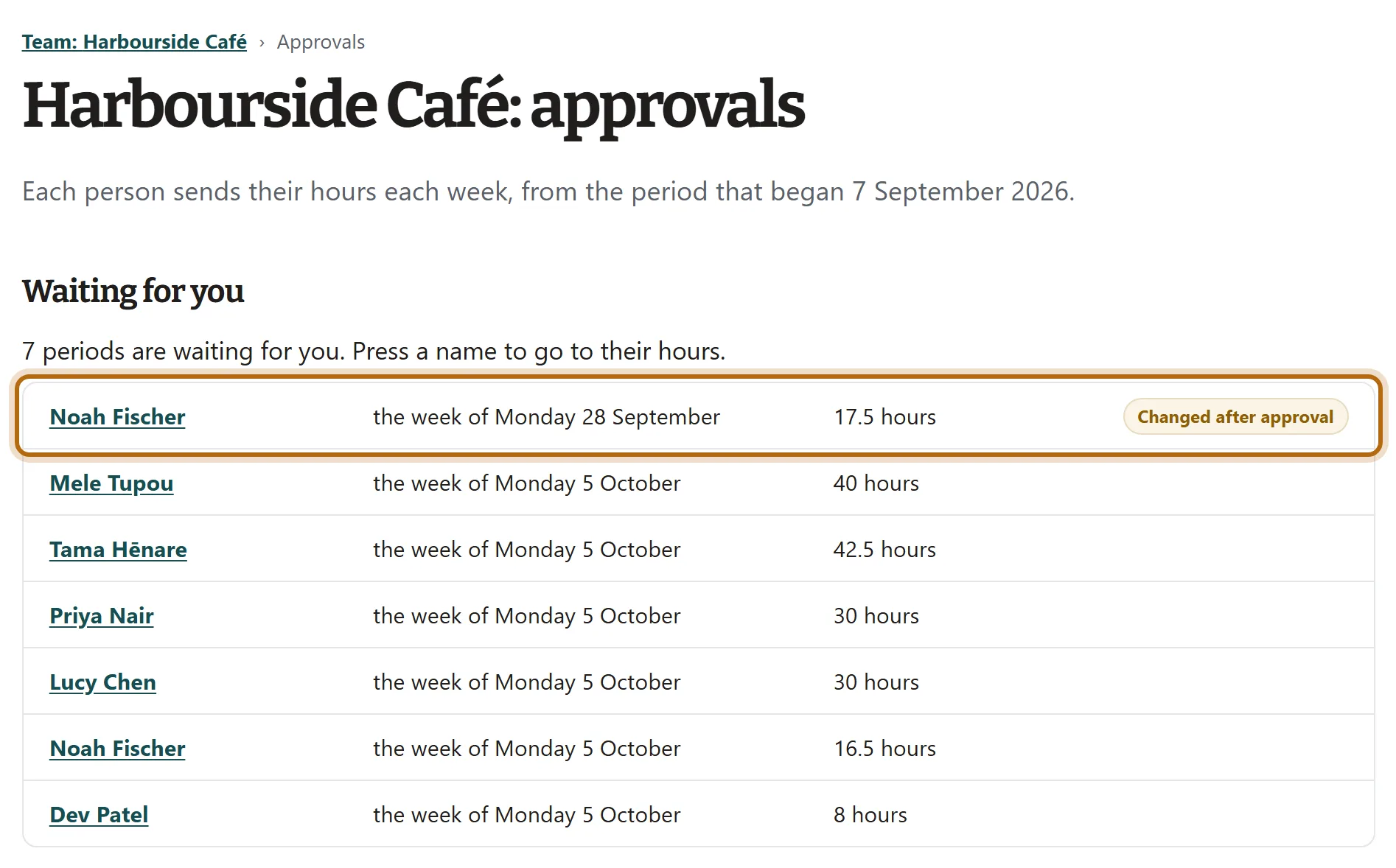
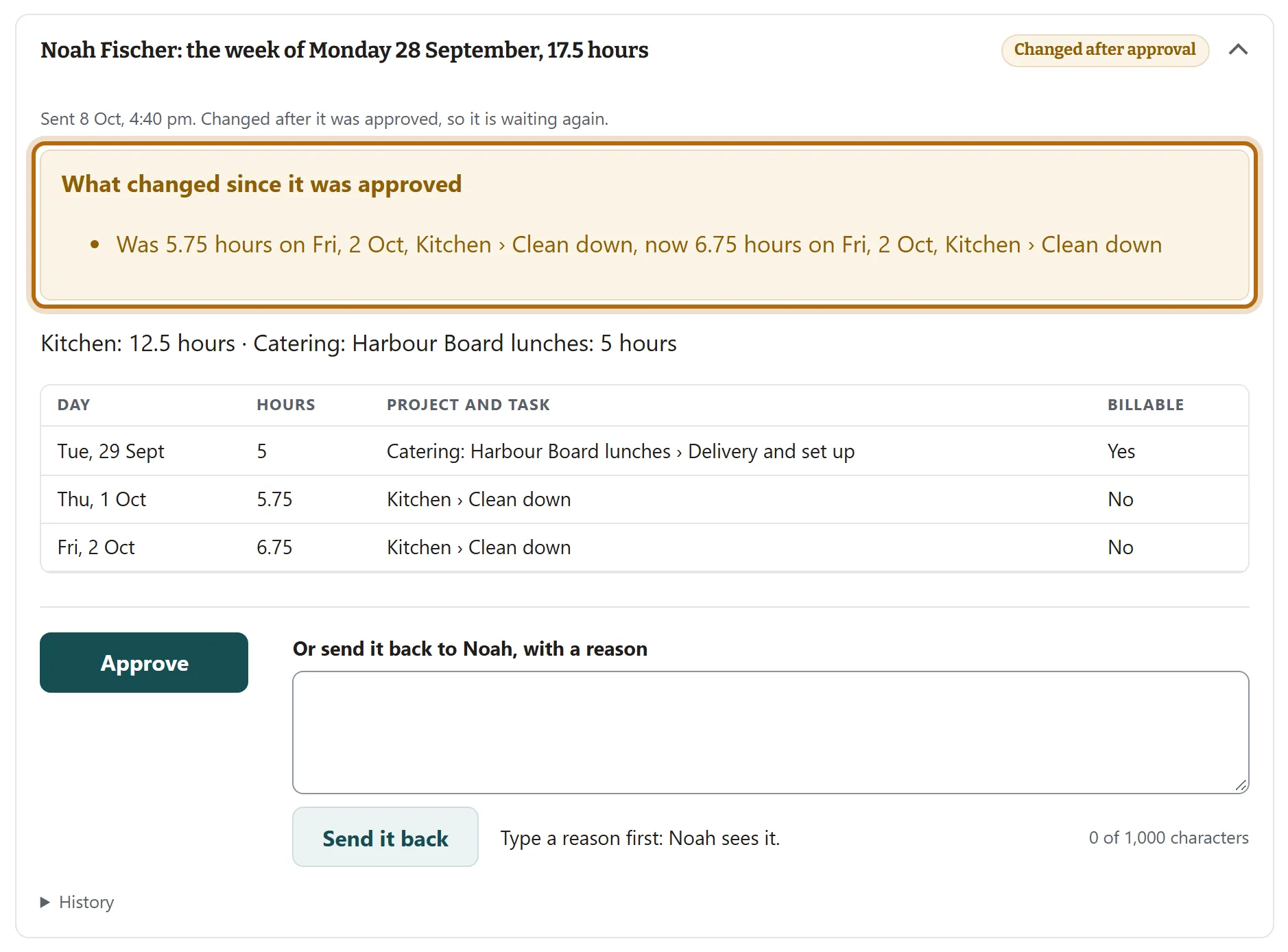
On the team's Approvals page, the period is back under Waiting for you, marked Changed after approval.
Step 5: Read what changed
Press the name. The person's box opens with What changed since it was approved: each entry as it was, and as it is now.
Step 6: Open History for the period's record
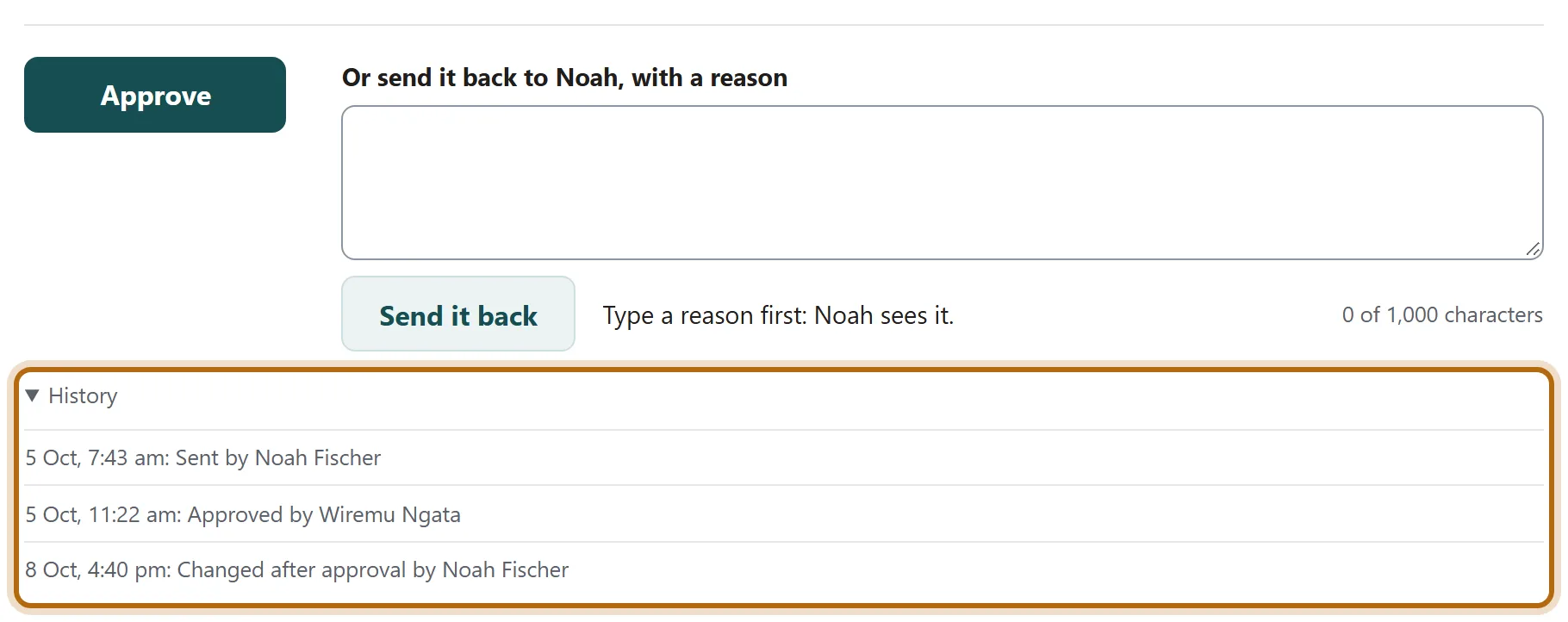
At the foot of the box, press History. It lists everything that has happened to the period, oldest first: when it was sent, who approved it, when it changed, and any reason it was sent back with.
Step 7: Each entry keeps its own changes too
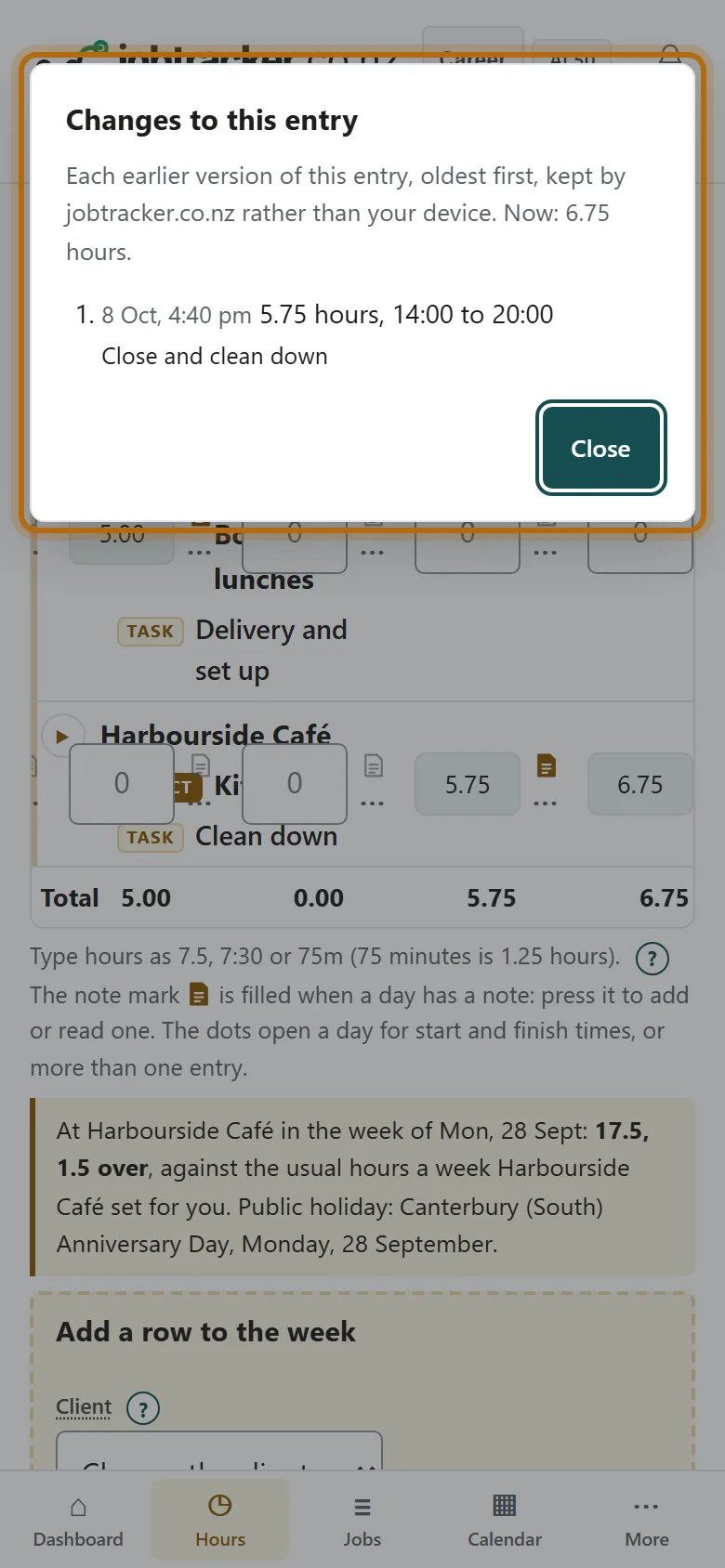
In the app, open the day and press Changes beside an entry. It lists each earlier version of that entry, oldest first, and what it says now.
What happens next
- Whoever approves reads the change, then approves the period again or sends it back with a reason.
- Approved hours keep the rate they were approved at.
- If the hours are already on an invoice, the invoice does not change. The Owner and Admins see a count on Invoices to clients of invoiced hours somebody has changed.
If it doesn't look like this
You fixed a note and nothing was reopened
A change to the note alone does not send an approved period back. Hours, times, the date, the project and the task do.
A Reopened period has no Submit button
It went back for approval by itself when you saved the change. It is already waiting.
The day says the period is waiting for approval
It has been sent and not decided yet. You can still change an entry: the change shows to whoever approves it.
From jobtracker.co.nz/how-to/team/after-approval · Screens checked 13 October 2026