

Sent back: fix and resubmit
A period you sent has come back with a reason. Nothing is lost: you read the reason, change the entry it is about, and send the period again.
- Who can do this
- The Member
- What you need first
- A period marked Sent back. You are told in the app and by one email.
- How long it takes
- About 3 minutes
Step 1: Read the reason on Week and timer
Open Week and timer. The box at the top lists the period, marked Sent back, with who sent it back and their reason in their own words, then What to do.
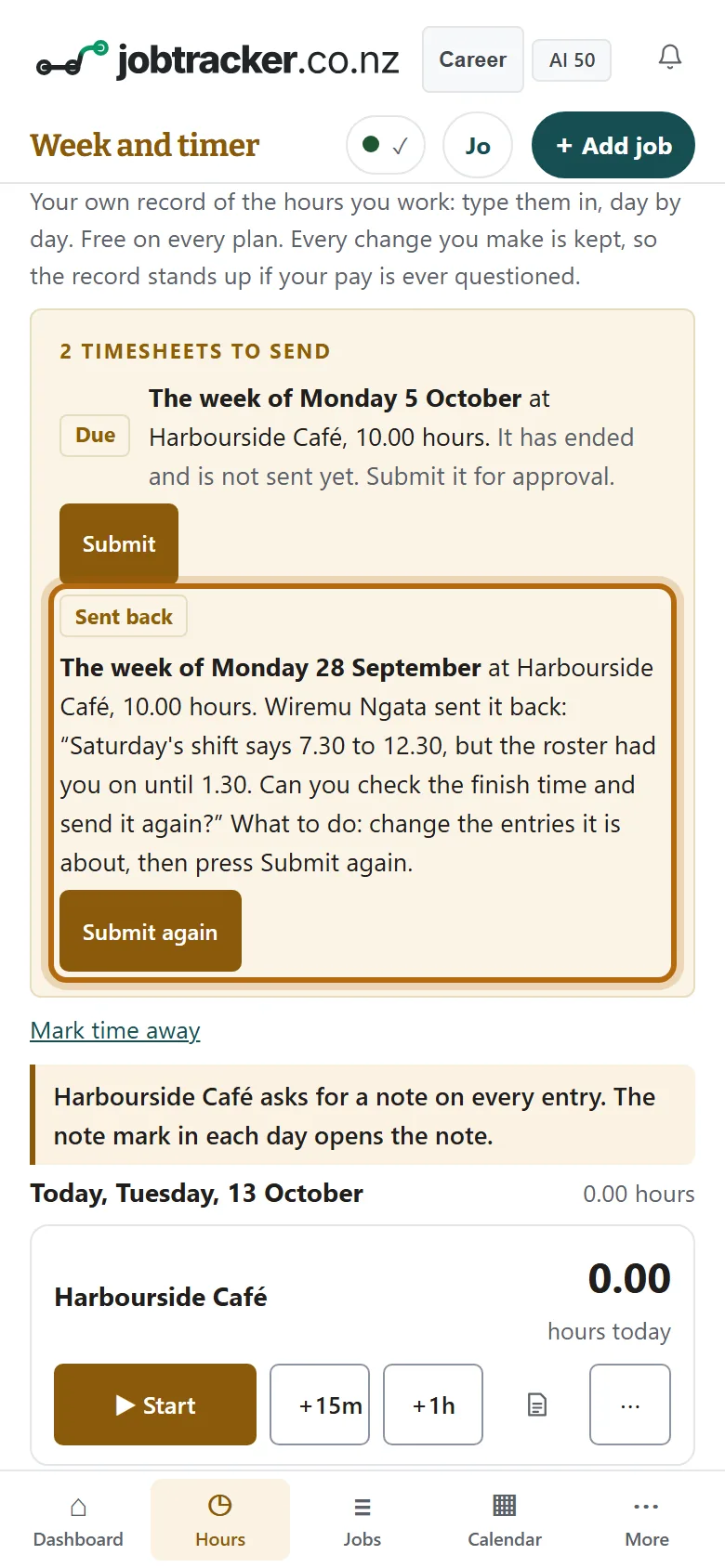
In each picture, the thing to press or read has a ring around it. Tap a picture to see it full size.
Step 2: Go to that week
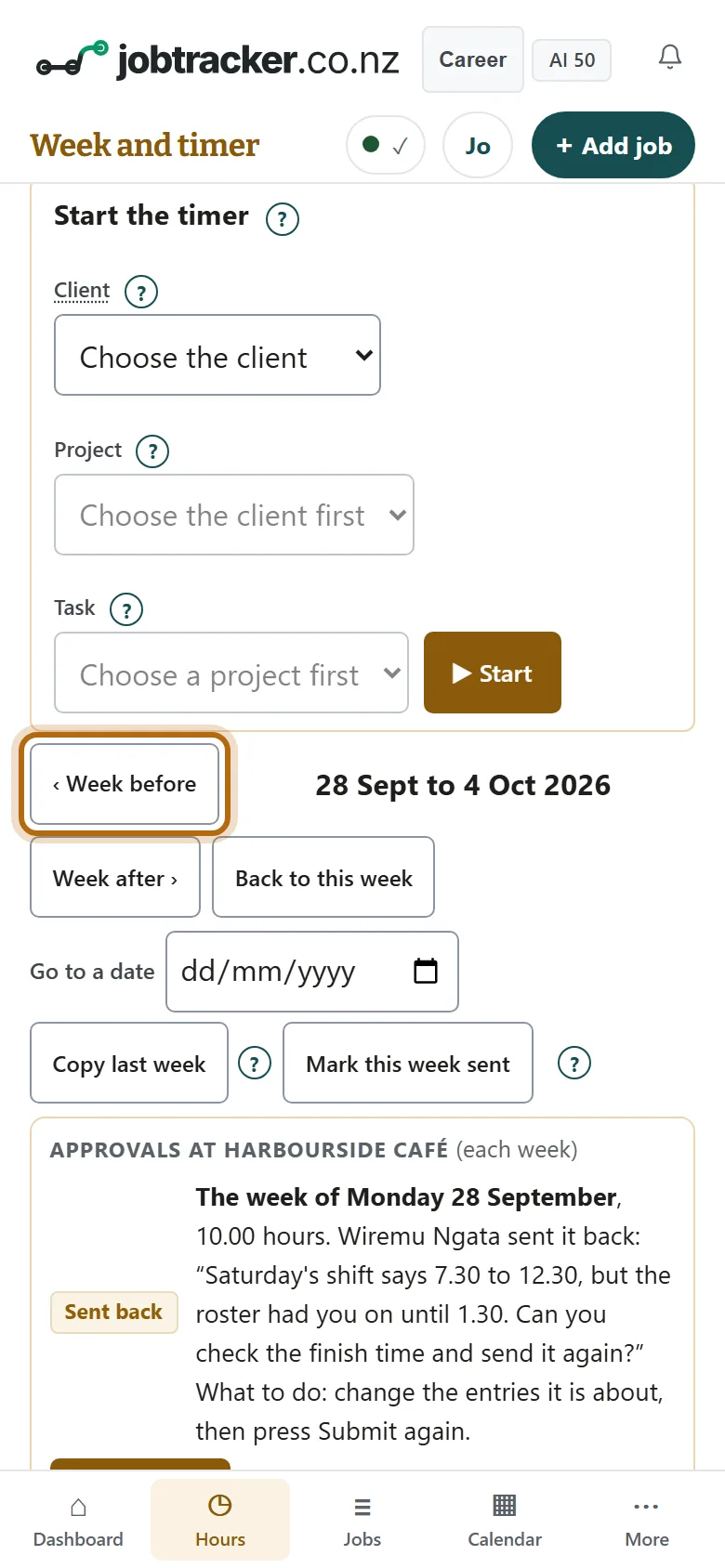
Press See the whole week, then Week before until the dates are that period's. On a computer the week is already on the page. The reason is repeated under the dates.
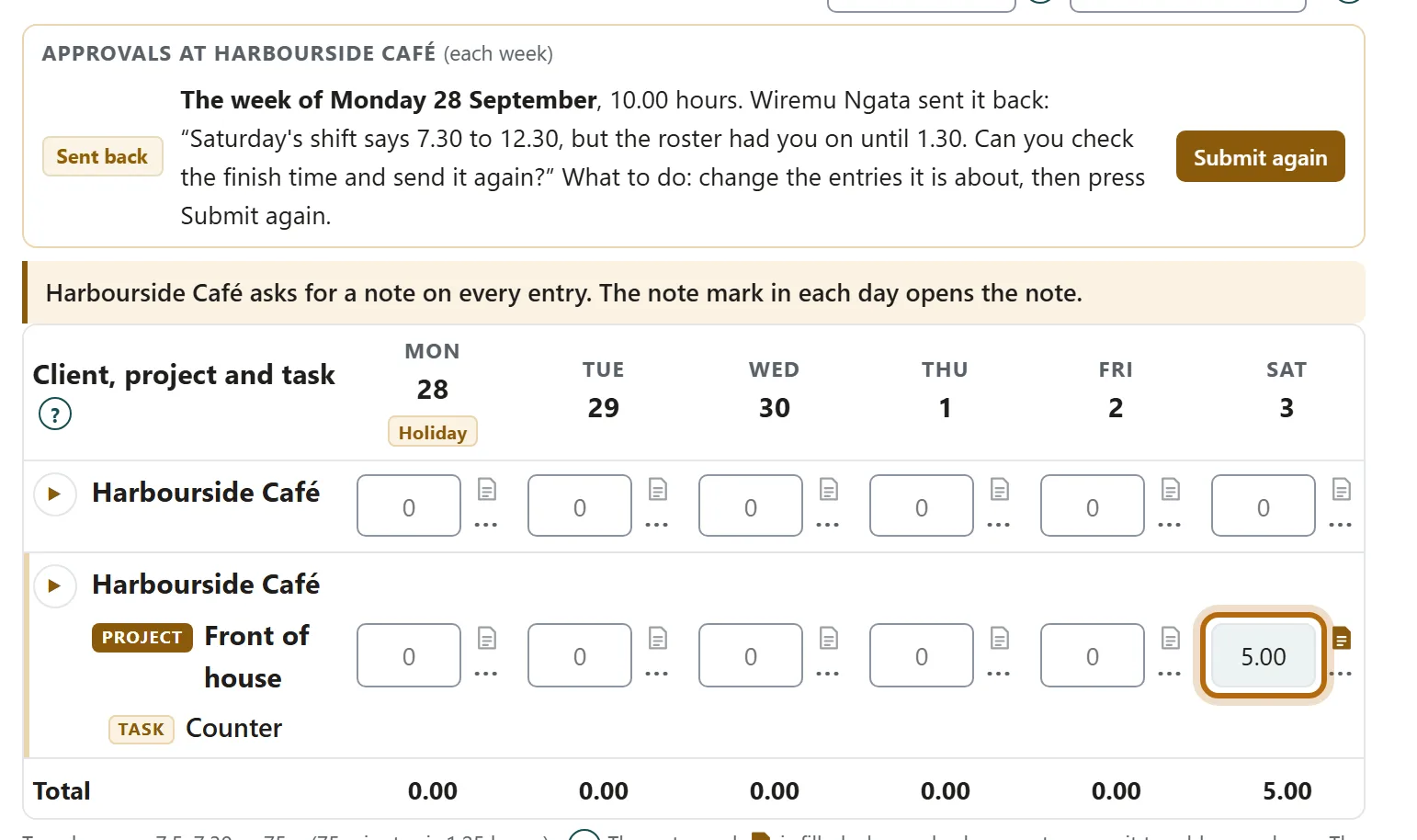
Step 3: Press the hours on the day the reason is about
Here that is Saturday: 5.00. A day with start and finish times opens in its own window. A day with hours alone is a box you type the new hours into.
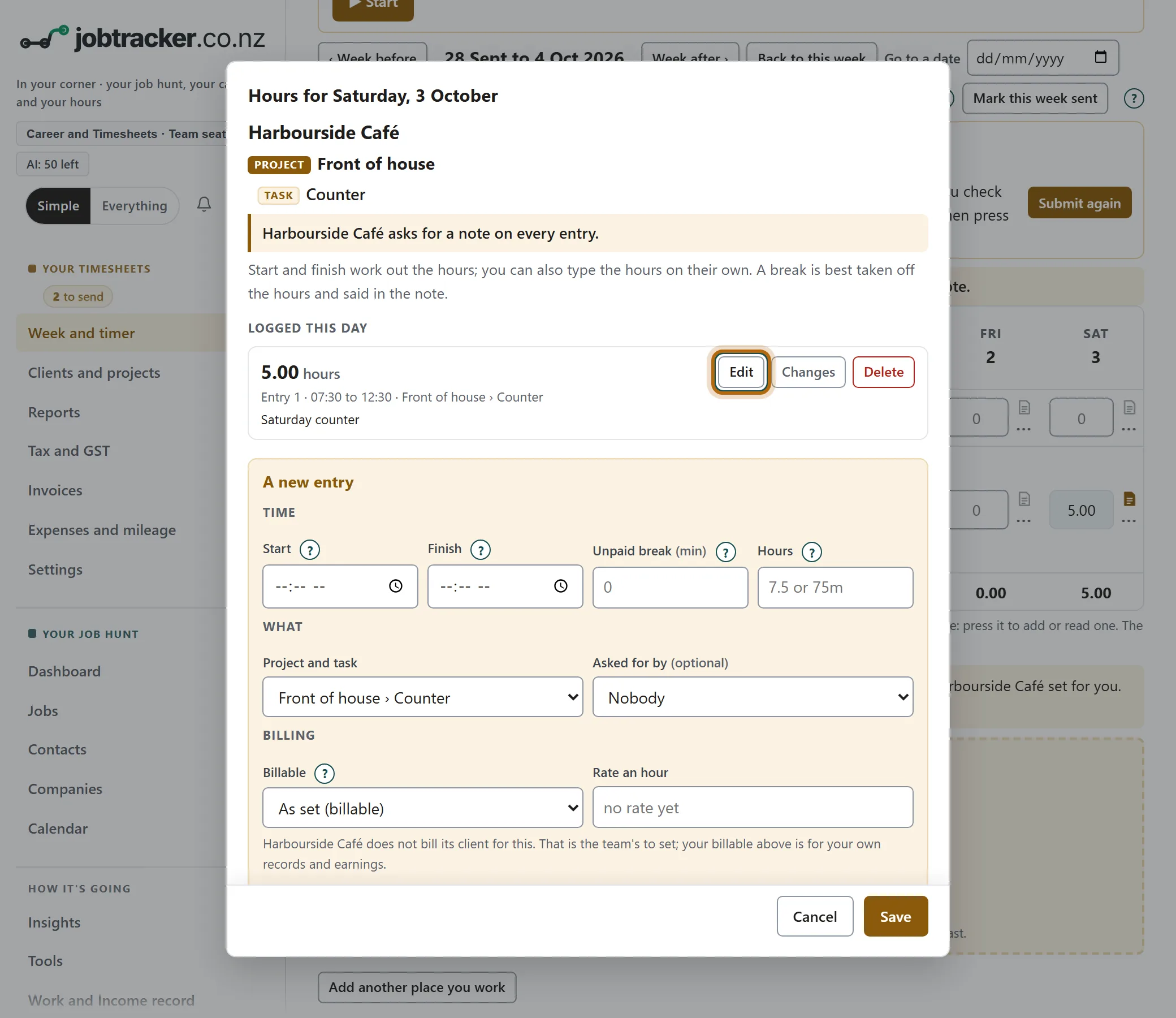
Step 4: Press Edit on the entry
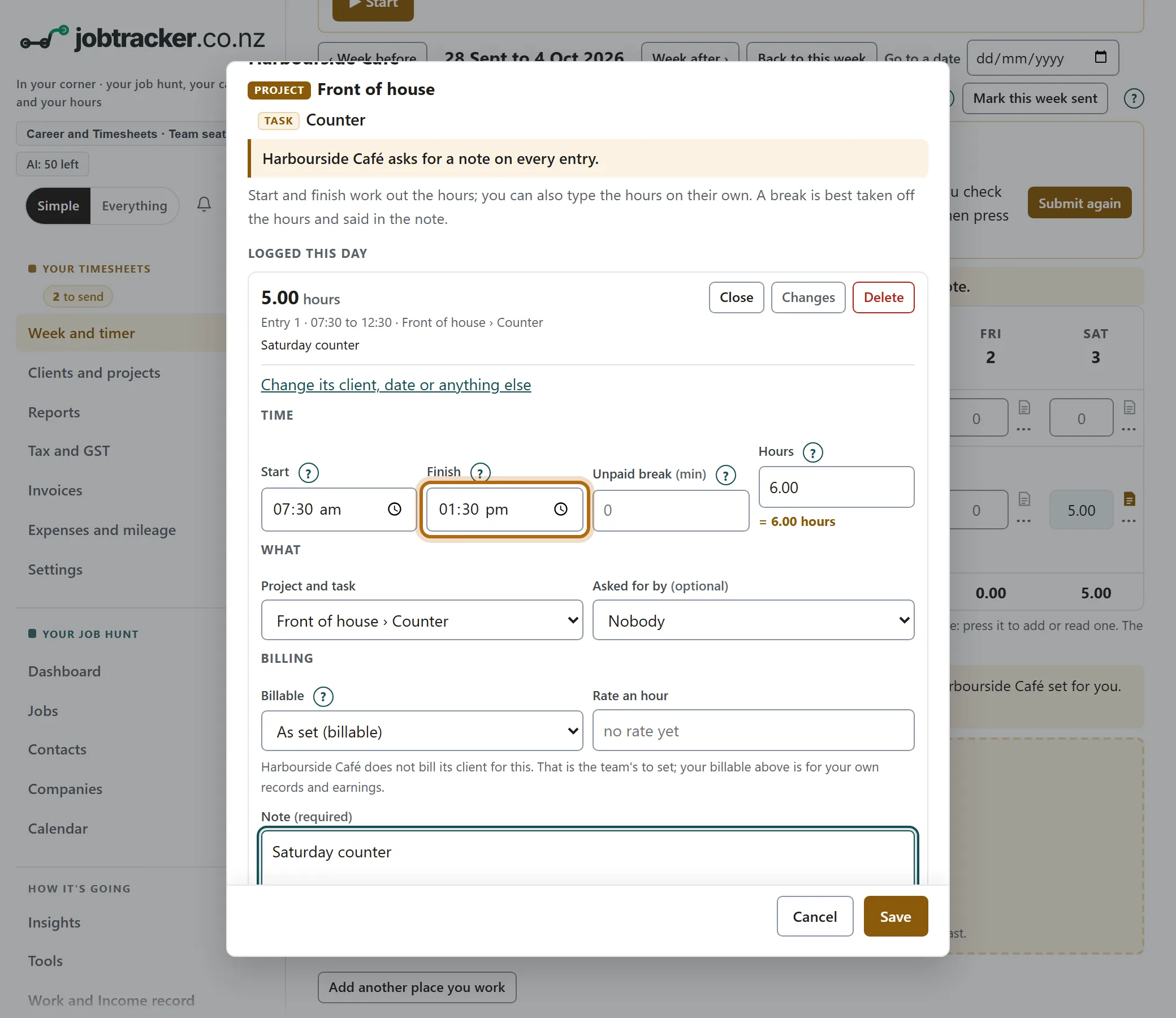
The window is headed with the day: Hours for Saturday, 3 October. Under Logged this day, press Edit beside the entry.
Step 5: Correct the entry, then press Save
Change what the reason asks about. Here Finish goes from 12:30 pm to 1:30 pm, and Hours works itself out as 6.00. Then press Save, at the bottom of the window.
Step 6: Press Submit again
Back on the week, the day shows the corrected hours. Press Submit again. Your browser asks you to confirm: press OK.
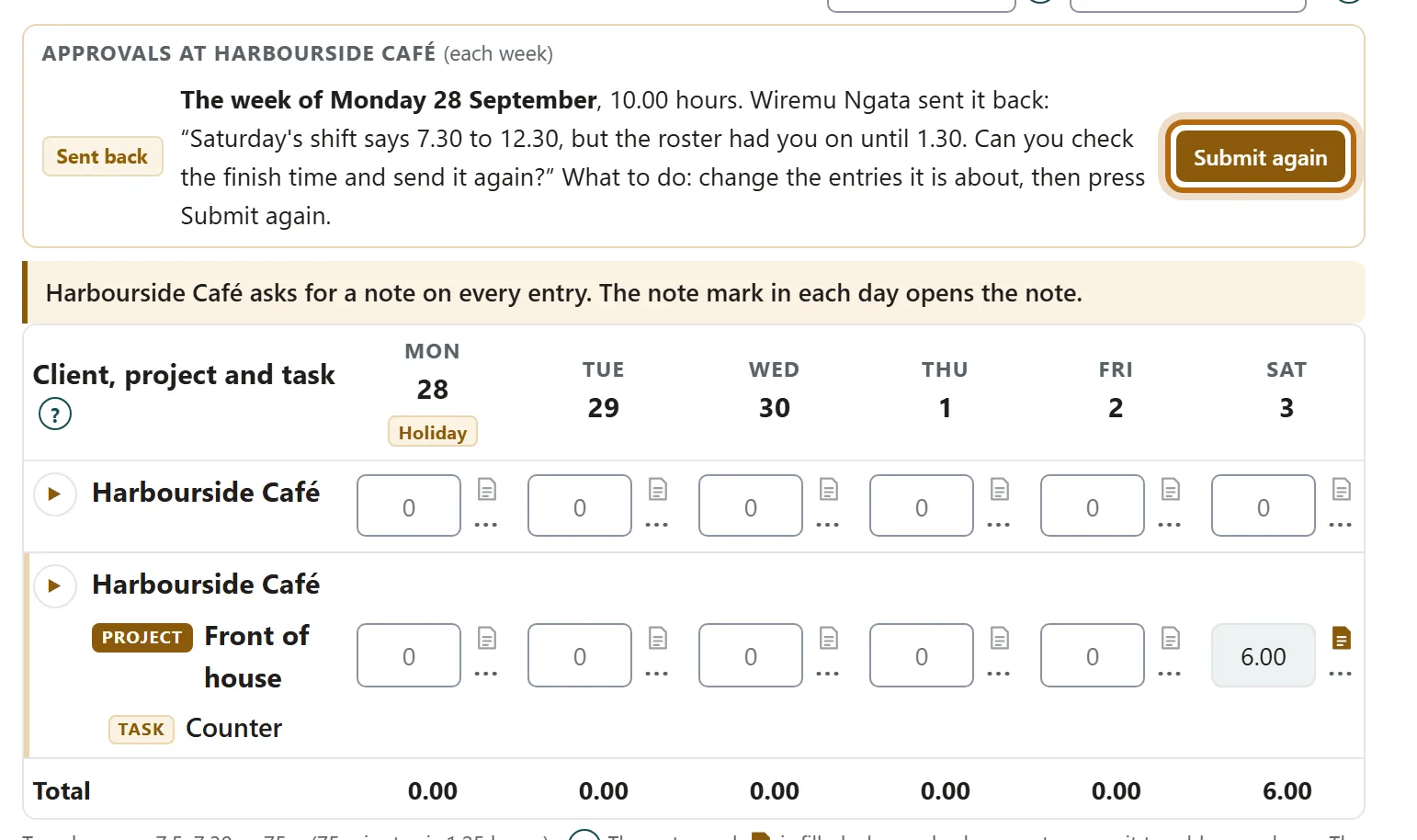
Step 7: The period says Submitted
The label changes from Sent back to Submitted, with Waiting for approval and the day you sent it. It is back on the list of whoever approves your time.

What happens next
- Whoever approves your time sees the period on their list again, with its new hours.
- The reason stays in the period's history, with who sent it back and when.
- Your change is kept too: every change you save is kept in the entry's history. Changes, beside Edit, shows it.
If it doesn't look like this
The hours were right all along
Submit again works without a change. The period goes back to the list as it is.
Save asks you for a note
Your team asks for a note on every entry, and a change to the hours or times needs one.
It says the period is already waiting for approval
It was sent again before, perhaps from another device. Nothing more is needed.
From jobtracker.co.nz/how-to/team/sent-back-fix-and-resubmit · Screens checked 13 October 2026