

Start a team and the 14-day trial
A team starts with its name, a number of seats and a card. The first 14 days are free. This is how to start one, and what your Team page shows the moment it is ready.
- Who can do this
- The Owner
- What you need first
- An account at jobtracker.co.nz, and a card. Whoever starts the team becomes its Owner.
- How long it takes
- About 5 minutes
Step 1: Press Start your 14 days free
On jobtracker.co.nz/employers/teams, press Start your 14 days free. If you are not signed in, you sign in or make an account first, and are brought back.
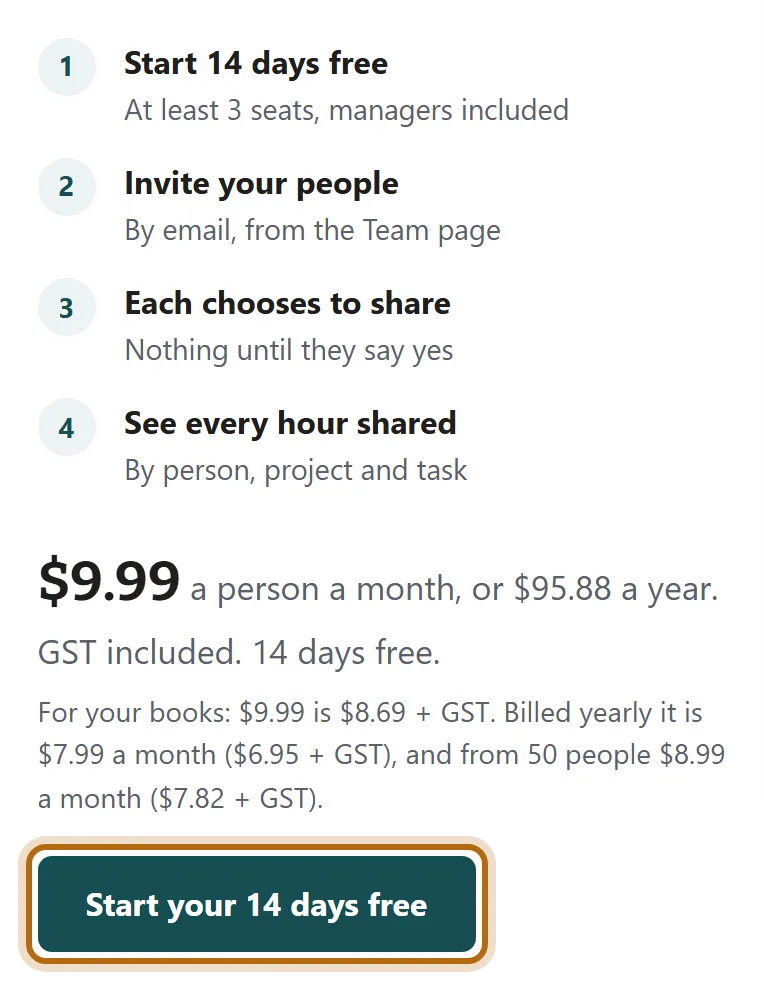
In each picture, the thing to press or read has a ring around it. Tap a picture to see it full size.
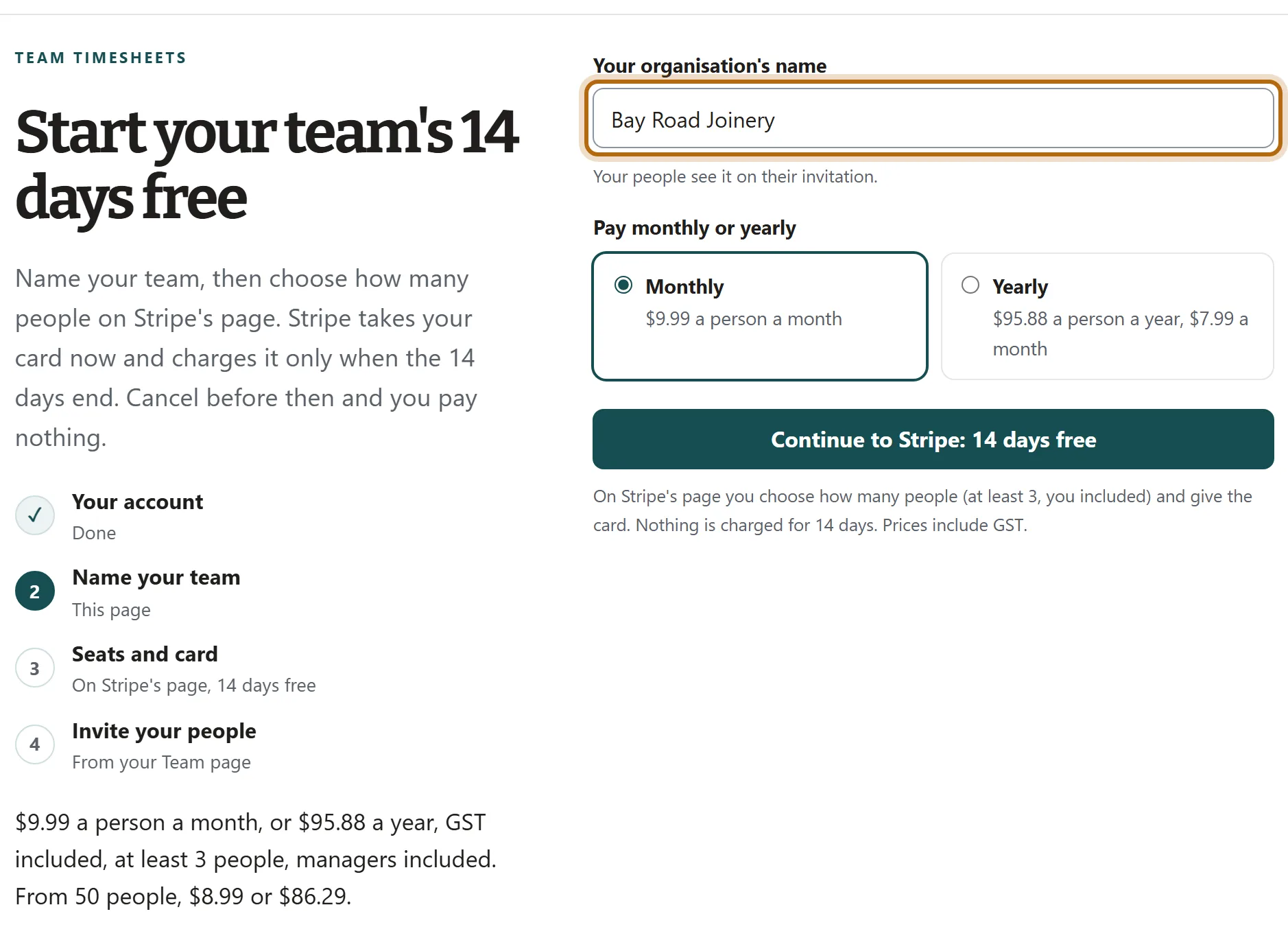
Step 2: Type your organisation's name
Under Your organisation's name, type the name your people know you by. They see it on their invitation.
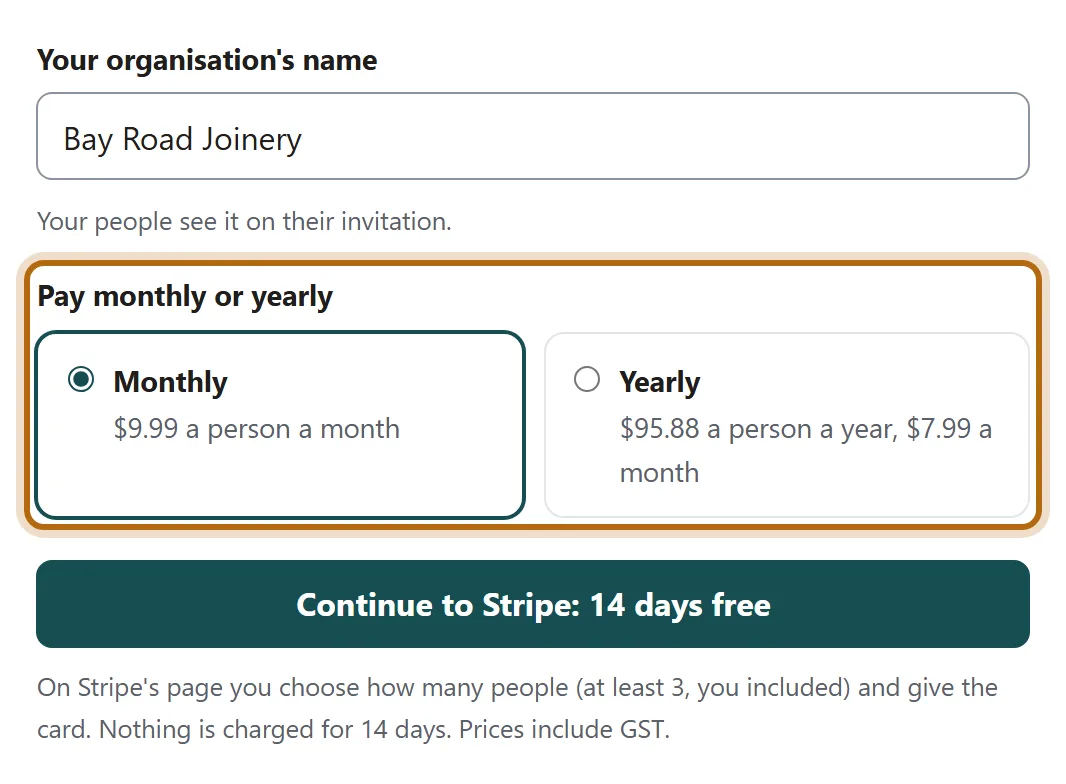
Step 3: Choose Monthly or Yearly
Under Pay monthly or yearly, choose one. A seat is $9.99 a person a month or $95.88 a person a year, GST included, and a team is at least 3 people, managers included. From 50 people it is $8.99 or $86.29.
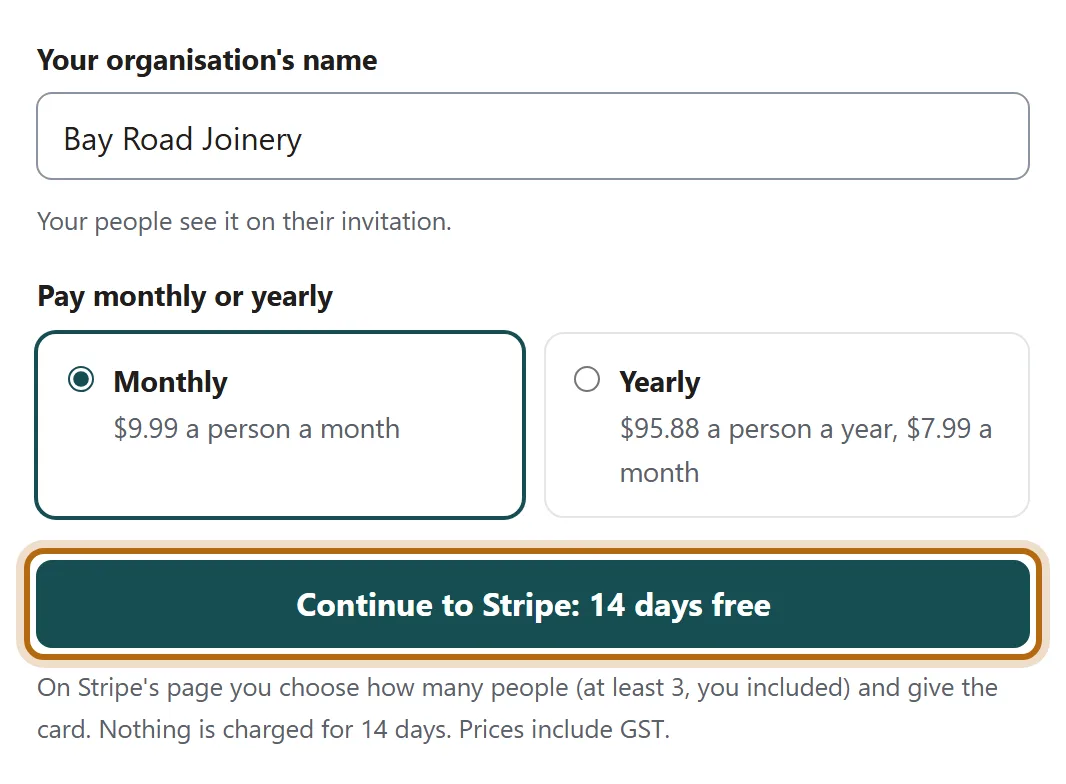
Step 4: Press Continue to Stripe: 14 days free
Nothing is made or charged until you press it.
Step 5: On Stripe's page, choose the seats and give your card
Stripe's own page opens, so there is no picture of it here. Choose how many people, at least 3 with you included, and enter your card. Stripe charges it only when the 14 days end.
Step 6: Your new Team page opens
Back at jobtracker.co.nz, a line says Stripe is confirming your team. Then your Team page opens by itself with Invite your people next, and how many seats you have.
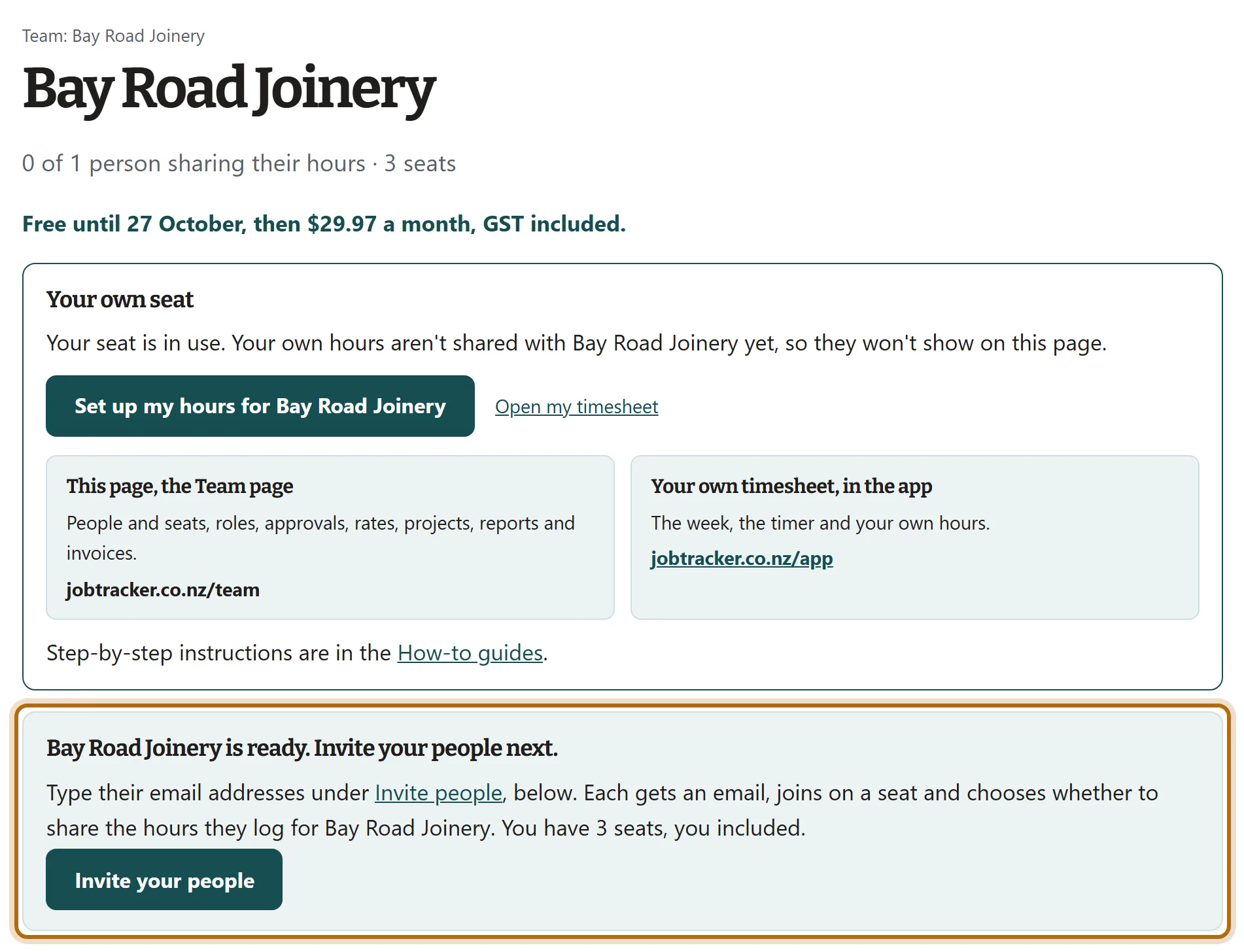
Step 7: Read when the free days end
Under the team's name, one line gives the day the free days end and what is charged then. In the picture: Free until 27 October, then $29.97 a month, GST included.

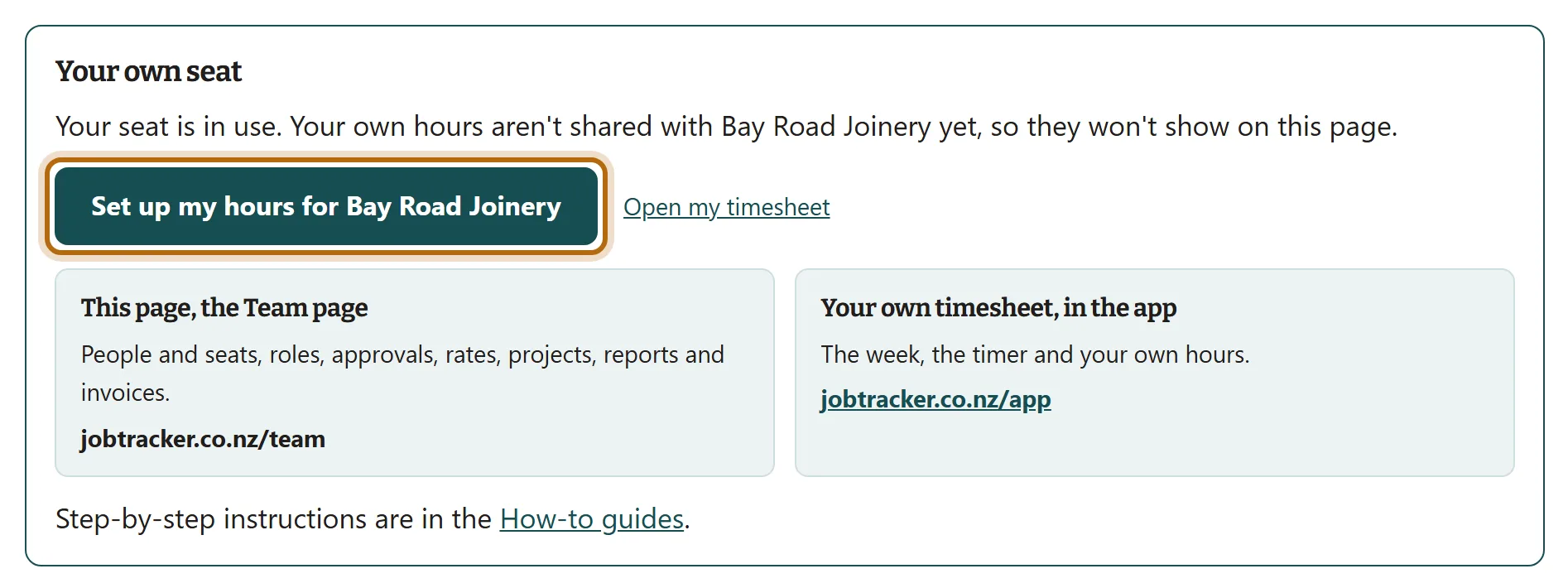
Step 8: Check your own seat
The box Your own seat says Your seat is in use: you took one of the seats when the team started. To log your own hours for the team, press Set up my hours for and its name. It opens your settings in the app.
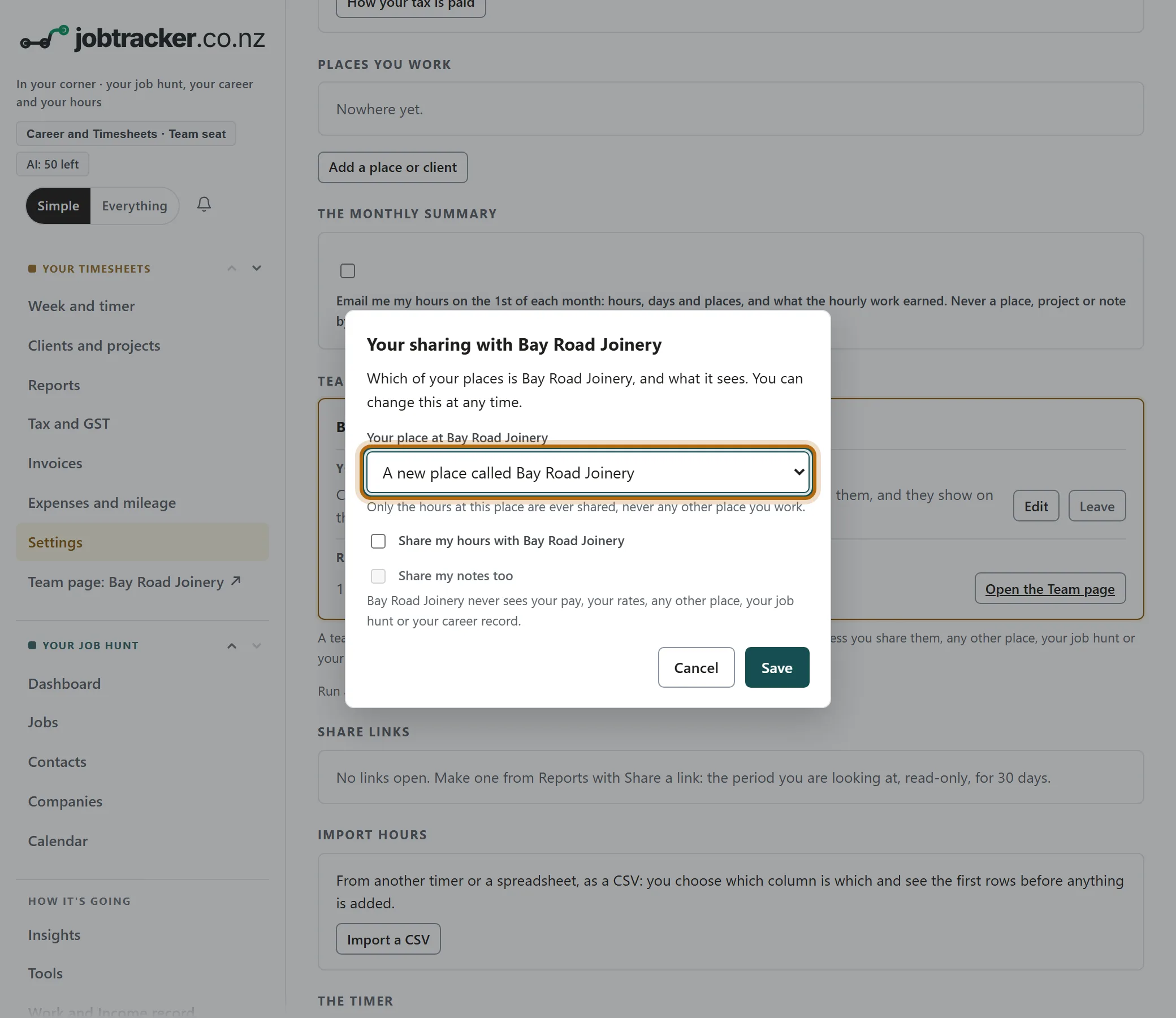
Step 9: Save the place for your own hours
The app opens Your sharing with the team, with A new place called and the team's name already chosen. Press Save, and the place is made in Your Timesheets. Your hours there stay private unless you tick Share my hours with the team.
What happens next
- Invite your people. Each takes one of your seats when they accept.
- If you cancel before the free days end, nothing is charged, and the line under the team's name says so.
- If you do nothing, the card is charged on the day the line names. The top of the page then says renews and a date.
If it doesn't look like this
Continue to Stripe cannot be pressed
The name box is empty or has one character. Type at least two.
The form asks for your first and last name
Your account has no name yet. Your people see it on their invitation, so the form asks once.
It says You already look after a team
You are the Owner of a team already. To add people to it, open it and press Add or remove seats. Carry on only for a separate team.
From jobtracker.co.nz/how-to/team/start-a-team · Screens checked 13 October 2026