

Add or remove seats, change the card, monthly or yearly
The team's Owner pays for it, so only the Owner sees these buttons. Each opens Stripe's own page, which takes the payment, and brings you back to your Team page afterwards.
- Who can do this
- The Owner
- What you need first
- To be the team's Owner. An Admin sees the Billing box without its buttons.
- How long it takes
- About 3 minutes
Step 1: Open your Team page and scroll to Billing
To open your Team page, press Team page under Your Timesheets in the app, or go to jobtracker.co.nz/team. Under Manage the team, the third box is Billing. It says how many seats the team pays for, and has three buttons.
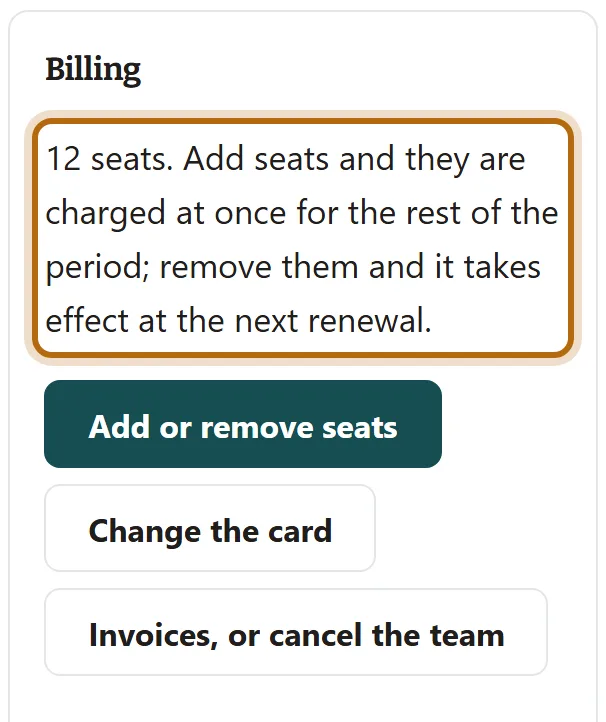
In each picture, the thing to press or read has a ring around it. Tap a picture to see it full size.
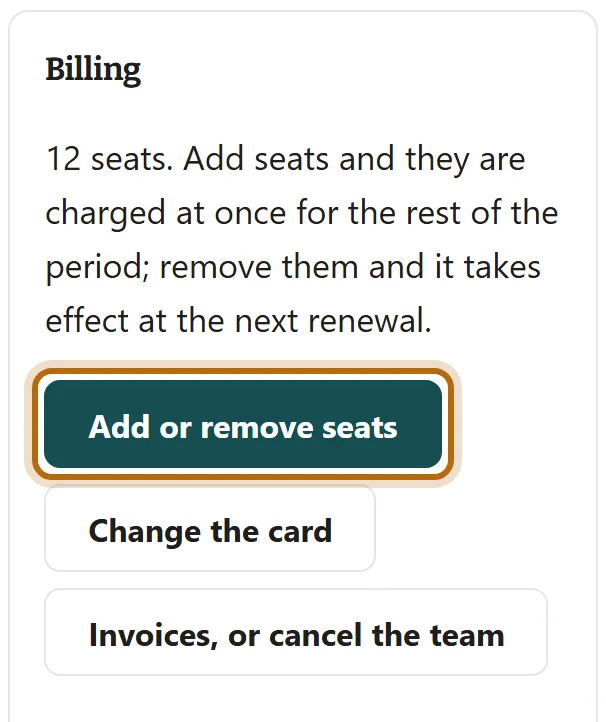
Step 2: To change the seats, press Add or remove seats
Stripe's page opens with the number of seats. Change it and confirm; the fewest is 3. Added seats are charged at once for the rest of the period. Fewer seats take effect at the next renewal.
Step 3: Back on your Team page, check the seat count
Stripe returns you to your Team page. The line under the team's name counts the seats, and says when the team renews. Seats you removed stay in the count until that day.

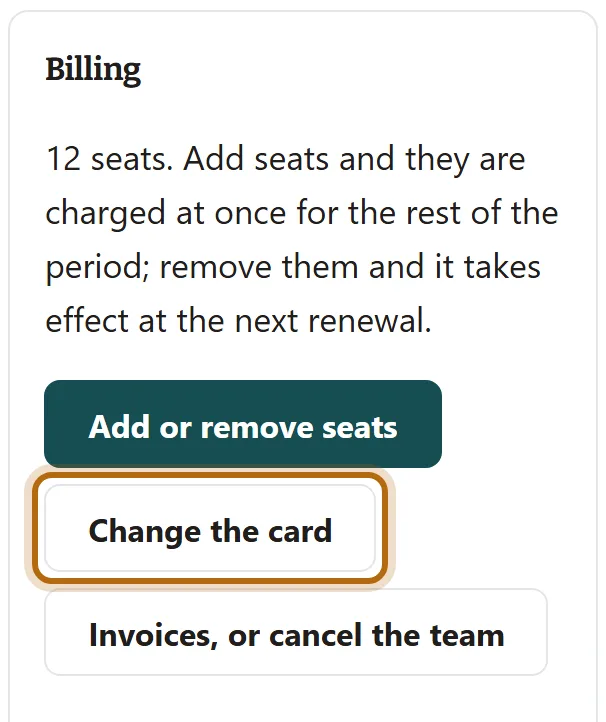
Step 4: To change the card, press Change the card
Stripe's page opens for the new card, then returns you to your Team page.
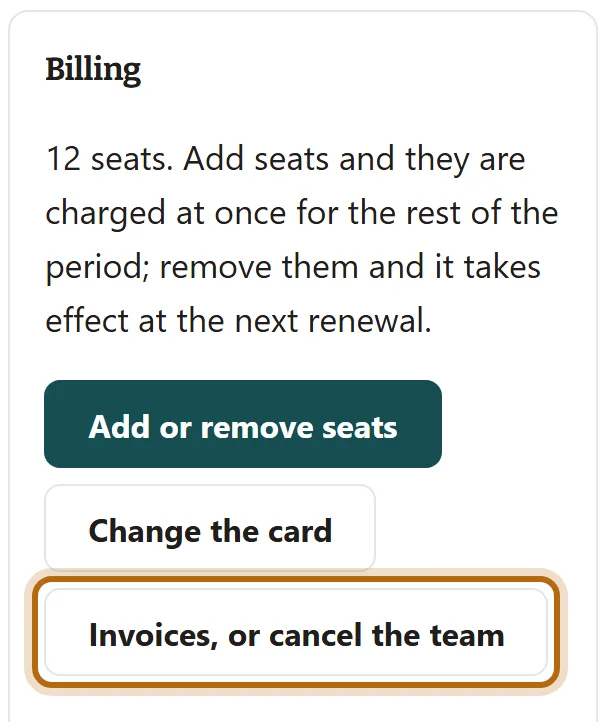
Step 5: For invoices, or to cancel, press Invoices, or cancel the team
Stripe's page lists every invoice. Cancelling there ends the team at the end of the period already paid for. Until then the line under the team's name says ends and the date, in place of renews.
Step 6: Monthly or yearly: where it shows
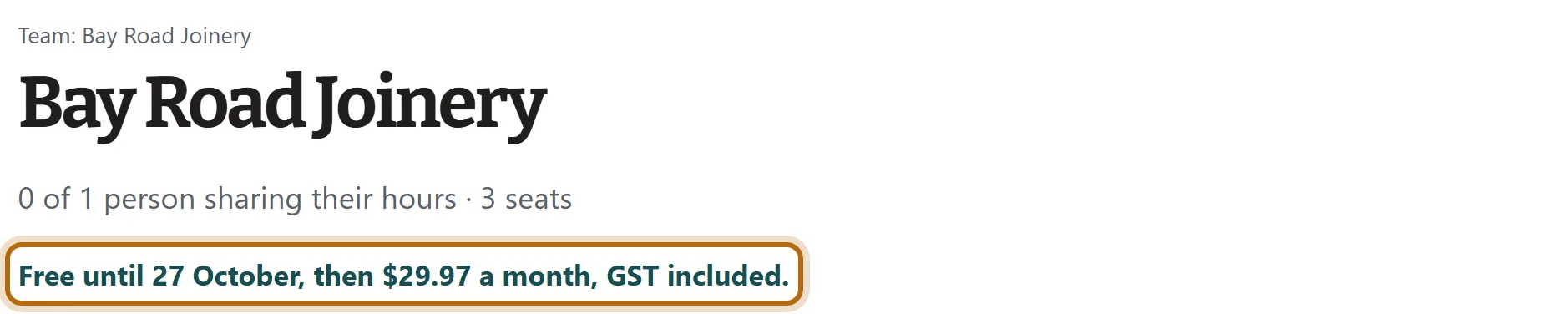
You choose monthly or yearly when you start the team. In the 14 free days, the line under the team's name says which, with the first charge: then $29.97 a month. Stripe's page changes the number of seats, not the period.
What happens next
- After adding seats, anybody waiting for a free seat is seated, and you can invite more people.
- After cancelling, the team runs to the date shown. Once it has ended, its page says it has ended, and what it kept can be downloaded for 90 days.
- Seats added in the 14 free days do not end the free days.
If it doesn't look like this
The Billing box has no buttons
You are an Admin. It says so: only the Owner can change seats or the card. Ownership moves only by a transfer.
The page says The card failed
Stripe is trying the card again, and seats keep working for 7 days. Press Change the card. Unpaid after 7 days, every seat is paused until the team is paid for.
You want to move between monthly and yearly
There is no button for it. Write to contact@jobtracker.co.nz.
From jobtracker.co.nz/how-to/team/change-seats-card-or-billing · Screens checked 13 October 2026