

Seats: who takes one, waiting for a free seat, and people covered by their own plan
A team pays for a number of seats, and everyone in it takes one. The People table says where each person's seat stands, in one of three ways. This is how to read it, and what to do when the seats run out.
- Who can do this
- The Owner or Admin
- What you need first
- A team with people in it.
- How long it takes
- About 3 minutes
Step 1: Read how many seats the team pays for
Open your Team page: in the app, under Your Timesheets, press Team page, or go to jobtracker.co.nz/team. The line under the team's name counts the people and the seats. Everyone in the team takes a seat, whatever their role, and so does an invitation that is still open.

In each picture, the thing to press or read has a ring around it. Tap a picture to see it full size.
Step 2: Find the Seat column under People
Scroll down to People. Each person has a line, and the Seat column says one of three things.
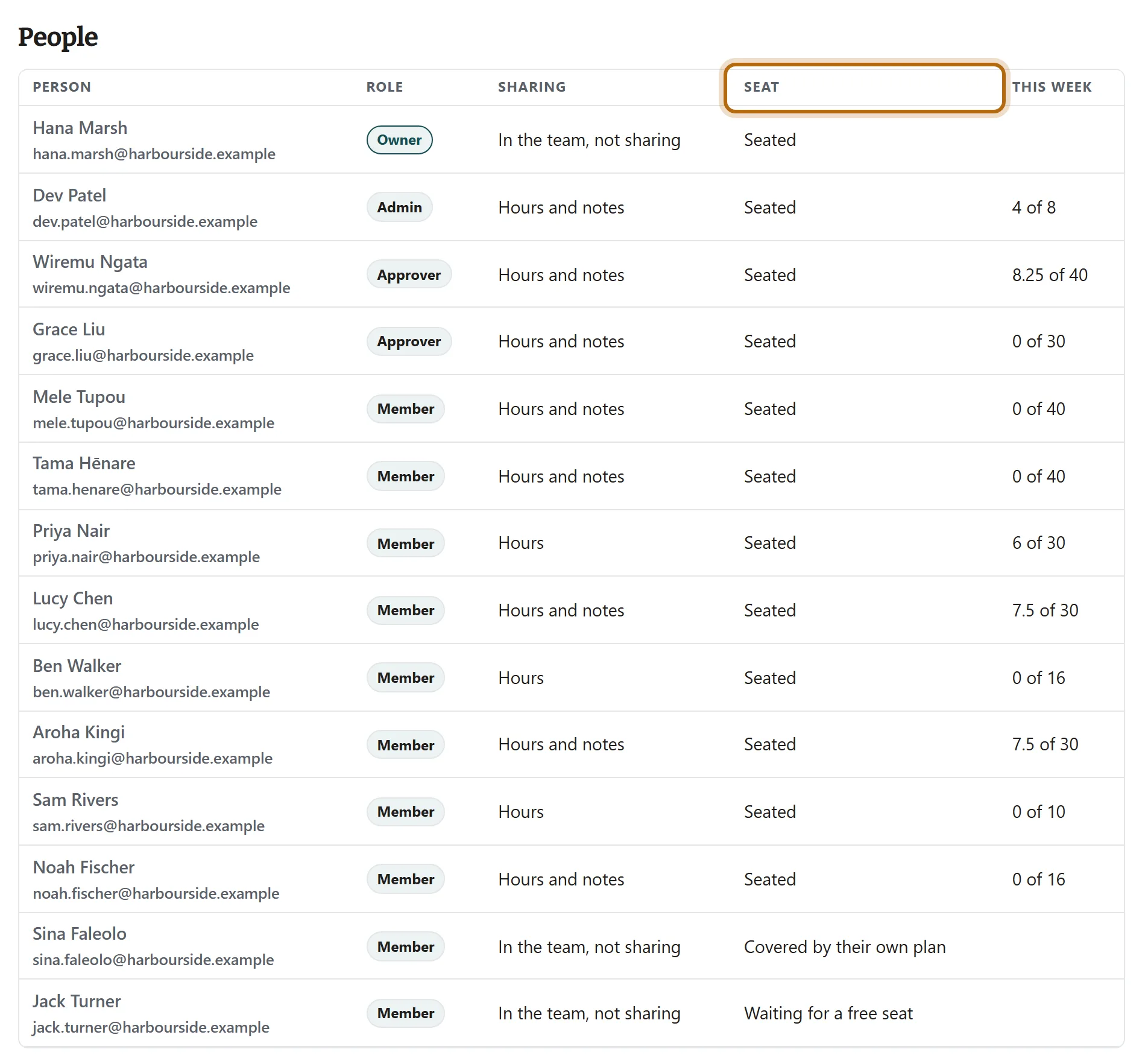
Step 3: Seated
The person's seat is in use: the team pays for their Career and Timesheets plan while they are in the team, whether they share their hours or not.

Step 4: Covered by their own plan
The person already pays for a plan of their own. It carries on as it is, and their team seat starts when it ends. They can log hours for the team in the meantime.

Step 5: Waiting for a free seat
Every seat the team pays for is in use, so this person's seat has not started. It starts when a seat is added or somebody leaves. When more than one person is waiting, whoever joined first is seated first.

Step 6: Check your own seat
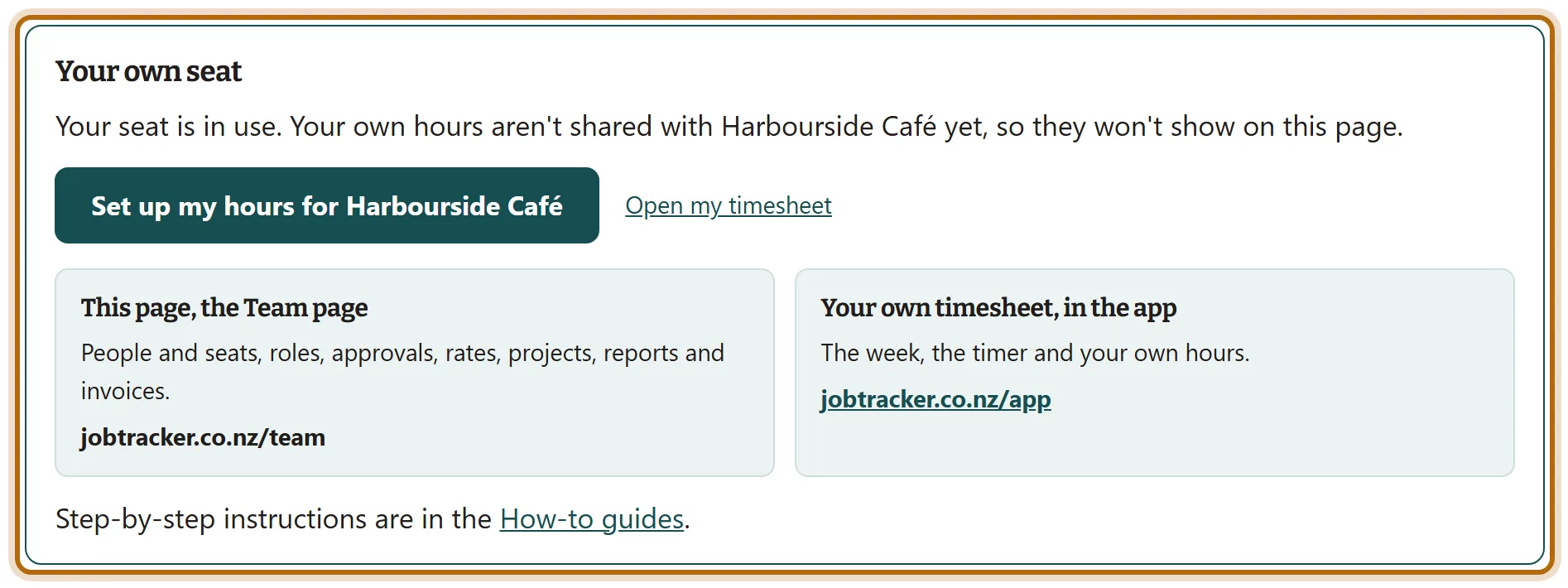
At the top of the page, Your own seat says where yours stands. If it says you have not taken your own seat yet, press Take my seat: nothing is charged, because it is one of the seats the team already pays for. A place named for the team is then ready in Your Timesheets for your hours, and the button becomes Share my hours with and the team's name. Nothing is shared until you choose to. In the picture the seat is in use with no place chosen yet, so the button is Set up my hours for the team.
Step 7: Free a seat, or add one
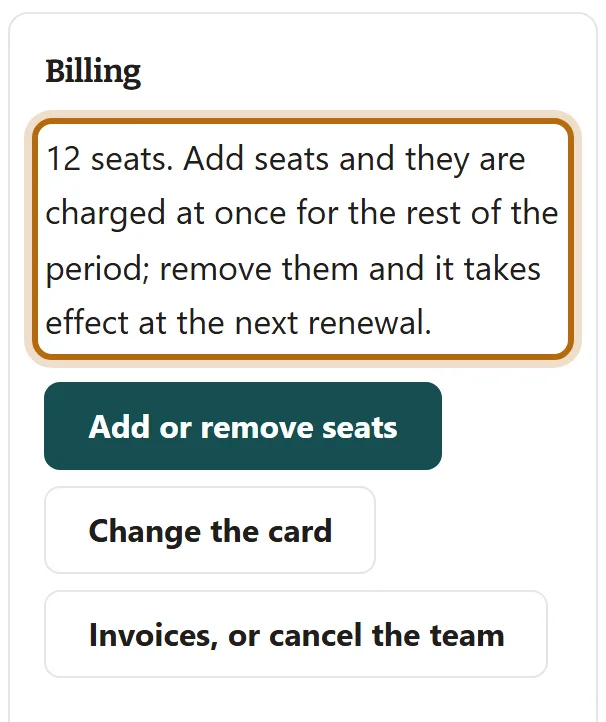
Removing a person under People and roles, or withdrawing an invitation, returns that seat to the team. To add seats, the Owner presses Add or remove seats under Billing.
What happens next
- When a seat comes free, it goes to whoever joined first of the people waiting.
- If the team has fewer seats than people after a renewal, the people who joined first keep their seats and the rest wait.
- A seat and sharing are separate. A person can be Seated and say In the team, not sharing: the seat is their plan, and sharing is their choice.
If it doesn't look like this
Inviting says No seats are free
Every seat is held by a person or an open invitation. Free one or add one, as in the last step.
There is no Add or remove seats button
You are an Admin. The box says who can: only the Owner changes seats or the card.
The page says every seat is paused
The team has been unpaid for 7 days. Seats start again once it is paid for. People can still log their own hours.
From jobtracker.co.nz/how-to/team/seats · Screens checked 13 October 2026