

Joining a team: what you see and what you agree to
You have been invited to a team. Before anything is shared, one screen says what the team will see and what it never will, and you choose. This is that screen, word for word.
- Who can do this
- The Member
- What you need first
- The invitation email, and an account with the address it was sent to. You can make the account from the email.
- How long it takes
- About 3 minutes
Step 1: Press Accept the invitation in the email
The subject names the team: Bay Road Joinery has invited you to keep your timesheet with jobtracker.co.nz. Press Accept the invitation, then sign in, or make an account, with the address the email came to.
In each picture, the thing to press or read has a ring around it. Tap a picture to see it full size.
Step 2: Read what the team will see, and never see
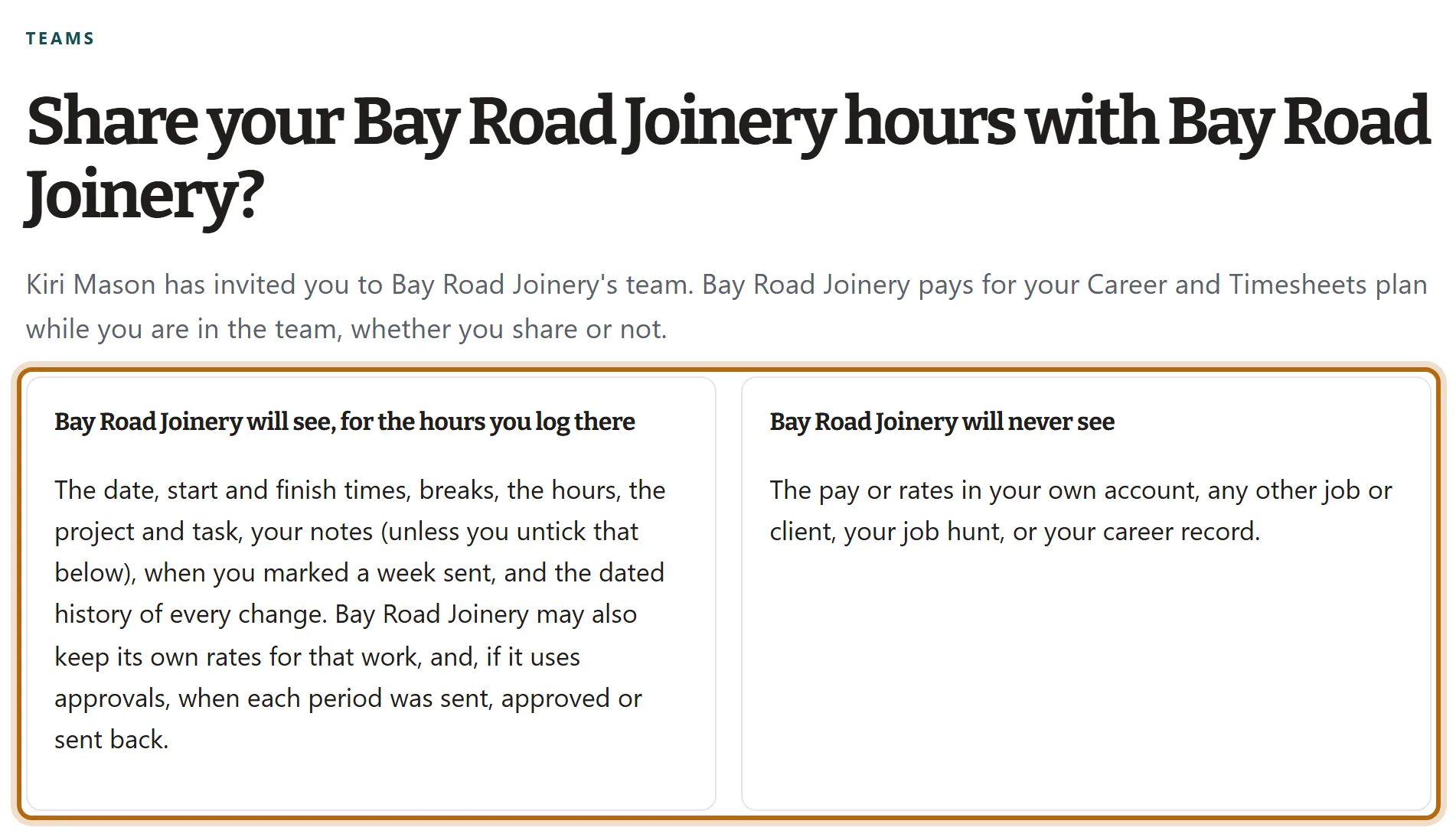
Will see, for the hours you log there: the date, start and finish times, breaks, the hours, the project and task, your notes (unless you untick that below), when you marked a week sent, and the dated history of every change. The team may also keep its own rates for that work, and, if it uses approvals, when each period was sent, approved or sent back. Will never see: the pay or rates in your own account, any other job or client, your job hunt, or your career record.
Step 3: Read what the team keeps if you stop
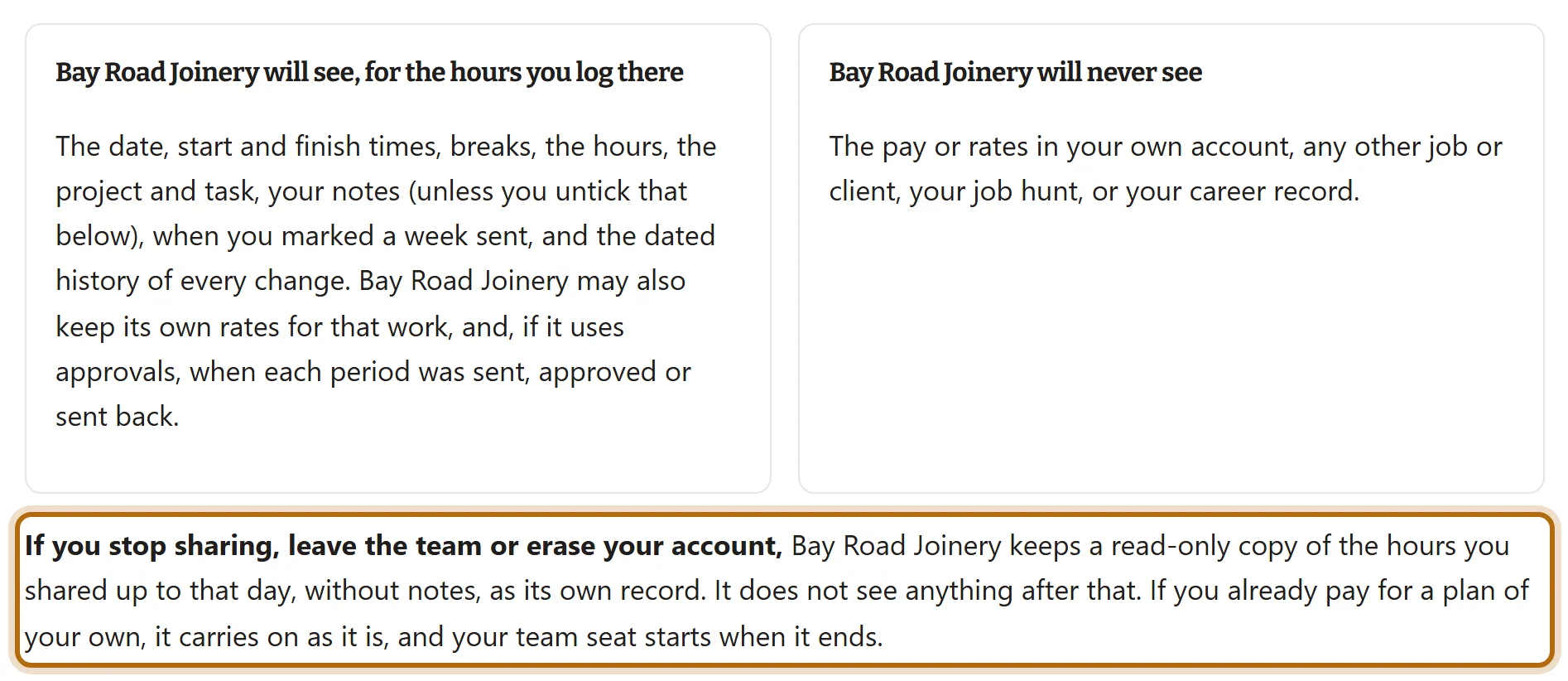
If you stop sharing, leave the team or erase your account, the team keeps a read-only copy of the hours you shared up to that day, without notes. It sees nothing after that.
Step 4: Choose which place is the team
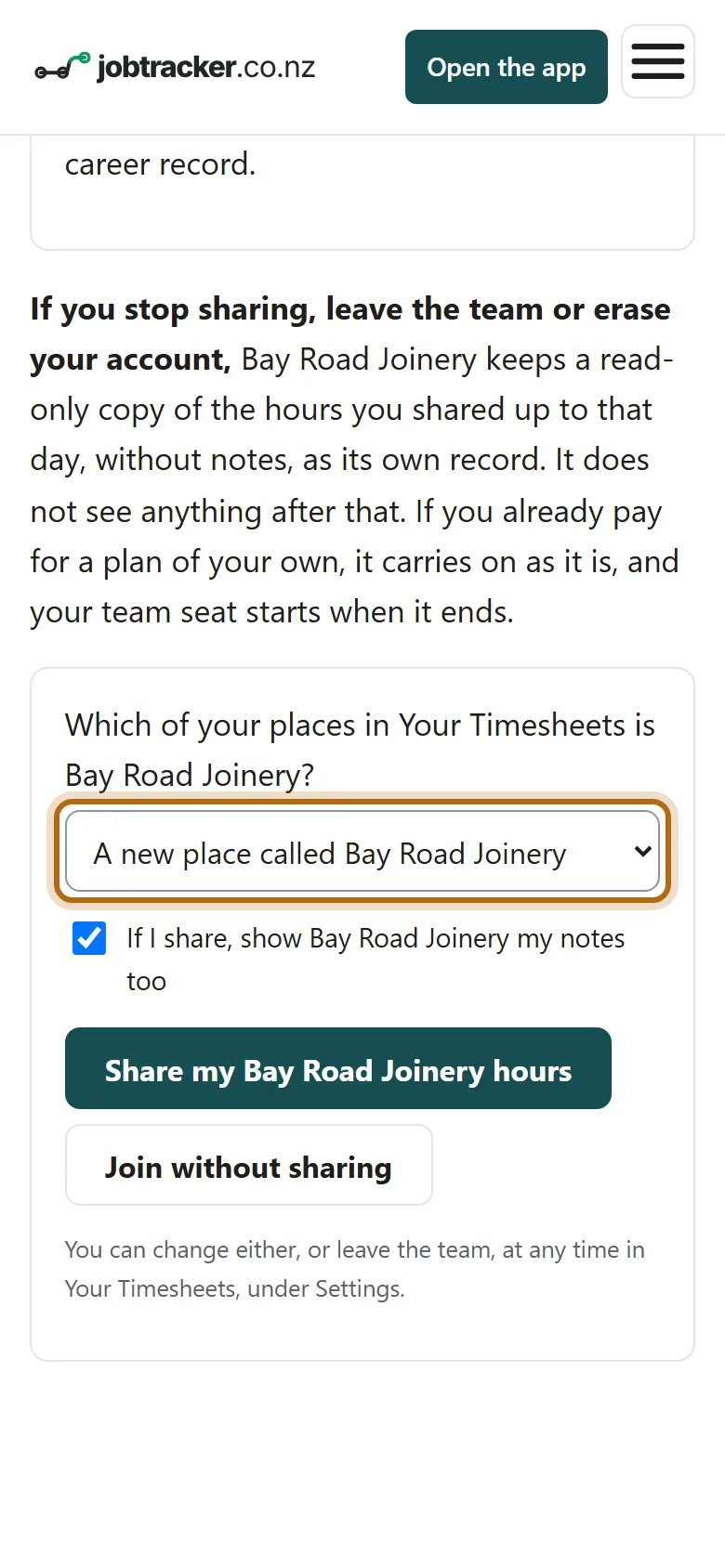
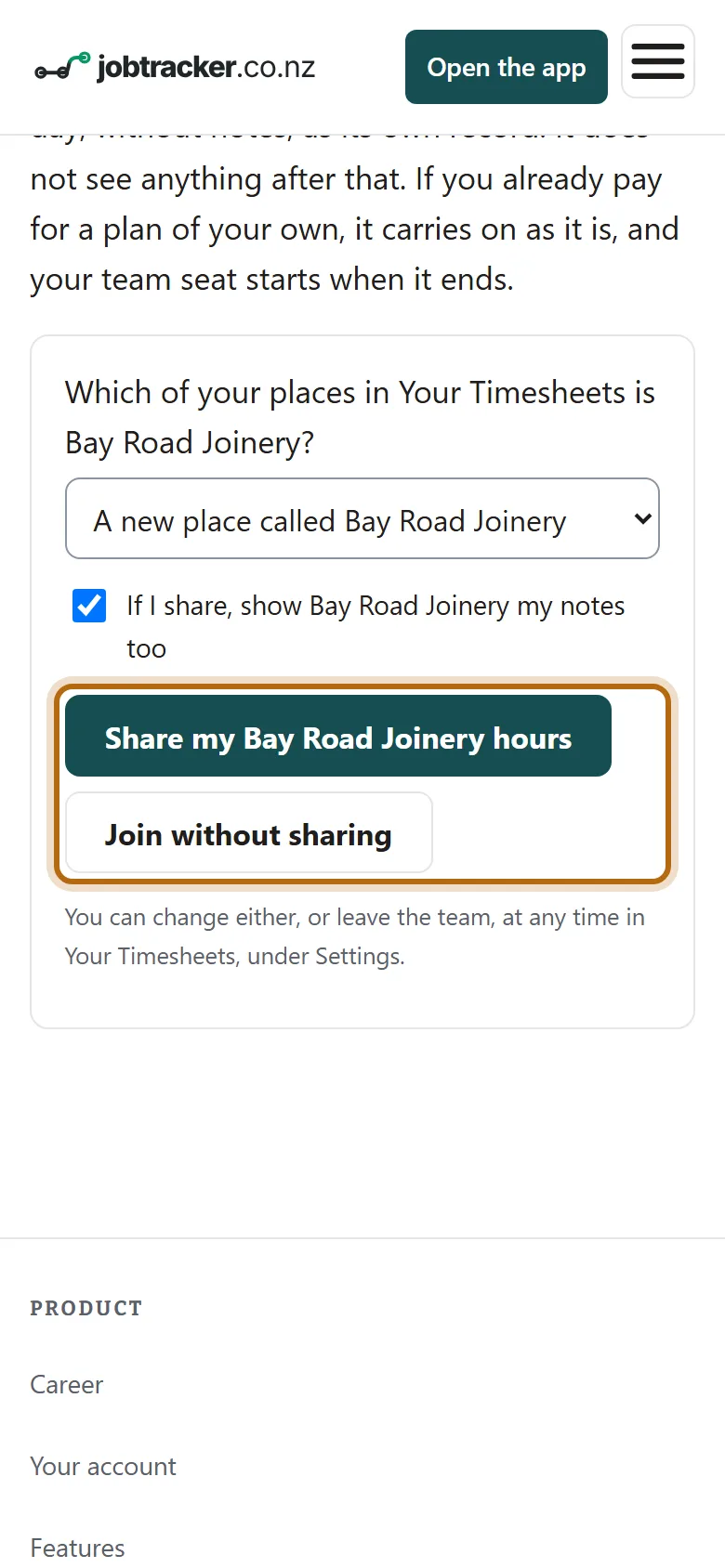
Leave A new place called and the team's name, or choose the place you already log those hours under. Only that place's hours are shared.
Step 5: Leave the notes box ticked, or untick it
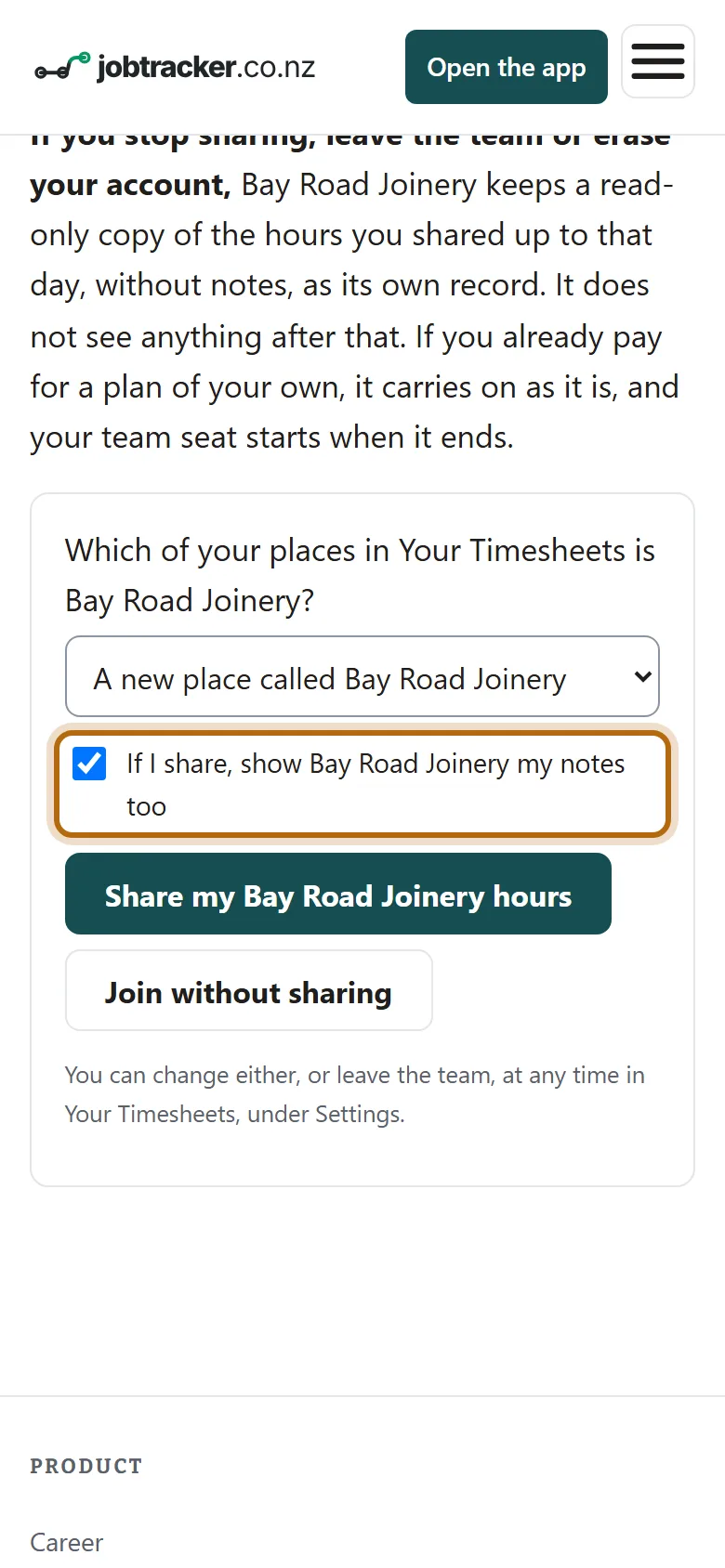
The box “If I share, show Bay Road Joinery my notes too” starts ticked. Untick it and the team sees your hours without your notes.
Step 6: Press Share my hours, or Join without sharing
Share my Bay Road Joinery hours shares them from now. Join without sharing puts you in the team, makes no place and sends it nothing. Either way the team pays for your plan.
Step 7: New here? Check your name, then press Open Your Timesheets
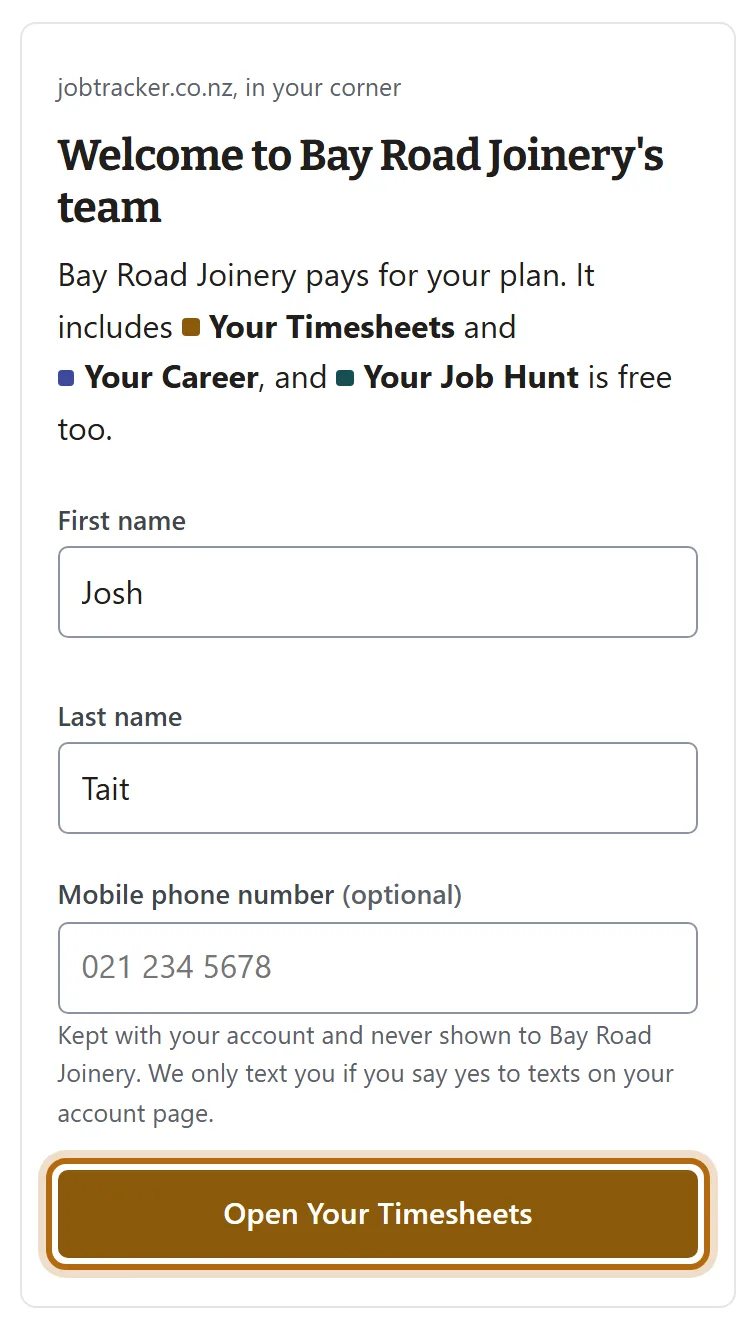
New to jobtracker.co.nz? The app first says Welcome to the team. Check your name; a mobile number is optional and never shown to the team. If you have used the app before, you go straight to your week.
Step 8: Your week opens, with the team's place ready
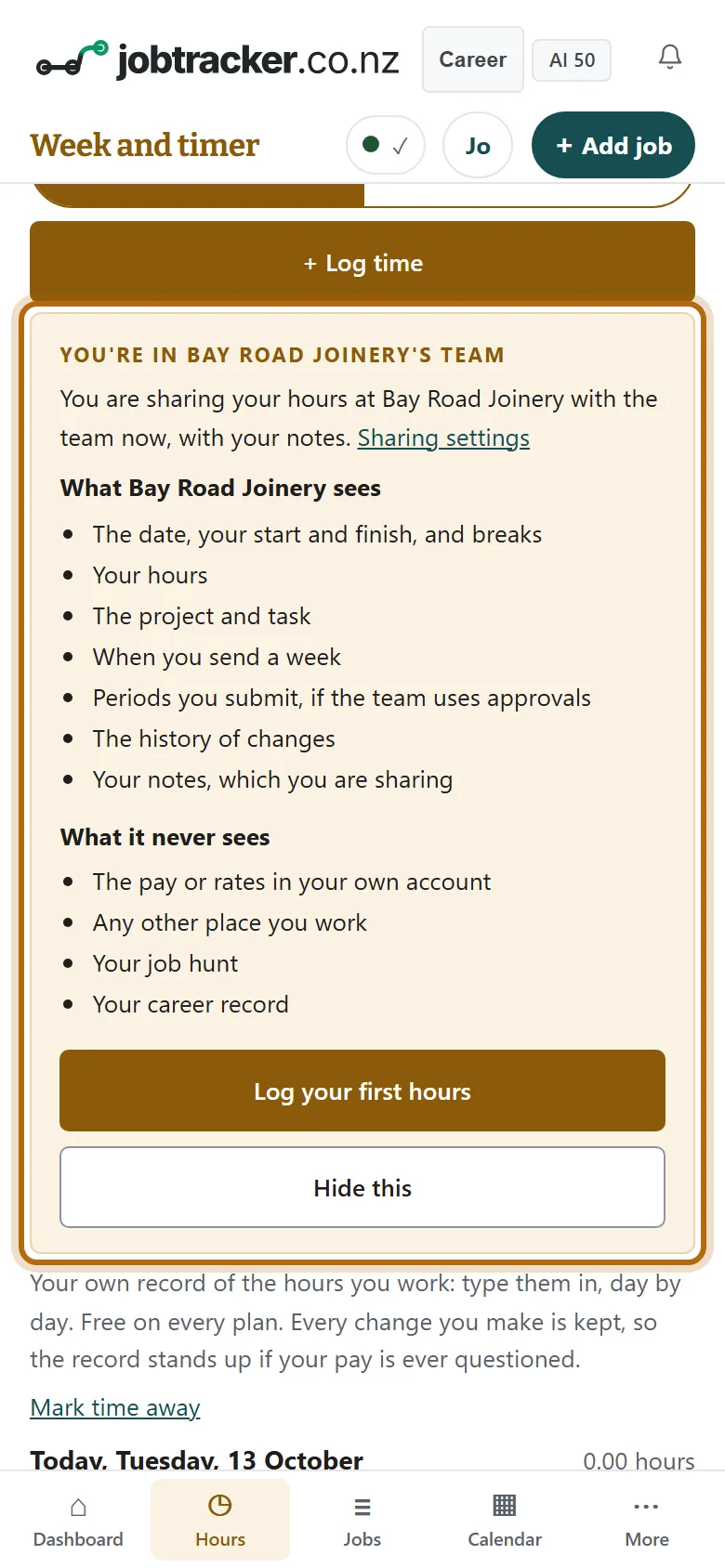
A box headed You're in the team repeats what it sees and never sees, and says whether you are sharing now. Hide this puts it away.
What happens next
- To change what you share, or leave: in the app, open Settings under Your Timesheets, and find the team's box under Teams. It has Edit and Leave, and Stop sharing while you share.
- If you already pay for a plan of your own, it carries on as it is, and your team seat starts when it ends.
If it doesn't look like this
It says This invitation has ended
It has run out after 14 days, been withdrawn, or already been used. Ask your manager to send a new one.
It says the invitation was sent to a different email address
You are signed in with another address. Sign in with the address the email came to.
The page says the team asks for a note on every entry
The app will ask you for a note before it saves hours there. The team sees your notes only while the notes box is ticked.
From jobtracker.co.nz/how-to/team/joining-a-team · Screens checked 13 October 2026