

The four roles side by side: Owner, Admin, Approver, Member
Everyone in a team holds one of four roles. This page shows the same team as each role sees it, then sets out in one table what each role can see and do.
- Who can do this
- Everyone in the team
- What you need first
- Nothing. This is a page to read, not a task.
- How long it takes
- About 4 minutes
Step 1: Find who holds which role
On the Team page, the People table gives each person's role. Beneath it is one line about each of the four. A Member has no Team page, so only the other three roles ever see this.
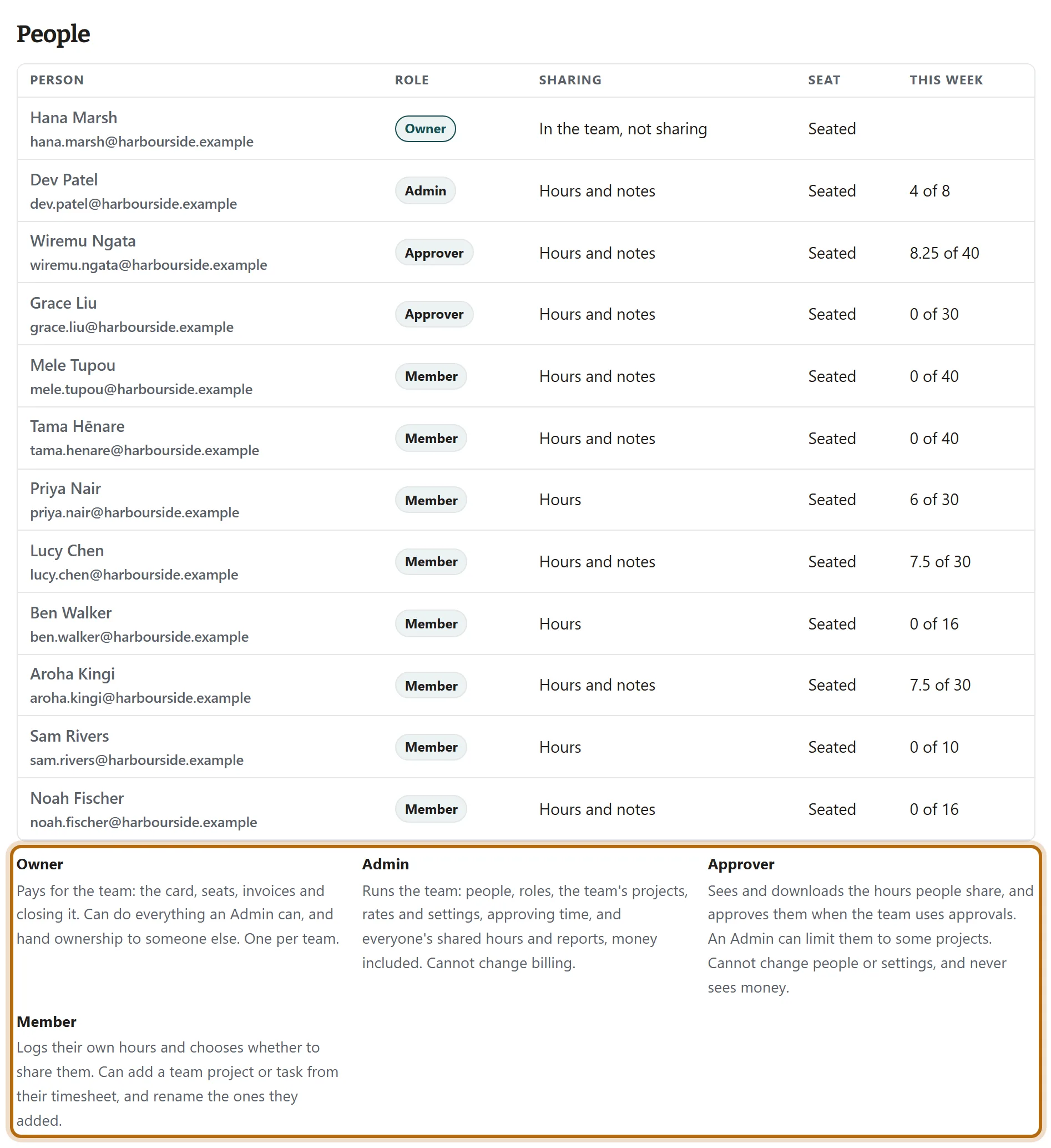
In each picture, the thing to press or read has a ring around it. Tap a picture to see it full size.
Step 2: The Owner: everything, and the only one who pays
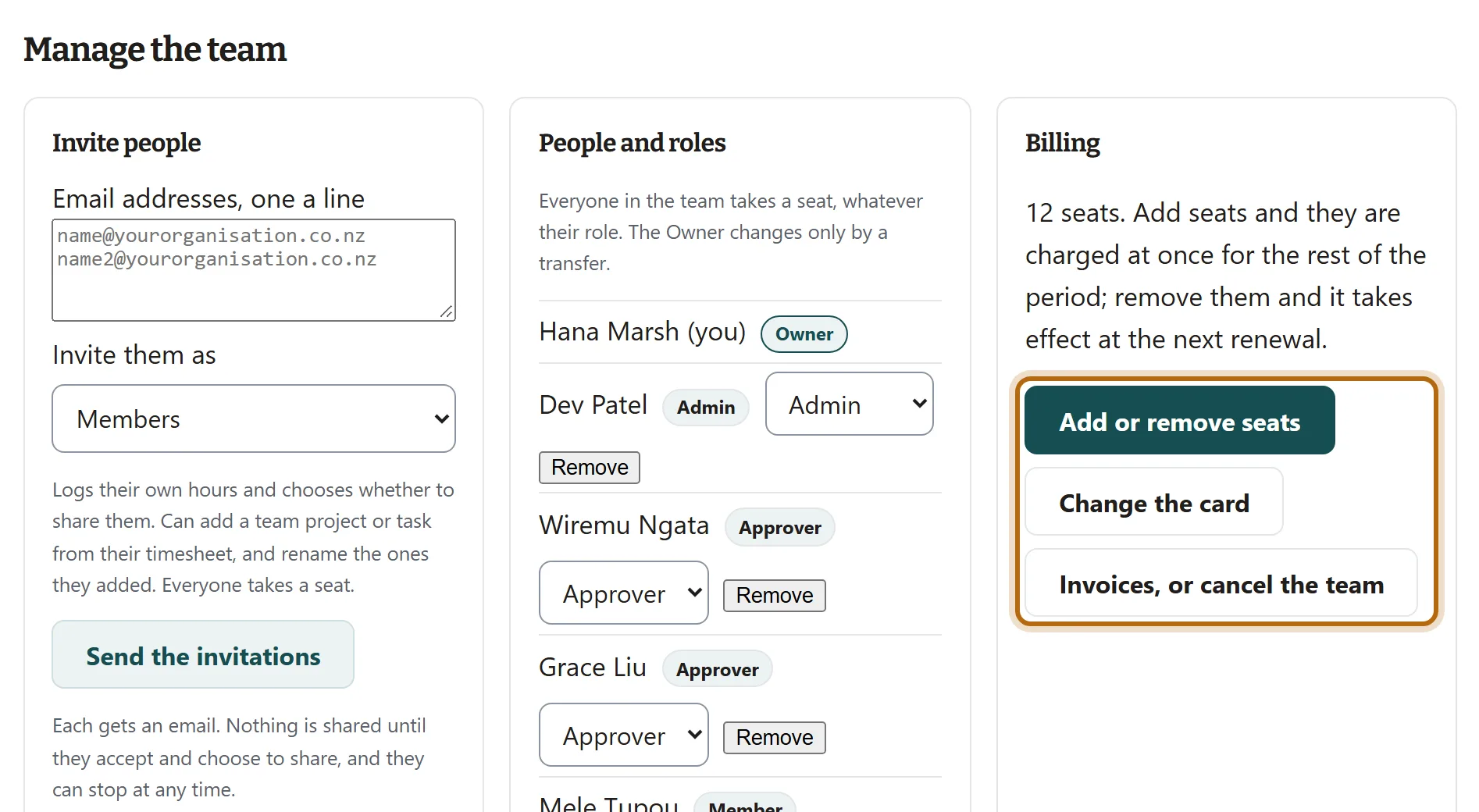
The Owner has the whole Team page. Under Manage the team, only the Owner's Billing box has buttons, and only the Owner has Transfer ownership below it. There is one Owner in a team.
Step 3: An Admin: everything but billing
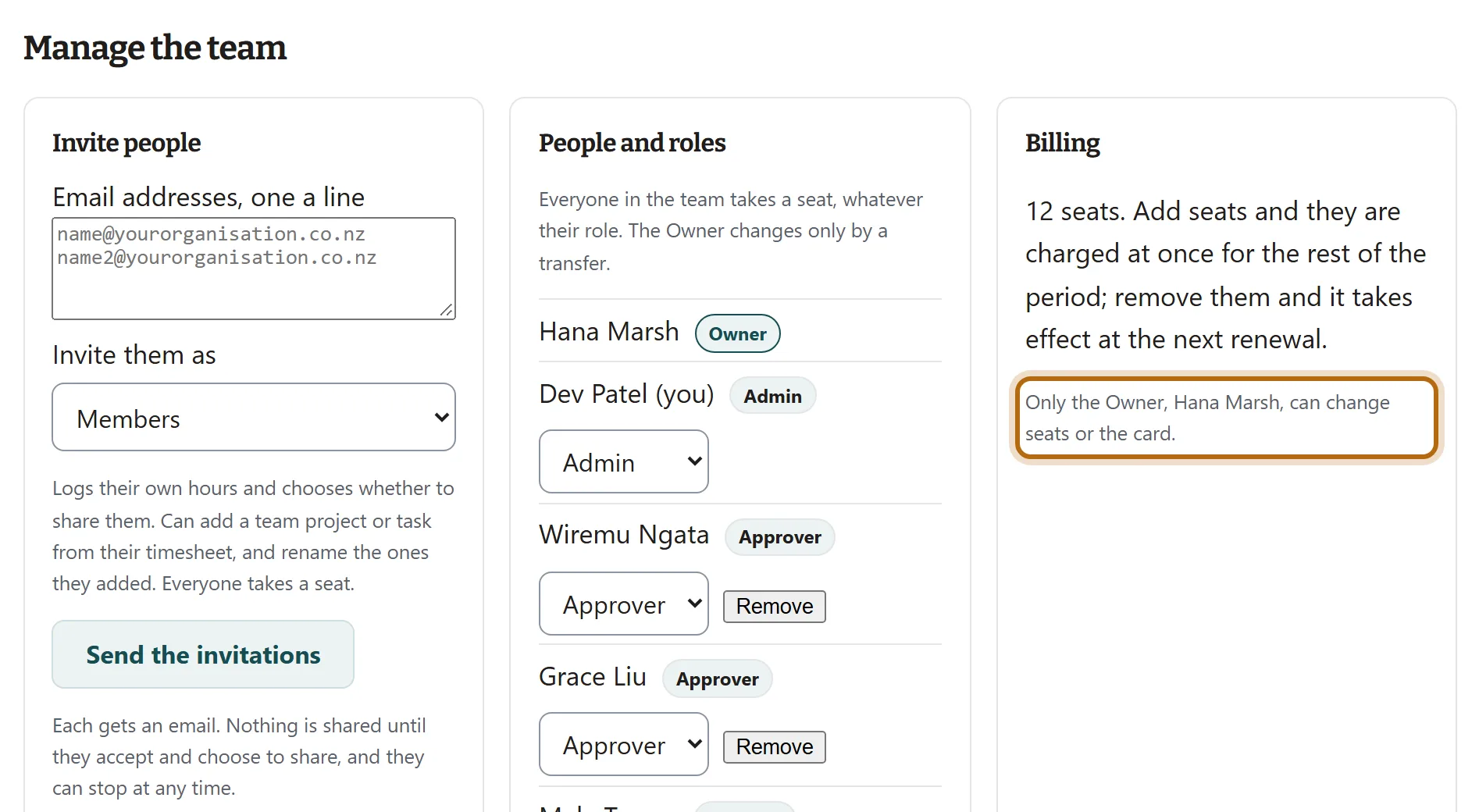
An Admin sees the same page, money included, and can invite, remove, change roles and set the team up. In Billing the buttons give way to one line naming the Owner.
Step 4: An Approver: the hours, read-only
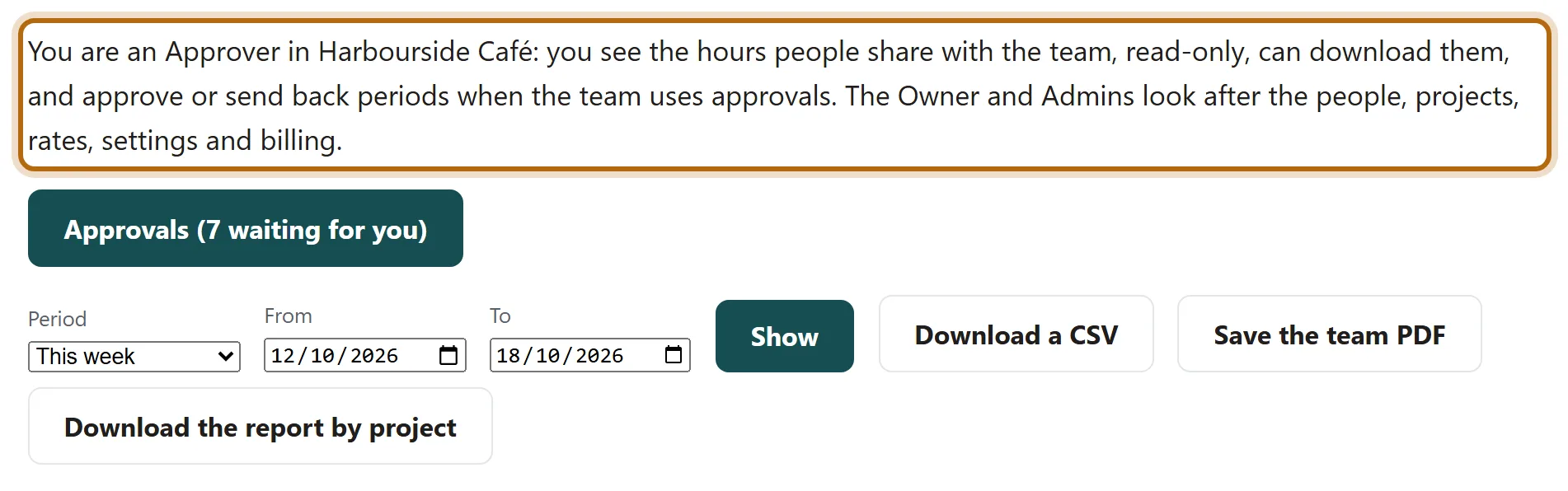
An Approver's page says what they are near the top. They see the hours people share, can download them and approve them. There is no Manage the team, no rates and no money: the download reads Download the report by project.
Step 5: An Approver limited to some projects
The same paragraph names the projects, and every figure on the page counts those projects' hours only.

Step 6: A Member: their own hours, in the app
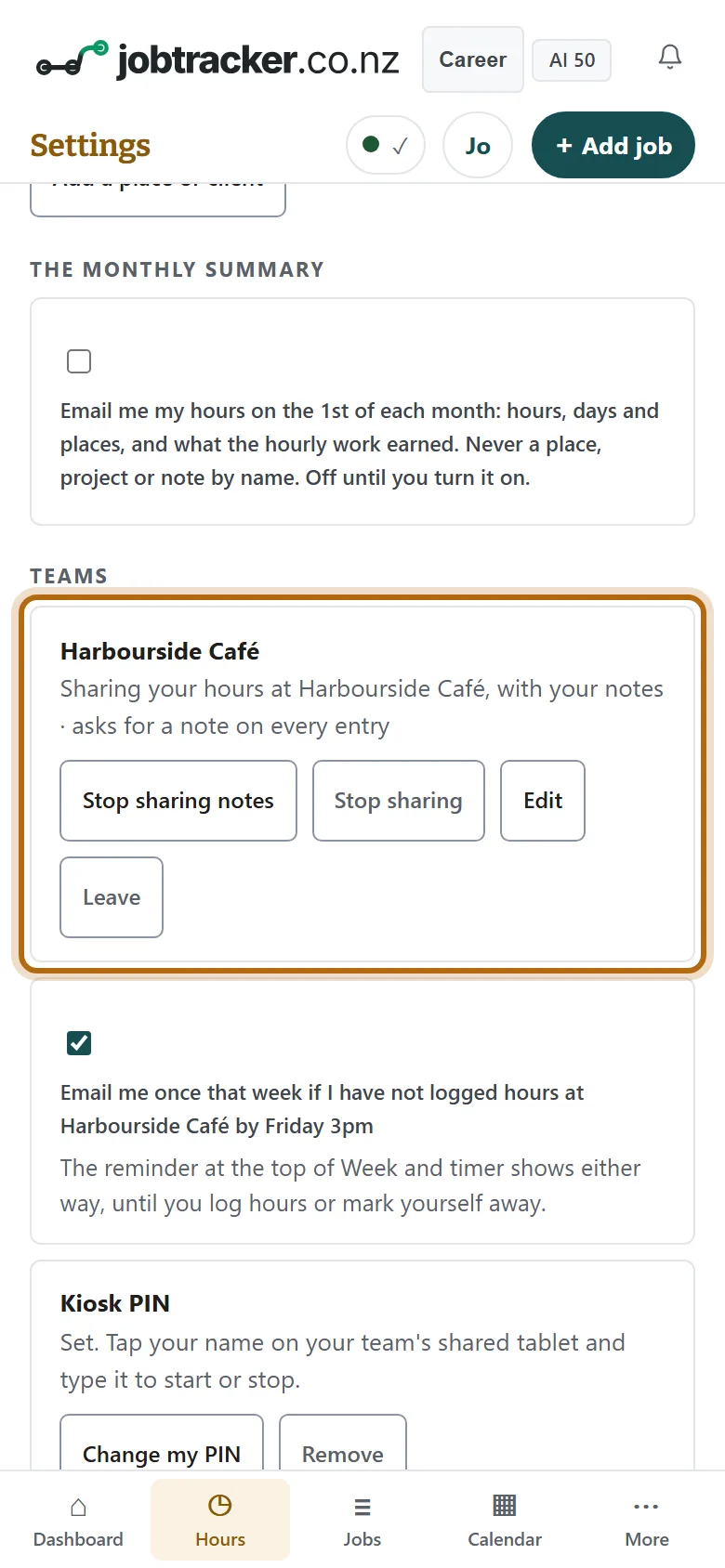
A Member has no Team page. Their side of the team is in the app, under Settings, then Teams: what they share, and the buttons to change it or leave. Somebody who runs the team has the same buttons in that box, under Your own hours.
What each role can see and do
| What | Owner | Admin | Approver | Member |
|---|---|---|---|---|
| The card, seats, invoices and closing the team | Yes | No | No | No |
| Transfer ownership | Yes | No | No | No |
| Invite people, withdraw invitations, remove people | Yes | Yes | No | No |
| Give or take away Admin and Approver | Yes | Yes | No | No |
| The team's projects: archive them, set budgets and task lists | Yes | Yes | No | No |
| Rename a team project or task, or merge a task into another | Yes | Yes | Ones they added | Ones they added |
| The setting that asks for a note on every entry | Yes | Yes | No | No |
| See the hours people share: the Team page and each person's week | Yes | Yes | Yes | No |
| Download the CSV and the team PDF, hours only | Yes | Yes | Yes | No |
| Download hours ready for your payroll, hours only | Yes | Yes | Yes | No |
| Money: rates, and value, cost and margin in a report | Yes | Yes | No | No |
| Approve or send back other people's periods, never their own | Yes | Yes | Yes | No |
| Turn approvals on, and limit an Approver to some projects | Yes | Yes | No | No |
| Set each person's usual hours, and the team's province | Yes | Yes | No | No |
| Add a team project or task from their own timesheet | Yes | Yes | If they share their hours | If they share their hours |
| See their own usual hours and the team's public holidays | Yes | Yes | Yes | Yes |
An Approver whom an Admin has limited sees, downloads and approves only their projects' hours. Whatever the role, nobody in the team sees the pay or rates a person keeps in their own account.
What happens next
- Everyone takes a seat, whatever their role, including an Owner or Admin who logs no hours.
- Roles are changed by the Owner or an Admin: see Make someone an Admin or an Approver. The Owner's role moves only by a transfer.
- Anyone whose role changes is told, by a notice and one email.
If it doesn't look like this
The Team page says This page ghosted you
You are a Member of that team, or not in it. Members have no Team page: your own hours and what you share are in the app.
An Admin cannot find Change the card
Billing belongs to the Owner alone. The Billing box names them.
An Approver sees fewer hours than expected
An Admin may have limited them to some projects. The paragraph near the top of their Team page says which.
From jobtracker.co.nz/how-to/team/the-four-roles · Screens checked 13 October 2026