

Make someone an Admin or an Approver, or change them back
Everyone joins a team as a Member unless they were invited as something else. This is how to give a person already in your team the Admin or Approver role, and how to take it away again.
- Who can do this
- The Owner or Admin
- What you need first
- The person already in your team. Somebody new can be invited straight in as an Admin or an Approver instead.
- How long it takes
- About a minute
Step 1: Open your Team page
In the app, under Your Timesheets, press Team page, the last item. On a phone it is in the list Hours opens, or under More. On the website, signed in, Team is at the top of the page or in its menu.
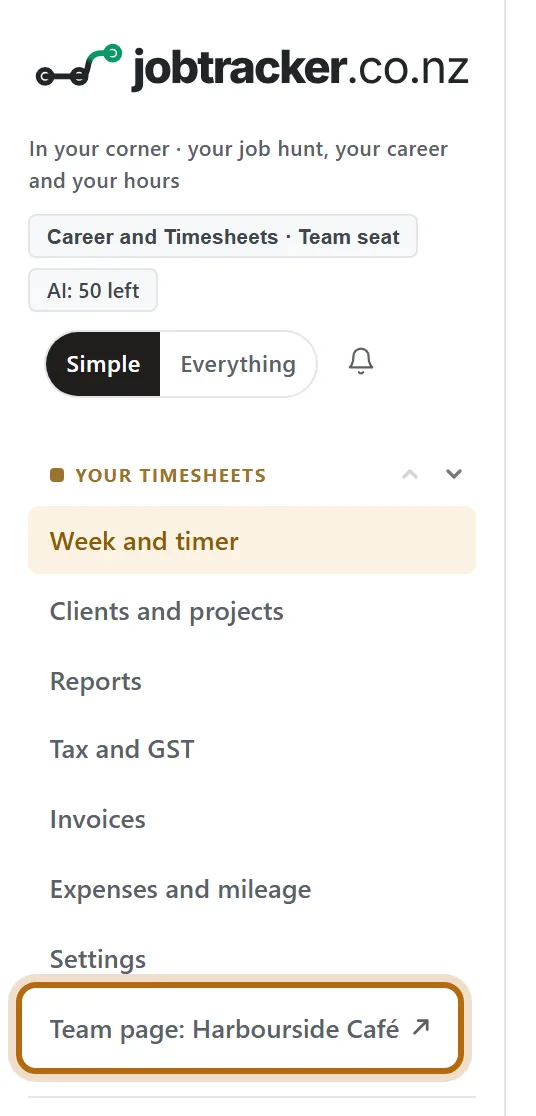
In each picture, the thing to press or read has a ring around it. Tap a picture to see it full size.
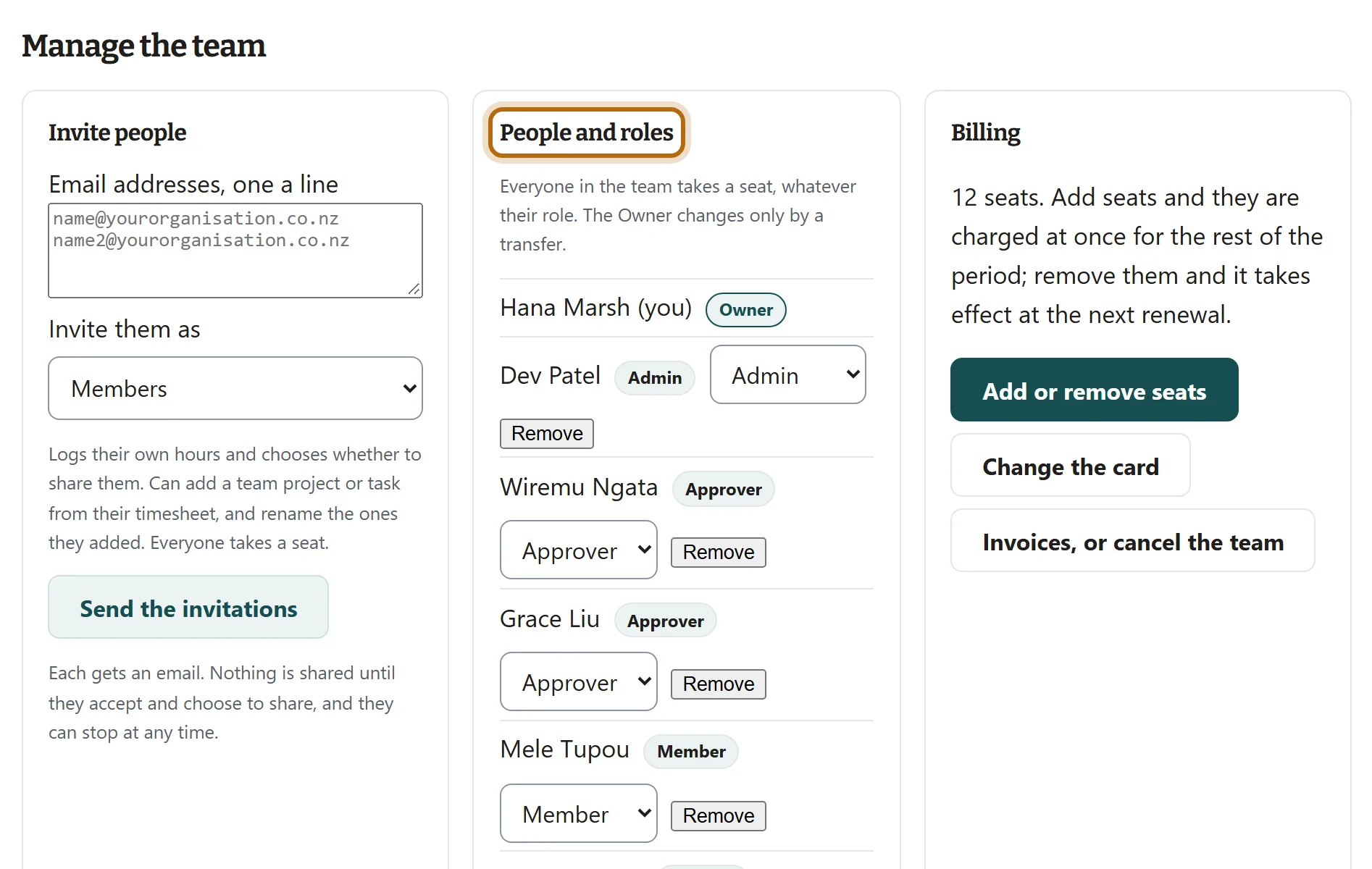
Step 2: Go down to Manage the team, and find People and roles
Manage the team is near the bottom of the page. People and roles lists everyone in the team, each with the role they hold now.
Step 3: Choose the new role in the box beside their name
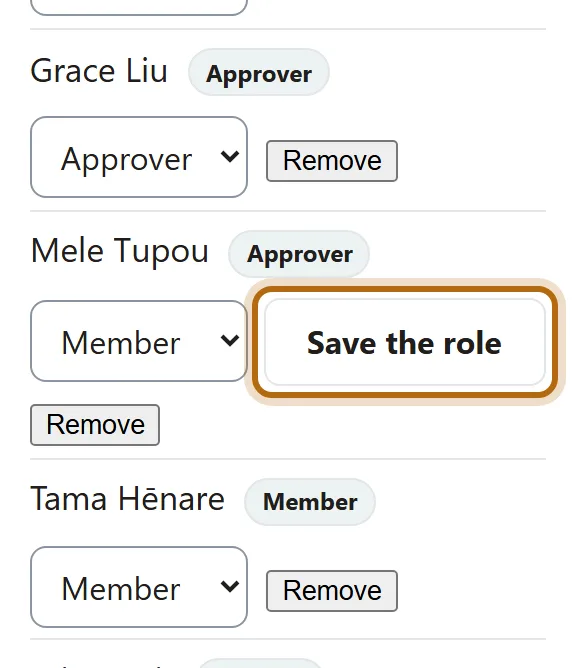
Each box offers Admin, Approver and Member. Choose one, and a Save the role button appears beside the box. Nothing has changed yet.
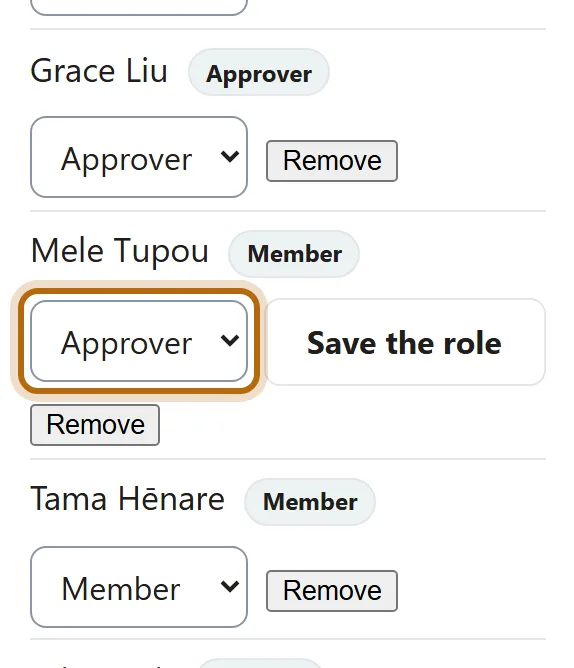
Step 4: Press Save the role
At the top of Manage the team the page says Mele Tupou is now an Approver. They have been told. A moment later the page loads again, from the top.

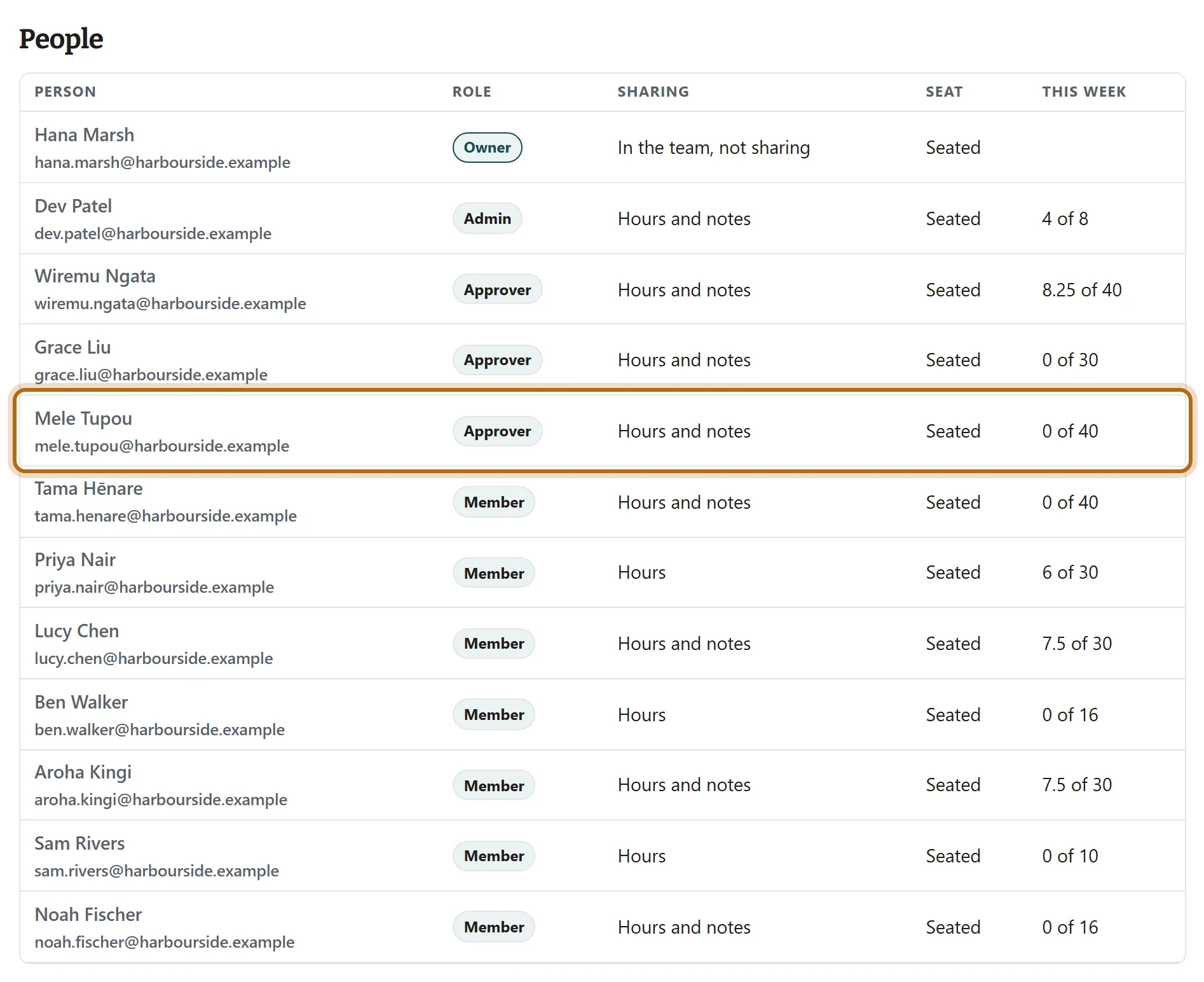
Step 5: Check the People table
Under People, the person's new role is beside their name. Rest the pointer on a role for one line about what it can do.
Step 6: What the person sees
The next time they open their Team page, a notice says Your role in Harbourside Café has changed: you are now an Approver, with what the role can do. It stays until they press Got it. They also get one email saying the same.

Step 7: To change them back, choose Member and save again
The same box takes a role away. Choose Member, then press Save the role. The person is told in the same two ways.
What happens next
- Only that person is told: the notice, and one email to their own address. Somebody made a Member no longer has a Team page, so their notice is on Your teams, at jobtracker.co.nz/team.
- Nothing else about them changes: their seat, their own hours and what they share with the team stay exactly as they were.
- An Approver approves everybody's time but their own. To narrow that, see Limit an Approver to certain projects.
- What each role can and cannot do is in The four roles side by side.
If it doesn't look like this
There is no role box beside the Owner
The Owner's role changes only when they transfer ownership to someone else. A team always has exactly one Owner.
There is no Save the role button
It appears only while the box shows a different role from the one the person holds now.
It asks Make yourself a Member?
An Admin can change their own role. The browser asks first, because you will no longer see this page until the Owner or an Admin changes it back. As an Approver you would only see the hours.
Manage the team is not on the page
You are an Approver, who sees the hours and none of the controls. Only the Owner or an Admin can change roles.
From jobtracker.co.nz/how-to/team/make-someone-admin-or-approver · Screens checked 13 October 2026