

Transfer ownership to someone else
A team has exactly one Owner, the person who pays for it. This is how the Owner hands the team to somebody else in it, and what that changes.
- Who can do this
- The Owner
- What you need first
- The new Owner already in your team, in any role. You will type the team's name to confirm.
- How long it takes
- About 2 minutes
Step 1: Open your Team page
In the app, under Your Timesheets, press Team page, the last item. On a phone it is in the list Hours opens, or under More. On the website, signed in, Team is at the top of the page or in its menu.
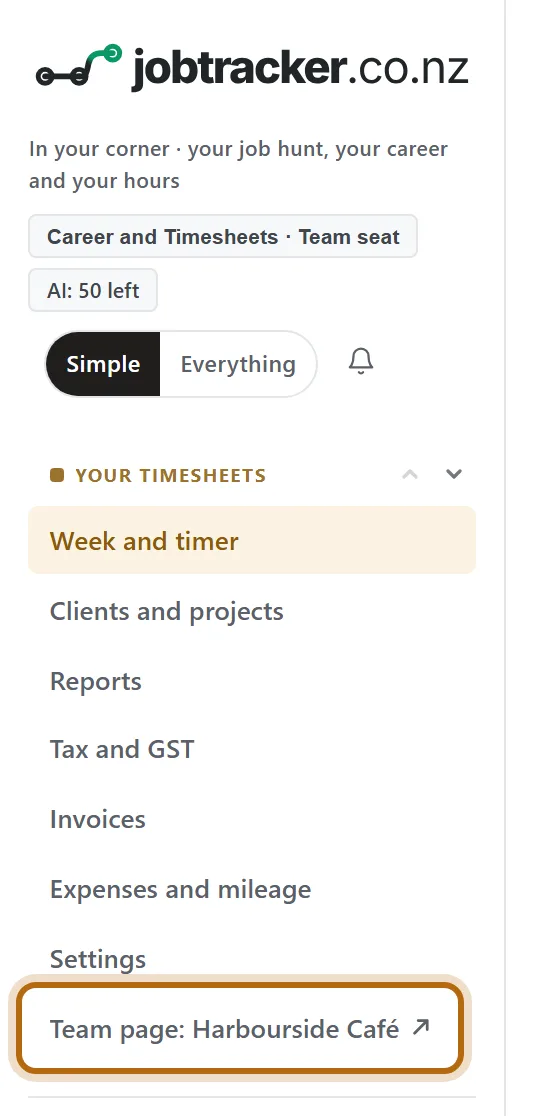
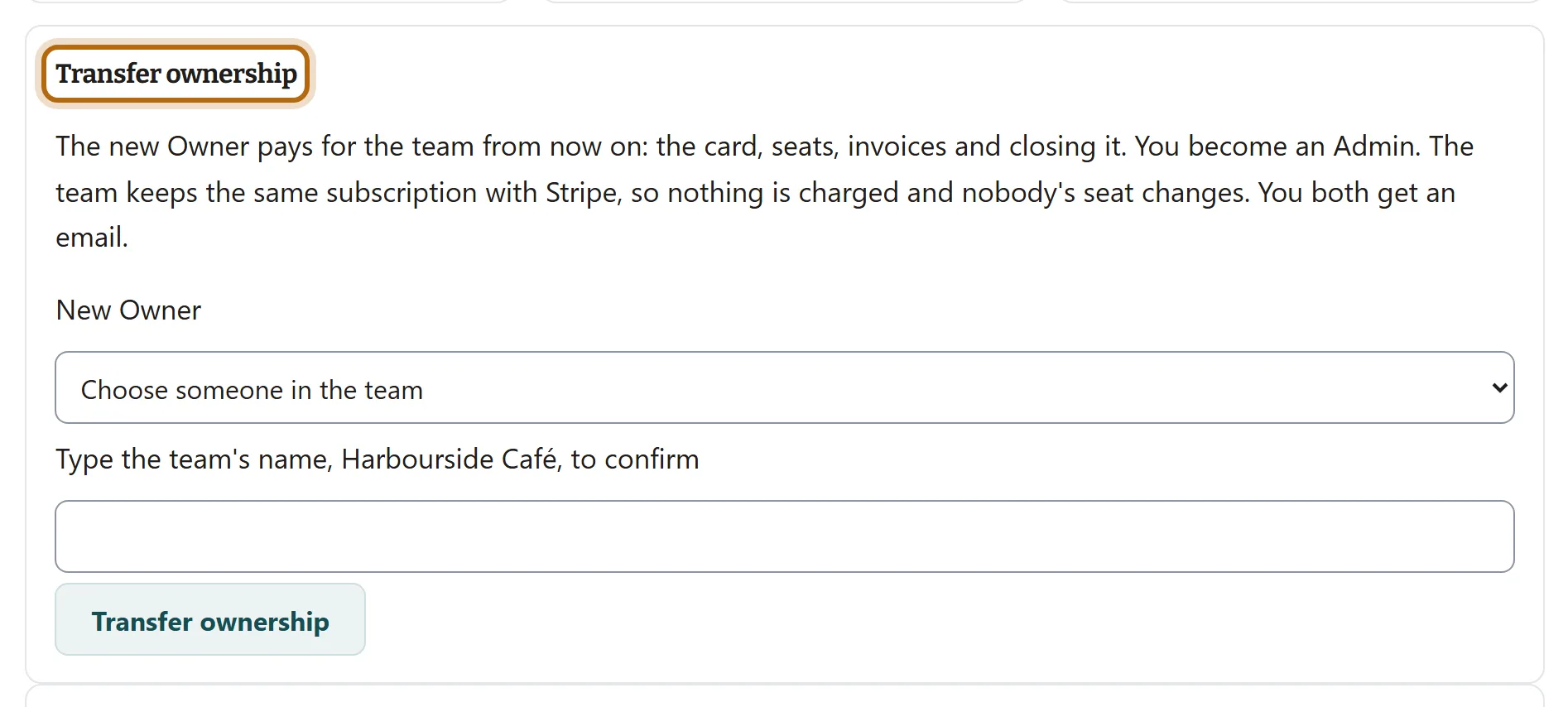
In each picture, the thing to press or read has a ring around it. Tap a picture to see it full size.
Step 2: Go down to Transfer ownership
It is under Manage the team, below the boxes for inviting, roles and billing. Only the Owner has this box. Read what it says before you go on.
Step 3: Choose the new Owner
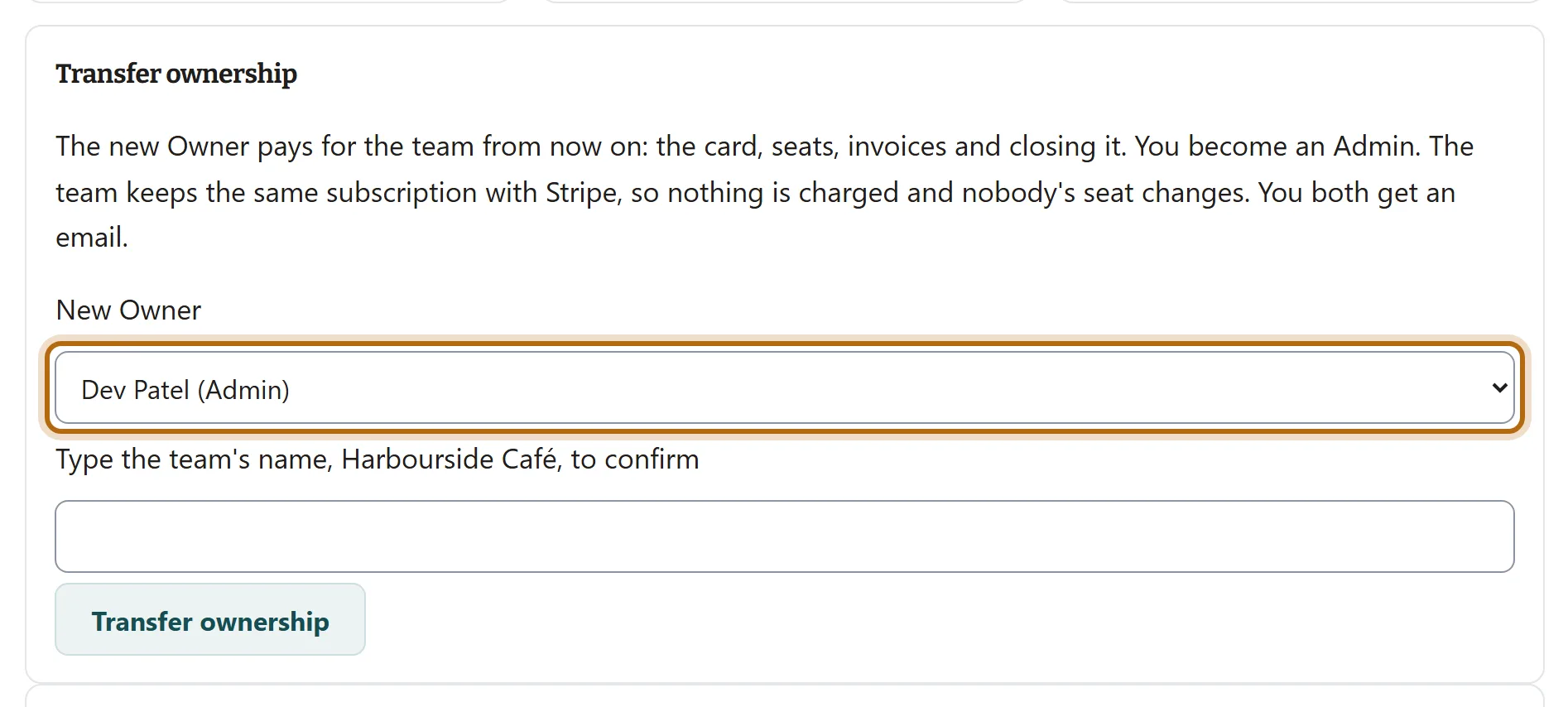
Under New Owner, choose the person. The list is everyone in the team but you, each with the role they hold now.
Step 4: Type the team's name to confirm
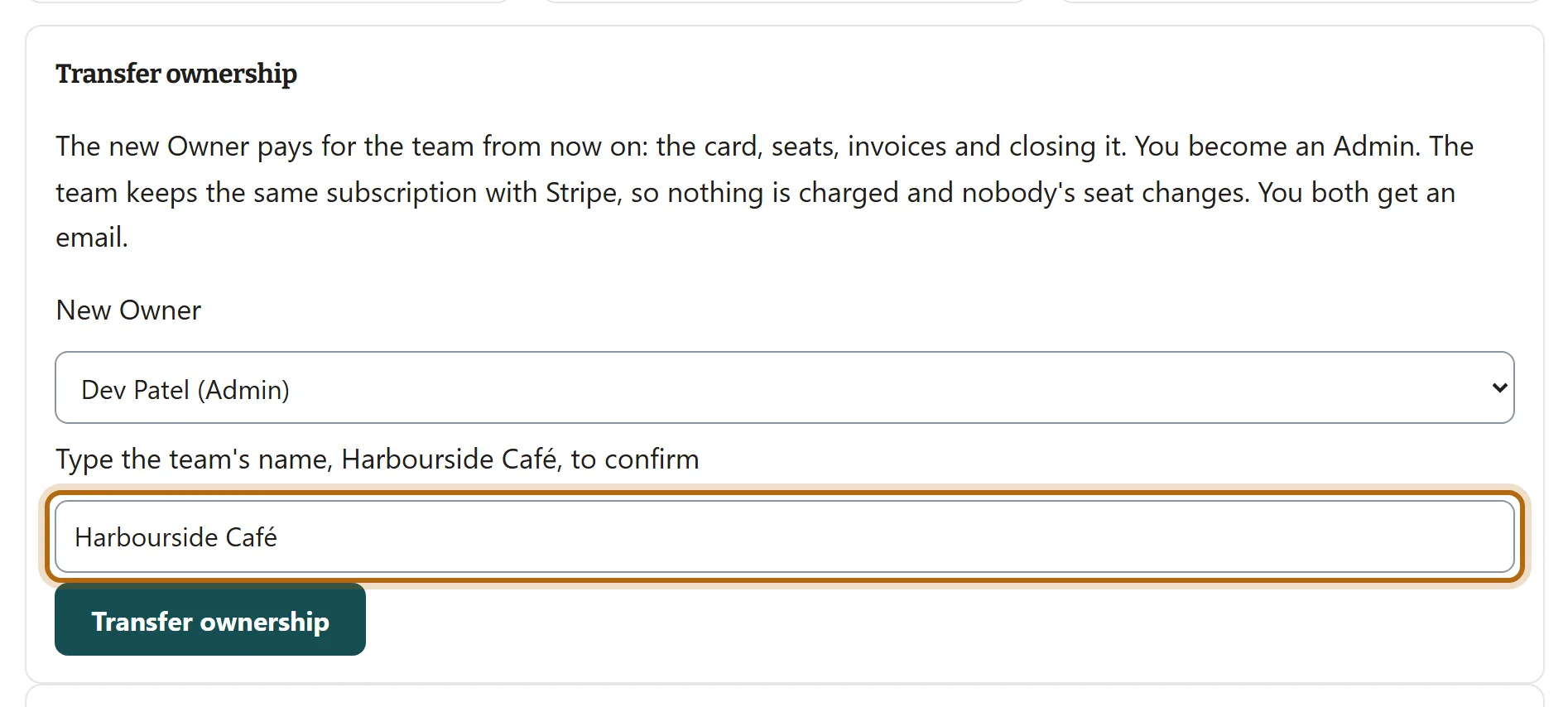
Type the name as the label spells it. Capital letters do not matter. Once it matches, Transfer ownership can be pressed.
Step 5: Press Transfer ownership
At the top of Manage the team the page says it is done, and a moment later it loads again. There is no further question, and no undo: only the new Owner can hand the team back.

Step 6: What you see afterwards
You are an Admin. Billing no longer has buttons for you: it names the new Owner. The Transfer ownership box has gone.
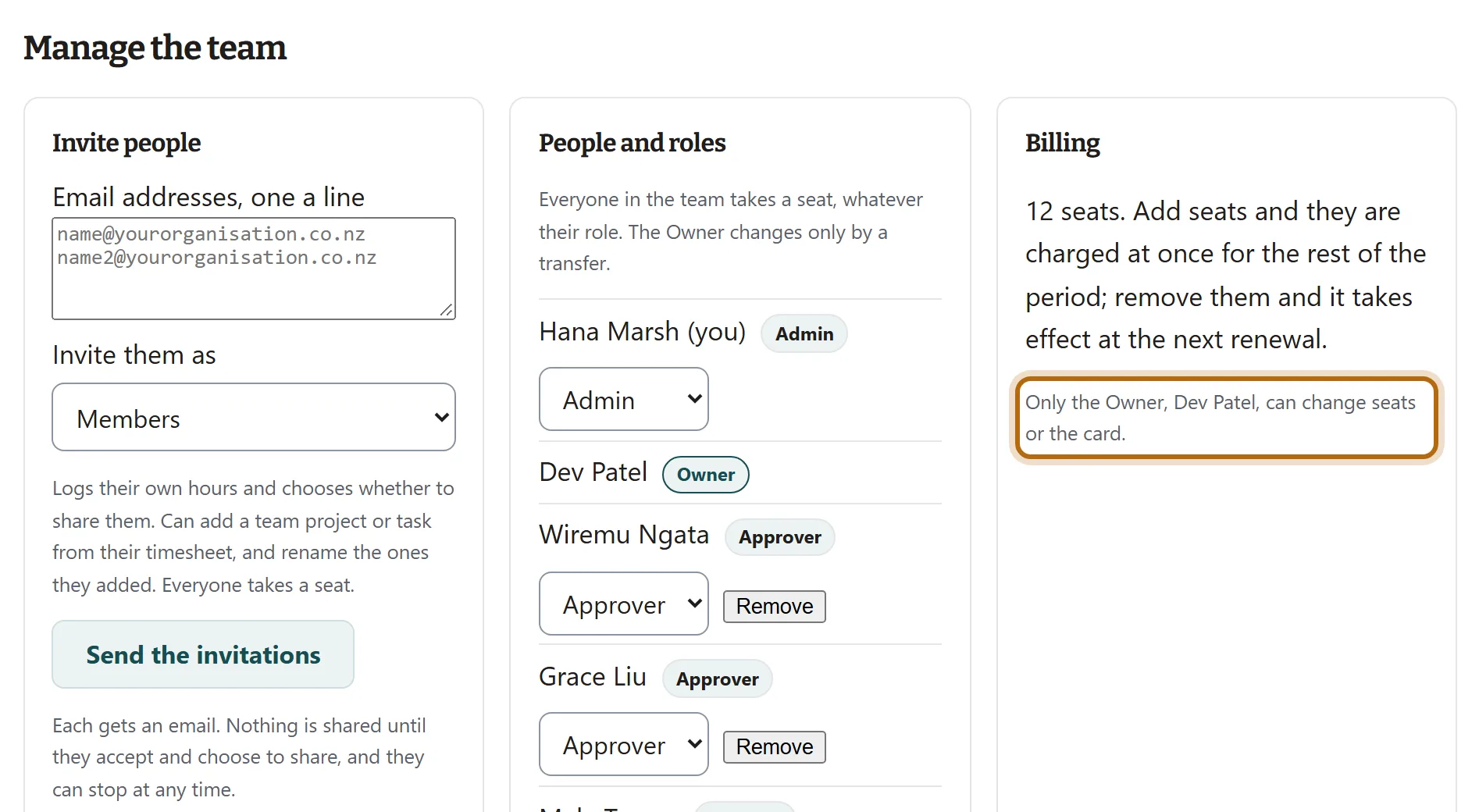
Step 7: What the new Owner sees
A notice on their Team page says you are now the Owner, until they press Got it. You each get one email about your own new role.

What happens next
- Billing moves to the new Owner. From now on only they can press Add or remove seats, Change the card and Invoices, or cancel the team.
- Stripe's receipts and invoices go to the new Owner's email address from now on.
- What does not change: the subscription, the price, the renewal date, the number of seats and everybody's seat. Nothing is charged. The card Stripe holds for the team stays as it is until the new Owner changes it.
- Nobody else is told. Only the two of you get the notice and the email.
If it doesn't look like this
Transfer ownership cannot be pressed
Choose a New Owner, then type the team's name as the label spells it. Capitals do not matter, but an accent or a macron does: Café needs its é.
It says Invite the person who will take over first
You are the only person in the team. Ownership goes only to someone already in it, so invite them and wait until they have accepted.
There is no Transfer ownership box
You are not the Owner. Under Billing, the page names who is.
Leave says You are the team's Owner
The Owner cannot leave or be removed. Transfer ownership first. As an Admin you can then leave: in the app, under Settings, Teams, Leave is in the team's box, under Your own hours.
From jobtracker.co.nz/how-to/team/transfer-ownership · Screens checked 13 October 2026