

Remove a person, and what the team keeps
When somebody stops working with you, the Owner or an Admin removes them from the team. This is how, and exactly what the team keeps, what the person keeps and what happens to their seat.
- Who can do this
- The Owner or Admin
- What you need first
- Nothing. Removing takes effect at once, so download anything you want with their notes on it first.
- How long it takes
- About a minute
Step 1: Open your Team page
In the app, under Your Timesheets, press Team page, the last item. On a phone it is in the list Hours opens, or under More. On the website, signed in, Team is at the top of the page or in its menu.
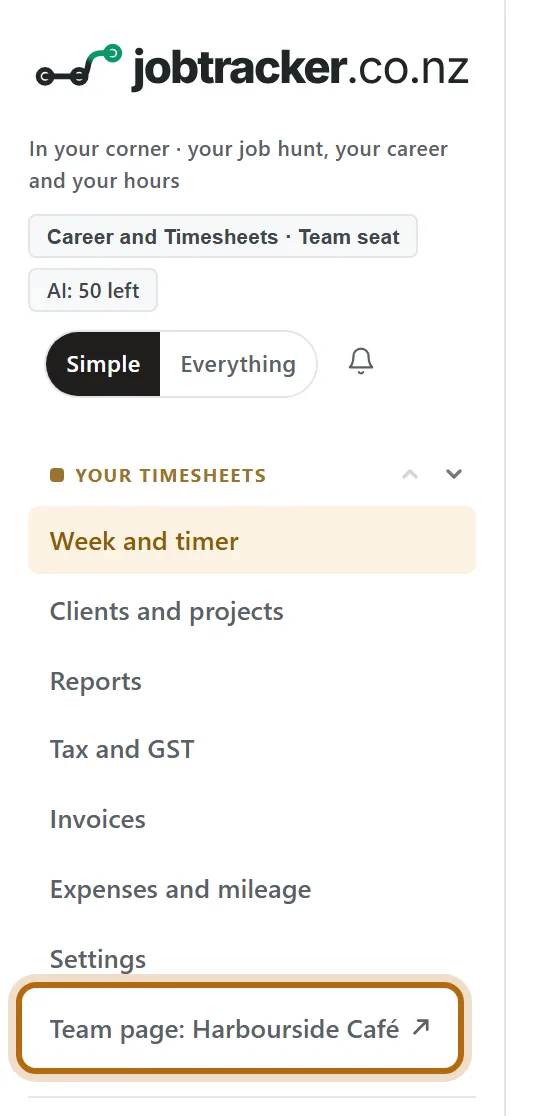
In each picture, the thing to press or read has a ring around it. Tap a picture to see it full size.
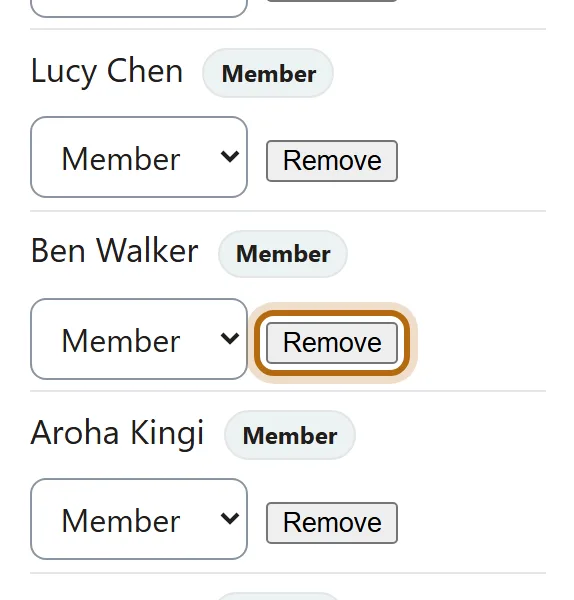
Step 2: Under People and roles, press Remove beside their name
People and roles is under Manage the team. Everybody but you and the Owner has a Remove button.
Step 3: Read the question, then press OK
Your browser asks: Remove Ben Walker? Their seat returns to the team, and the team keeps a read-only copy of the hours they shared, without notes. The box is the browser's own, so it has no picture here. Cancel changes nothing.
Step 4: The page says Removed
Removed. shows at the top of Manage the team, and a moment later the page loads again without them.

Step 5: Their seat is free again
The line under the team's name counts one person fewer, and the same number of seats. If somebody was Waiting for a free seat, the seat goes to them.

Step 6: Their hours stay on the Team page, as a kept copy
Choose a period they worked in and press Show. Under By person, project and task they are now marked kept copy, removed, with the same hours as before.

What happens next
- What the team keeps: a copy of the hours the person shared: each entry's date, start, finish and break, hours, project and task. Never a note, even where they shared their notes. We keep it for seven years from the date of each entry, or until 90 days after the team closes if that comes first.
- What the person keeps: everything in their own account, their notes included, on the free plan. The team's projects in their timesheet become theirs to rename or delete. The plan the team paid for ends; a plan they pay for themselves carries on.
- What happens to the seat: it returns to the team, and the team goes on paying for it. To pay for fewer, the Owner uses Add or remove seats under Billing, which takes effect at the next renewal.
- Who is told: nobody. The person gets no email or notice from jobtracker.co.nz; the team is simply gone from their Settings. Any Admin or Approver role they held goes with them.
If it doesn't look like this
There is no Remove beside your own name
Nobody removes themselves here. To go yourself, open the app, then Settings, Teams: Leave is in the team's box, under Your own hours.
There is no Remove beside the Owner
The Owner hands ownership to someone else first, and can then be removed. See Transfer ownership to someone else.
The person is not in People and roles
They have not accepted their invitation yet. They are listed under Invite people, marked invited: press Withdraw there.
There is no kept copy for them
A copy is kept only of hours the person shared. Somebody who was in the team without sharing leaves nothing behind.
From jobtracker.co.nz/how-to/team/remove-a-person · Screens checked 13 October 2026