

Submit your hours for a period
When your team uses approvals, you send your hours for each period, and somebody else approves them. This is how to send a period, on a phone or a computer.
- Who can do this
- The Member
- What you need first
- To be sharing your hours with a team that uses approvals, with the period's hours logged.
- How long it takes
- About a minute
Step 1: Open Week and timer
In the app, under Your Timesheets, press Week and timer. On a phone, press Hours at the bottom, then Week and timer. When a period is waiting to be sent, a count such as 1 to send sits beside Your Timesheets.
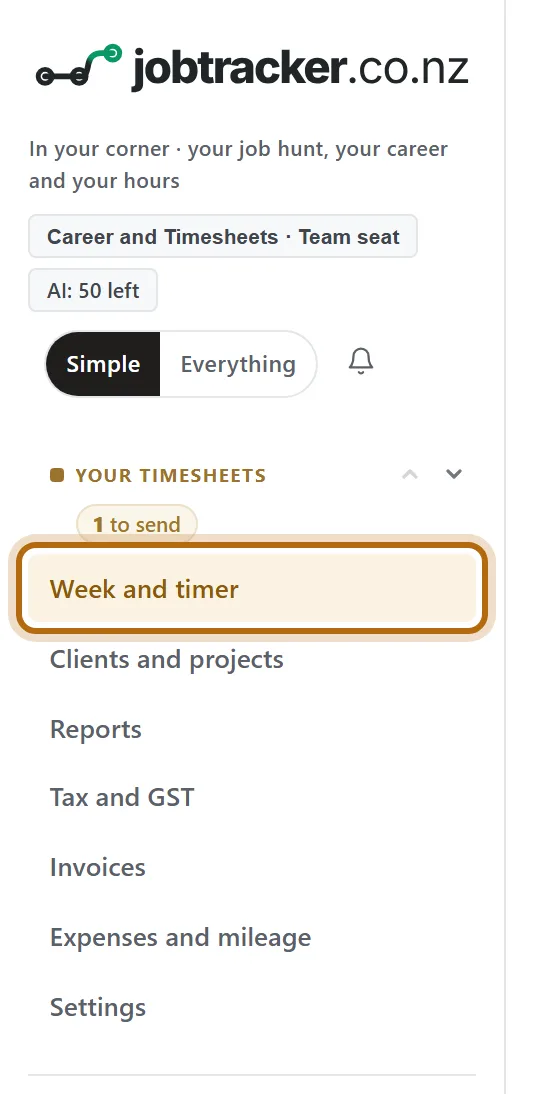
In each picture, the thing to press or read has a ring around it. Tap a picture to see it full size.
Step 2: Find A timesheet to send
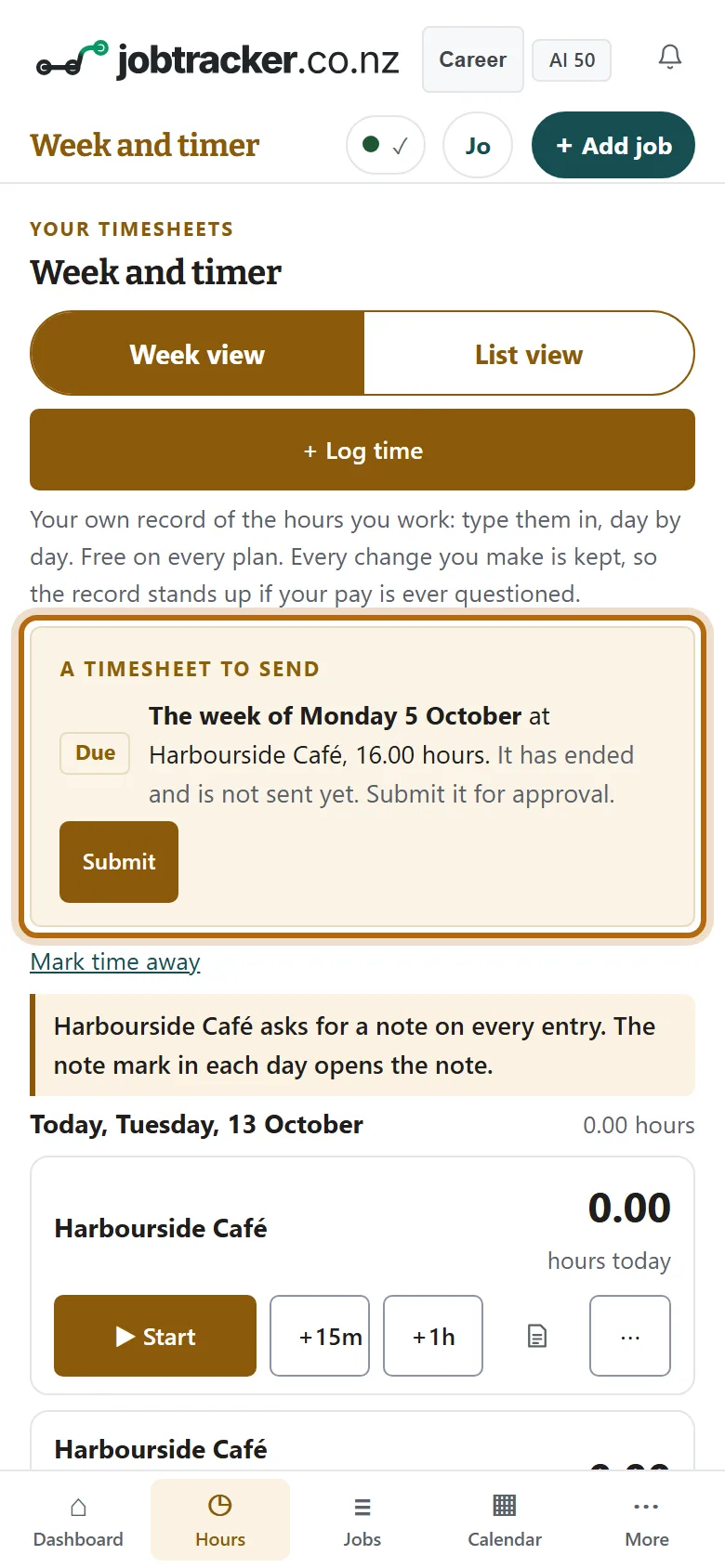
At the top of the page, a box lists each period that needs sending. Due means the period has ended and is not sent yet. It names the period, the team and the hours.
Step 3: Look over the period's hours
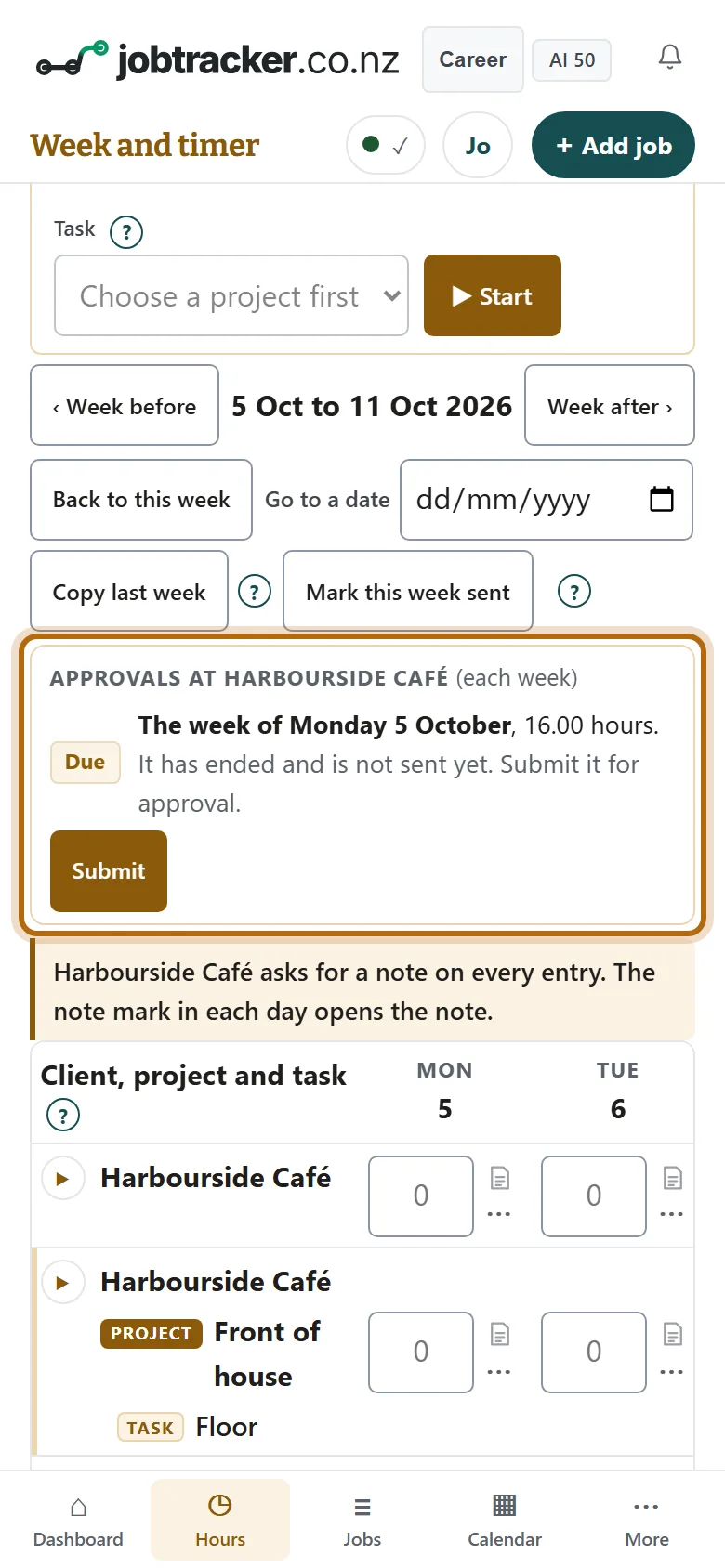
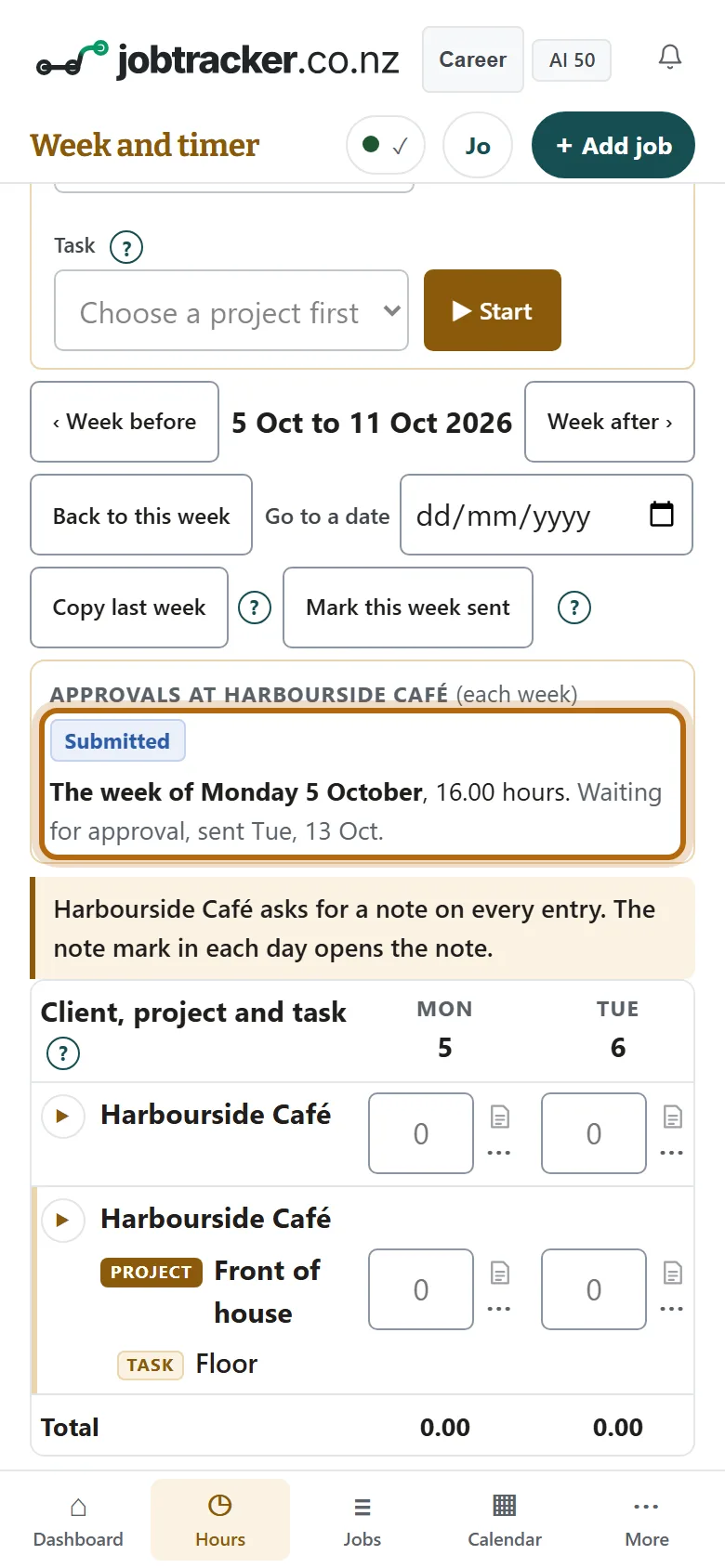
To see the week itself, press See the whole week, then Week before. Under the dates, Approvals at your team shows the same period, above the hours you logged.
Step 4: Press Submit
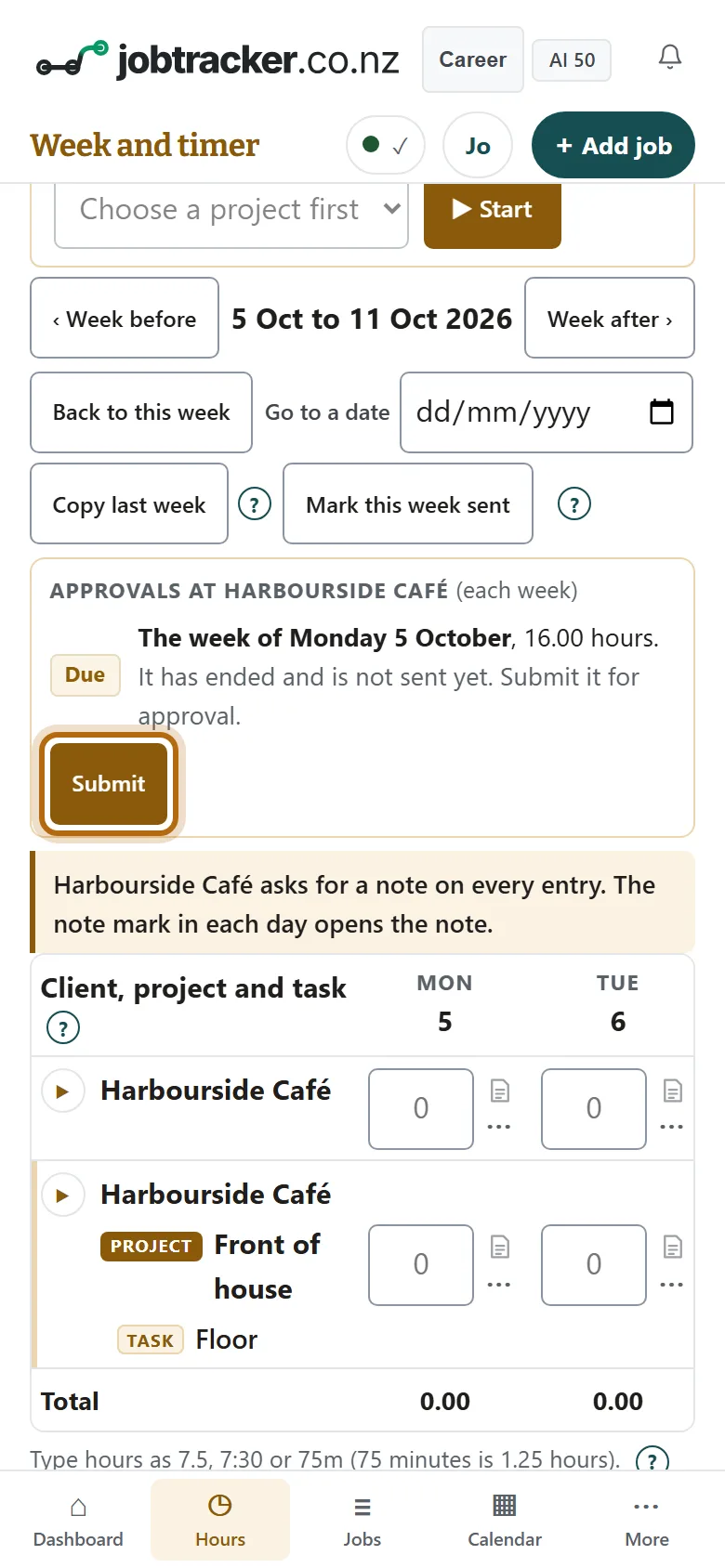
Your browser asks first: Submit the week of Monday 5 October to Harbourside Café for approval? 16.00 hours, as they are now. Press OK.
Step 5: The period now says Submitted
A line at the bottom confirms it, and the period's label changes from Due to Submitted, with Waiting for approval and the day you sent it. The box at the top of the page has gone.
Step 6: A period still going says Open
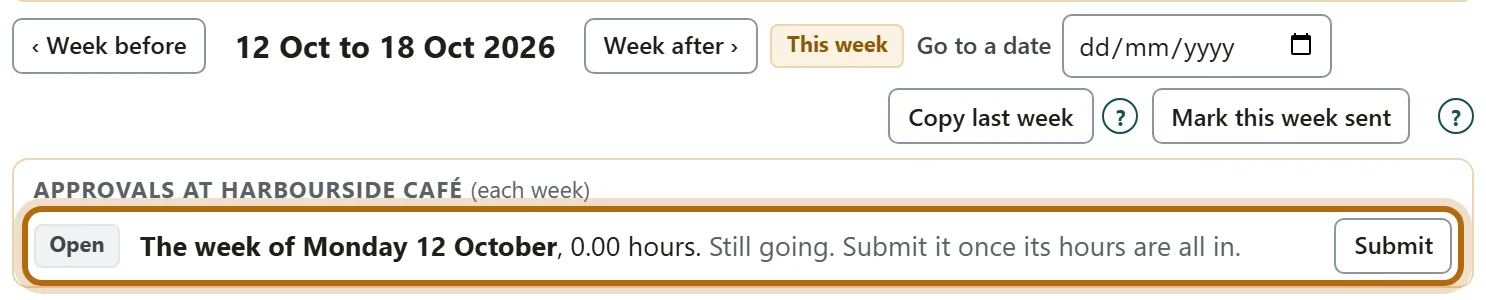
You do not have to wait for a period to end. This week's period is marked Open, with its own Submit button: press it once the period's hours are all in.
What happens next
- Whoever approves your time sees the period on their list. They approve it, or send it back with a reason.
- You can still change an entry while the period waits. The change shows to whoever approves it.
- If a period ends and you have not sent it, you get one reminder email the next morning, and it stays marked Due.
If it doesn't look like this
There is no Approvals box and no Submit
Your team does not use approvals, or you are not sharing your hours with it. Sharing is in Settings, under Teams: in the team's box press Share my hours, or Edit if you have not chosen a place yet.
The label says Before approvals
Those hours are from before your team began using approvals. They need nothing.
It says the period is already waiting for approval
It was sent before, perhaps from another device. Nothing more is needed.
It says It was not submitted
The app could not reach the server, and nothing has changed. Check your connection and press Submit again.
From jobtracker.co.nz/how-to/team/submit-your-hours · Screens checked 13 October 2026