

Turn approvals on and pick weekly, fortnightly or monthly
Approvals are off until you turn them on. With them on, each person sends their hours for a period, and somebody else approves them or sends them back. This is how to turn them on and choose the period.
- Who can do this
- The Owner or Admin
- What you need first
- A team. Nothing else: approvals are part of every Team seat.
- How long it takes
- About 2 minutes
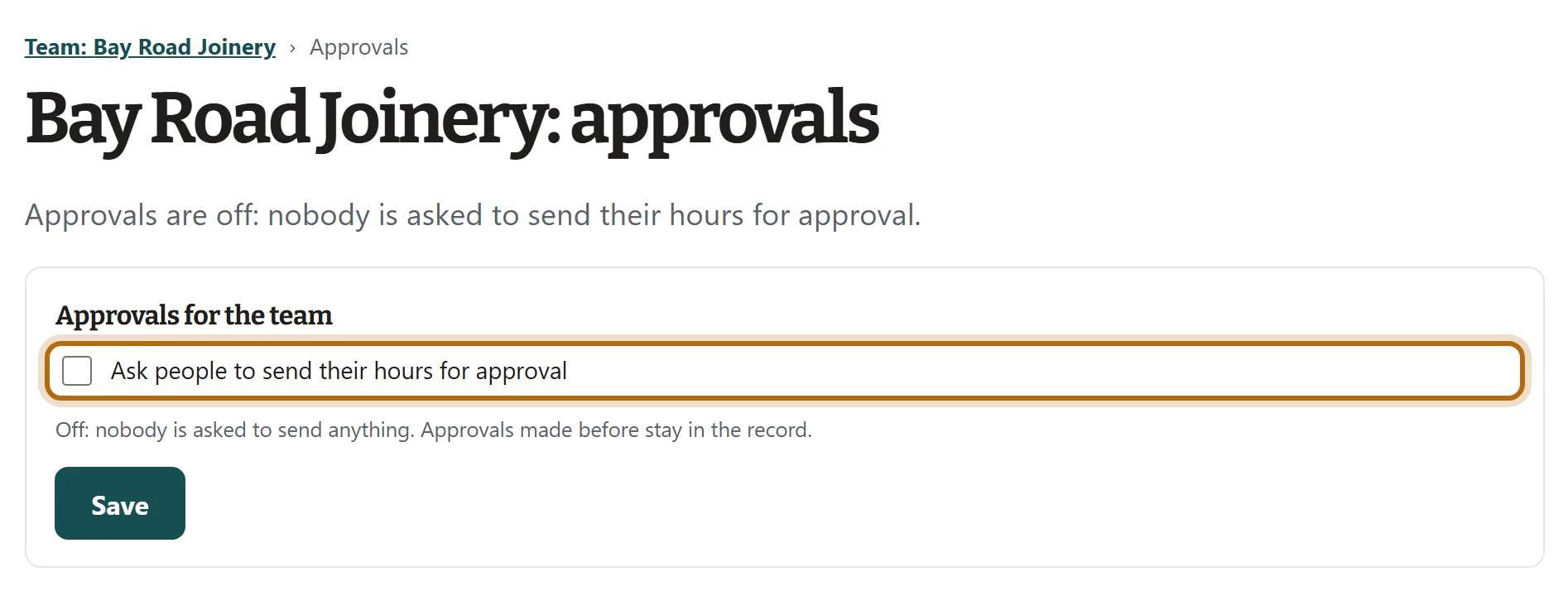
Step 1: On your Team page, press Approvals (off)
To open your Team page, press Team page under Your Timesheets in the app, or go to jobtracker.co.nz/team. The button is in the row under your own seat, beside Rates and billable. While approvals are off it reads Approvals (off).

In each picture, the thing to press or read has a ring around it. Tap a picture to see it full size.
Step 2: Tick Ask people to send their hours for approval
The page says Approvals are off. In the box Approvals for the team, tick Ask people to send their hours for approval. Nothing changes until you press Save.
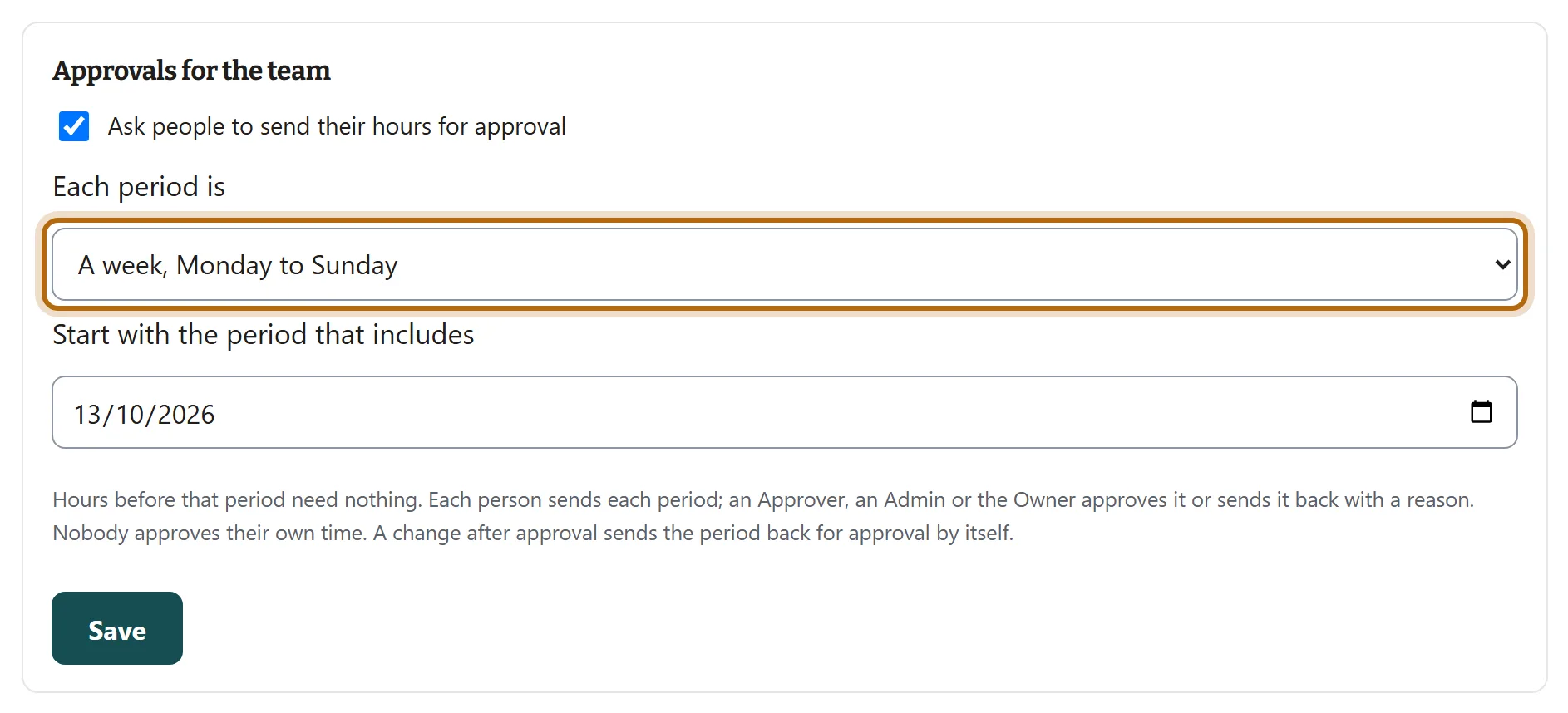
Step 3: Choose how long each period is
Under Each period is, choose A week, Monday to Sunday, A fortnight or A calendar month.
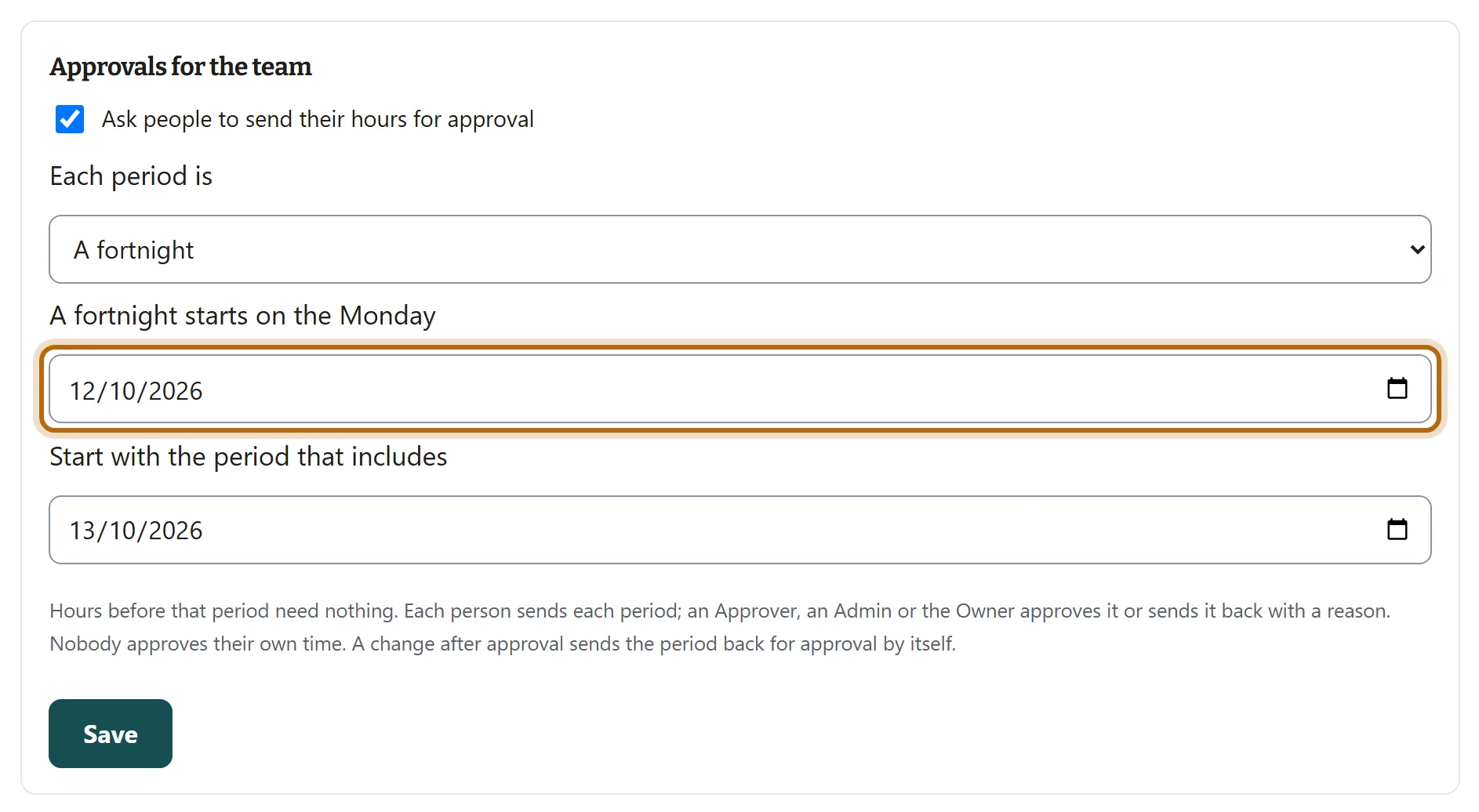
Step 4: For a fortnight, pick the Monday it starts on
Choosing A fortnight adds one more box: A fortnight starts on the Monday. Pick any Monday that begins one of your fortnights; every fortnight is counted from it.
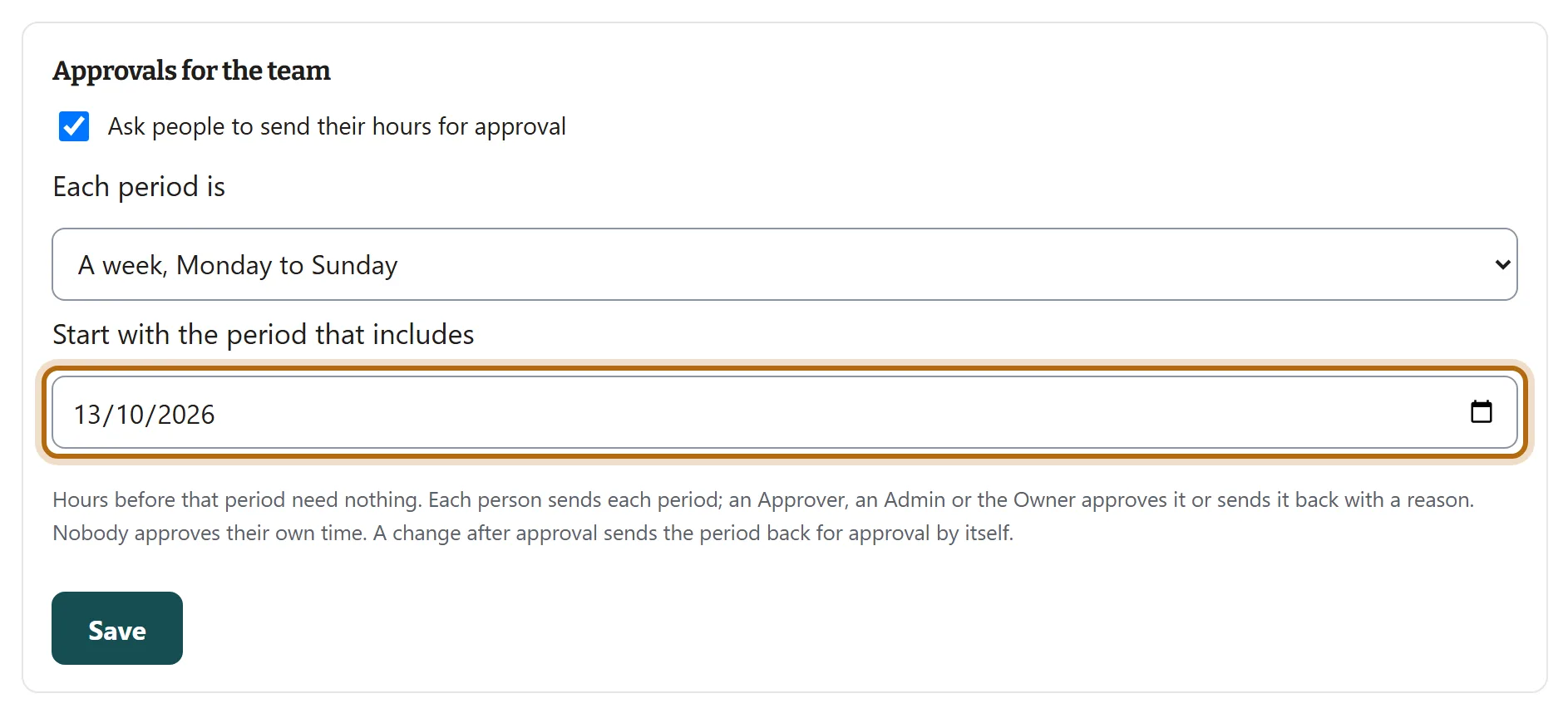
Step 5: Pick the date approvals start from
Under Start with the period that includes, pick a date. The period that date falls in is the first one people send. Hours before that period need nothing.
Step 6: Press Save
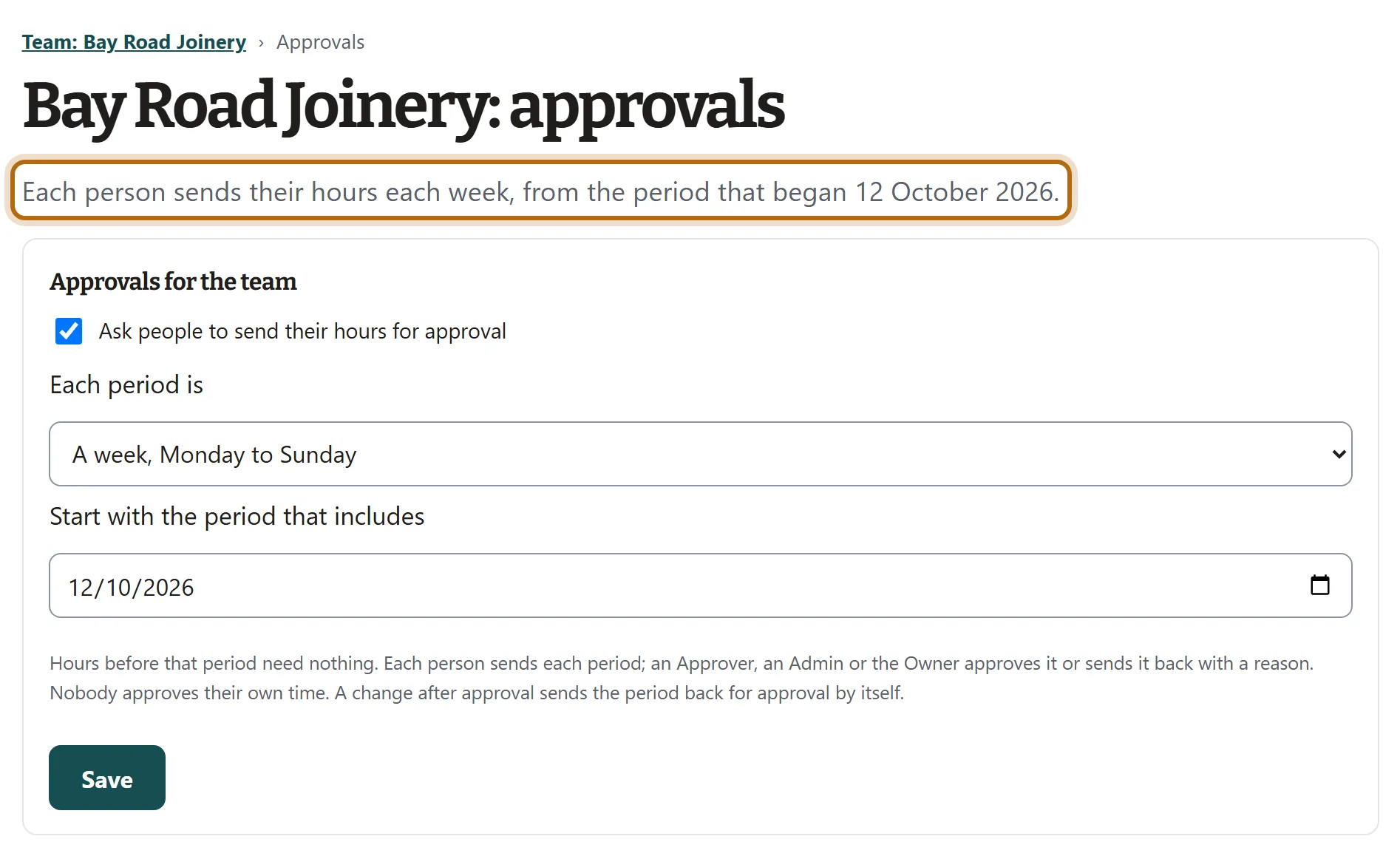
The page says Approvals are on. Its top line then names the period and the day the first one began: Each person sends their hours each week, from the period that began 12 October 2026.
What happens next
- Each person's app shows the period on Week and timer, with a Submit button. A period that has ended unsent is marked Due, and they get one reminder email the morning after it ends.
- Whoever approves gets one email on any morning something is waiting, and the count on the Team page's Approvals button.
- To turn approvals off, untick the box and press Save. Approvals made before stay in the record.
- With approvals on, an invoice takes only approved billable hours, and billable hours from before approvals started.
If it doesn't look like this
There is no Approvals for the team box
You are an Approver. Only the Owner and Admins turn approvals on or off.
It says A fortnight starts on a Monday: pick a Monday
The date in the fortnight box is another day of the week. Pick a Monday.
It says Periods up to a date were already sent under the old setting
You are changing the length of the period, and people have already sent periods of the old length. Start the new one after the date it names.
It says Pick the date approvals start from
The start date is empty. Pick one and press Save again.
From jobtracker.co.nz/how-to/team/turn-approvals-on · Screens checked 13 October 2026